Turn Ratio Calculator
Introduction
The Option Calculator could not accommodate complex multi-turn actions, so this Turn Ratio Calculator was created.
This calculator can:
- Define multi-turn character actions, including skills and various buffs.
- Calculate the final damage for each turn and the total damage.
- Determine the most accurate optimal SubStat ratio based on your setup.
- Compare damage growth between current stats and the optimized ratio.
Quick Start
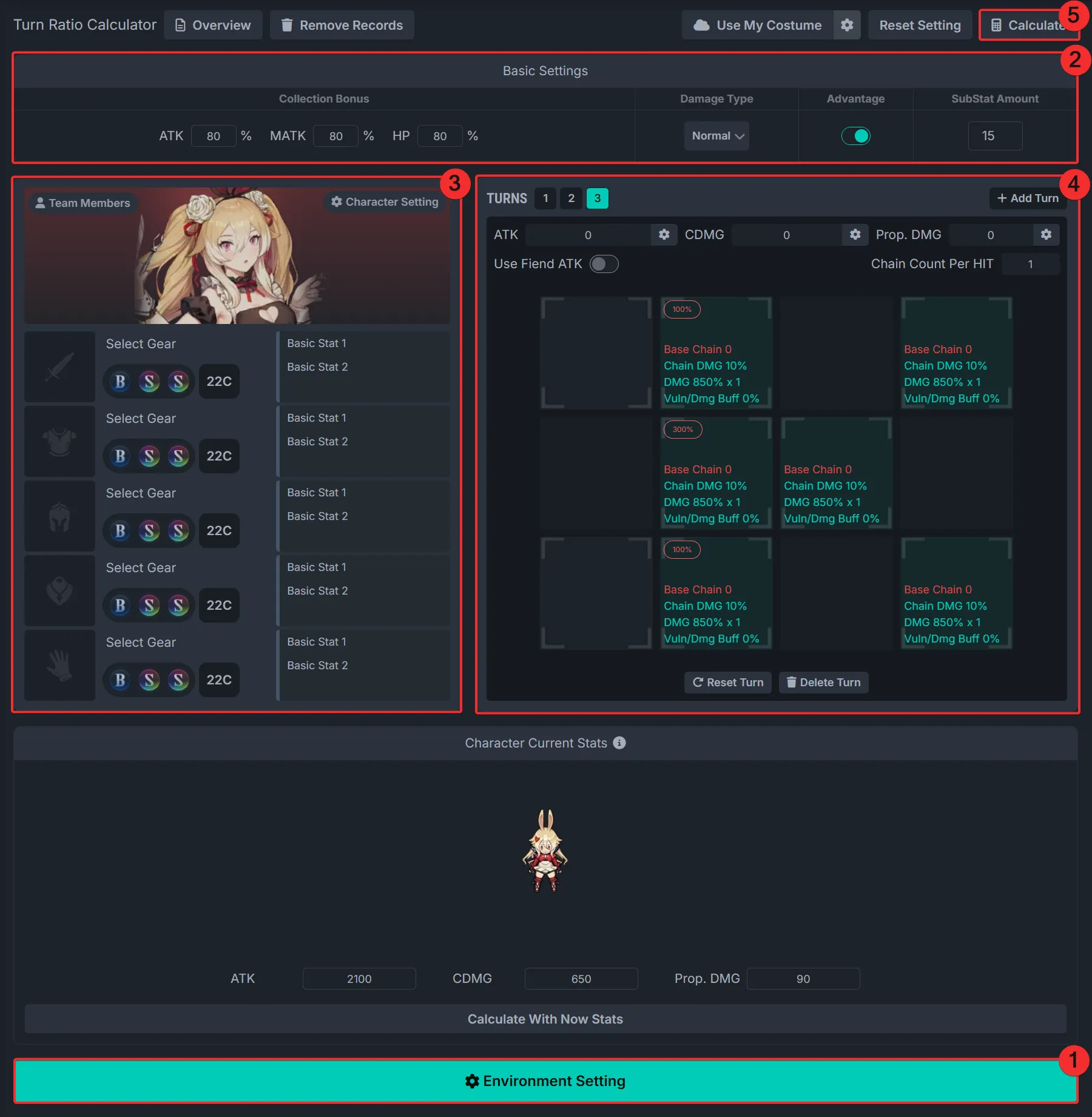
- Configure the environment settings: battlefield layout and enemy placement.
- Set basic parameters (collection bonuses, damage type, elemental advantage, SubStat count).
- Select your character and configure details (costume, imprints, awakening, etc.).
- Set the logic for each turn: skill choice, attack range, and so on.
- Click the “Start Calculation” button to begin automatic ratio optimization.
Once complete, results will include:
- Optimal Equipment Set: Recommended equipment setup
- Costume Binding Suggestion: Best costume to bind
- SubStat Distribution: Ideal allocation of ATK, ATK%, Crit DMG
- Damage Report: Per-turn and total damage breakdown
1. Environment Settings
Before proceeding, you must configure the environment.
Without this step, character and turn settings cannot be made.
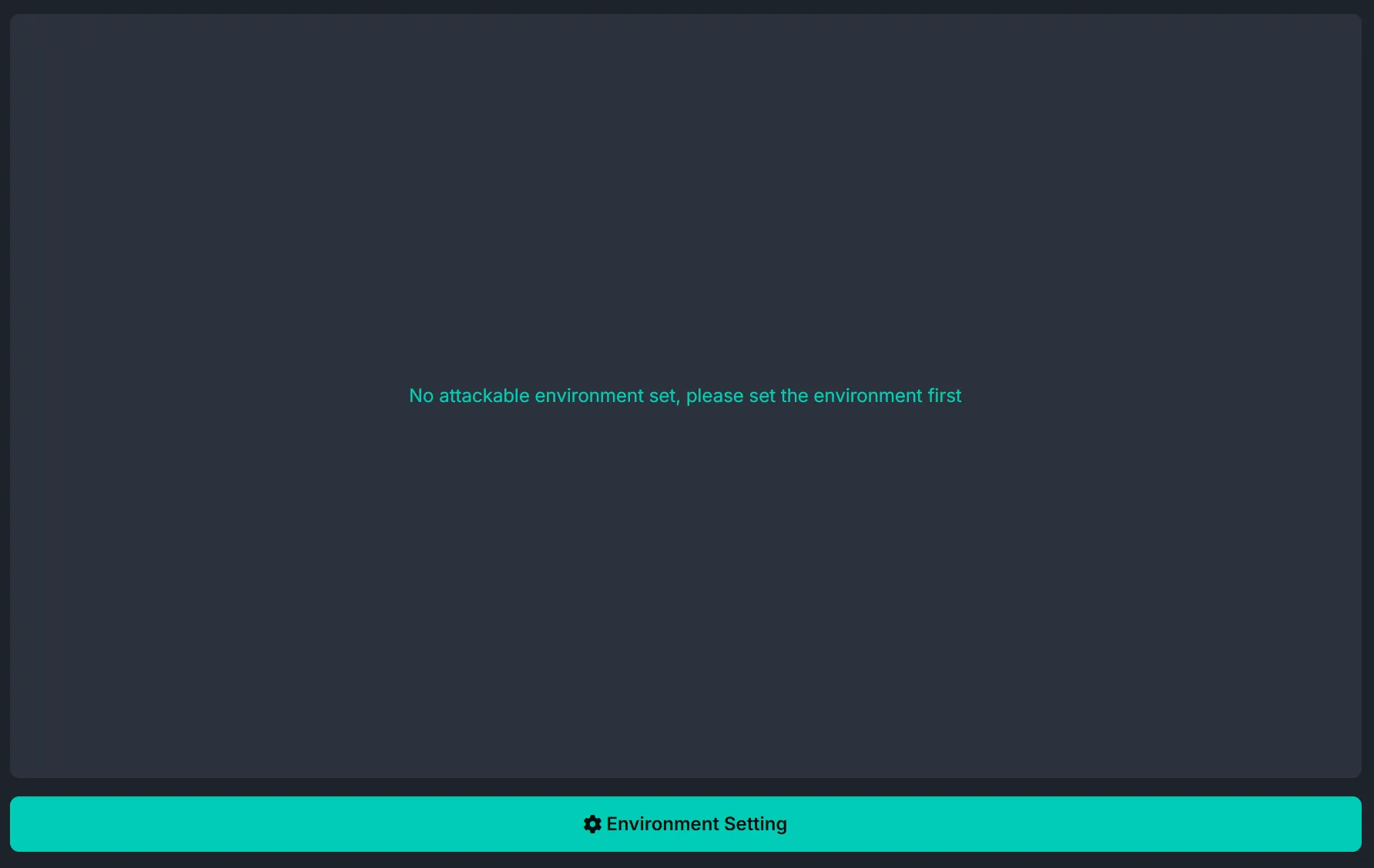
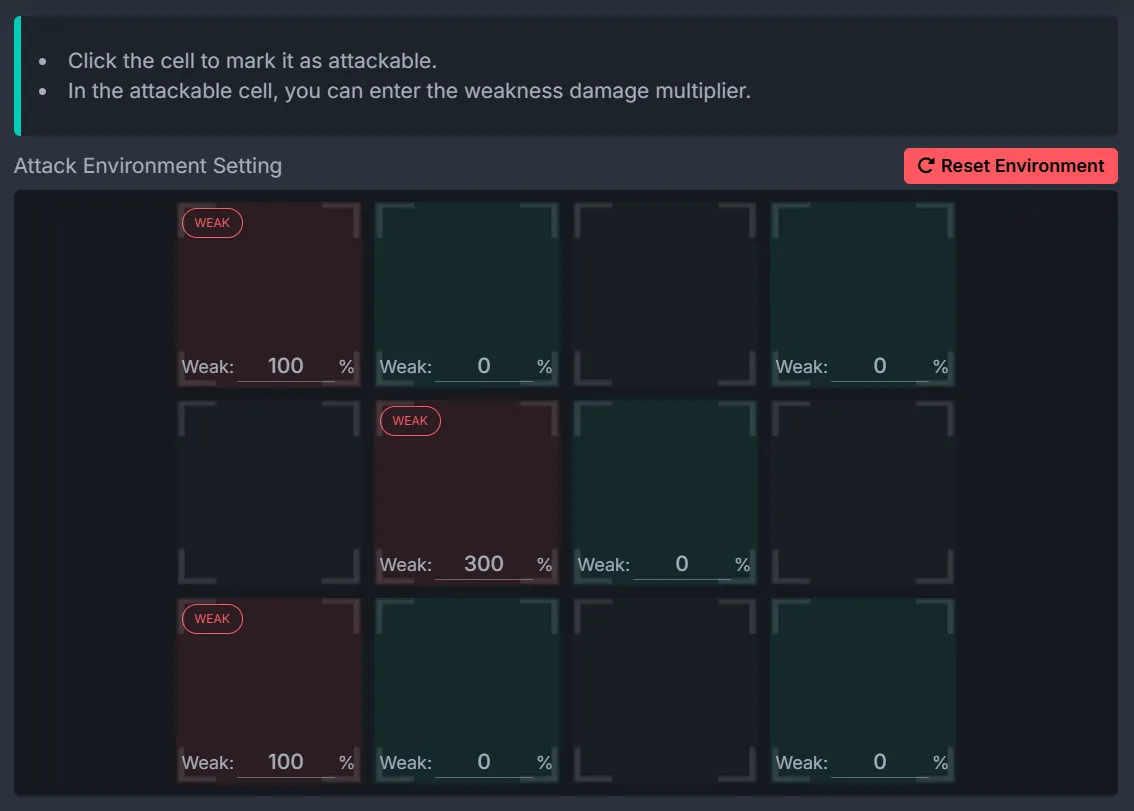
Environment Configuration
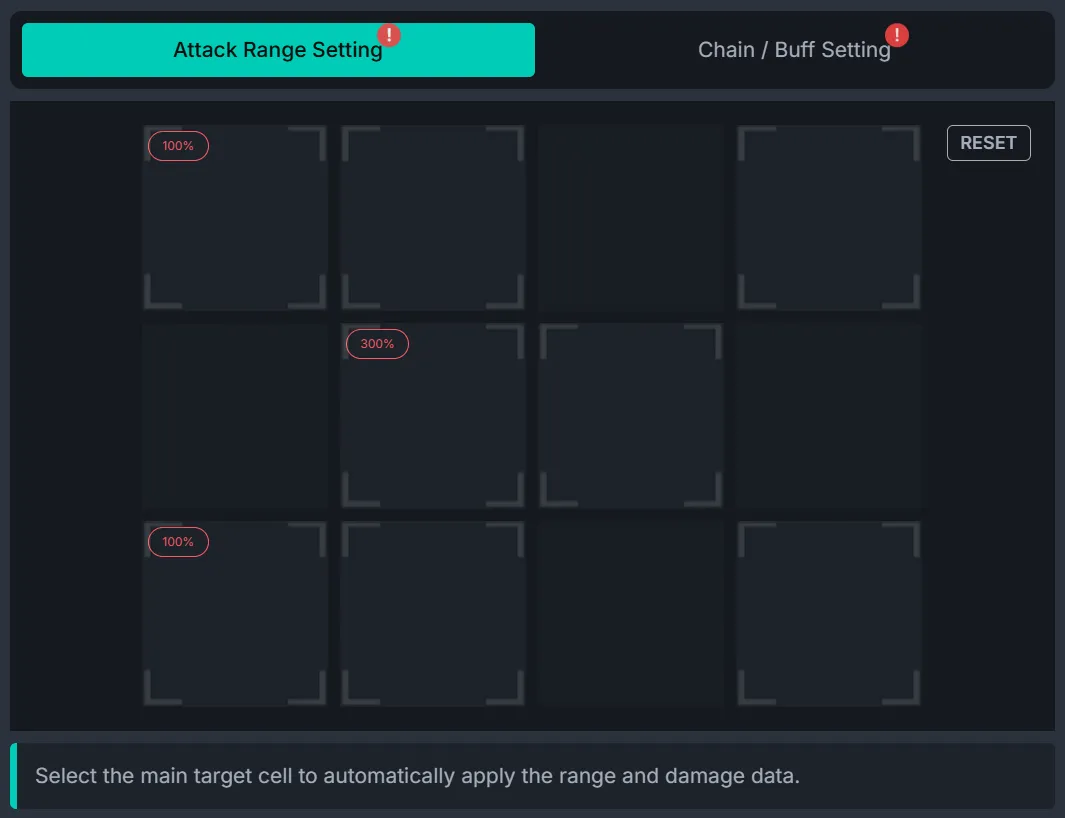
- Click cells to mark them as “Attackable”.
- For attackable cells, you can define a weak point damage multiplier.
- Please complete this setup first—any changes after defining characters or turns will reset all previous configurations.
2. Basic Settings

Collection Bonus
- Set bonus percentages for ATK, Magic ATK, and HP.
- Default values are maxed; adjust based on your actual collection progress.
Damage Type
- Normal Damage: Standard calculation
- Fixed Damage: Damage unaffected by ATK
- HP Ratio Damage: Damage based on enemy HP
Elemental Advantage
- When enabled, additional elemental advantage damage is included.
SubStat Count
- Set the total number of SubStats to be allocated (1–15).
- This allows flexibility for defensive options in real builds.
3. Character Setup
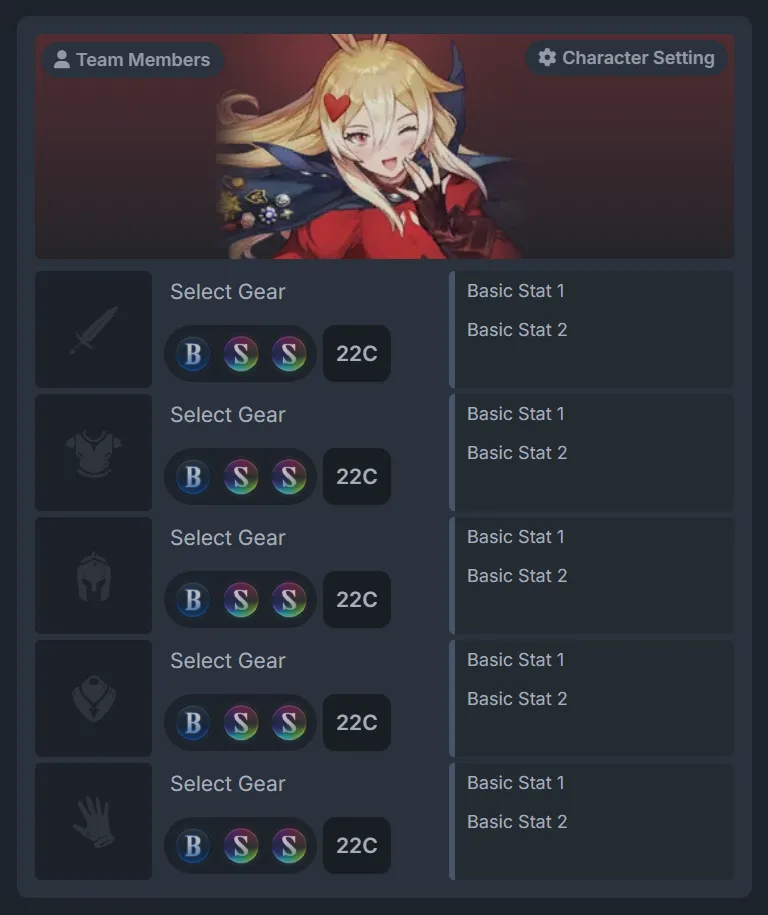
Character Selection
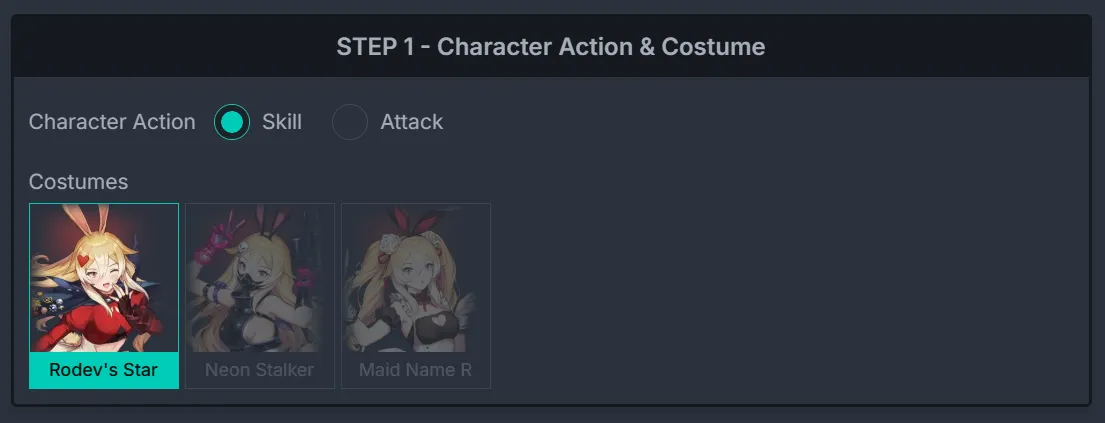
- Click a character to select them.
- The “Character Setting” button in the top right lets you configure costume stats, imprints, awakening, and bindings.
Teammate Settings
- Use the “Team Member” button in the top left to select allies.
- Buff quick selectors will only display available buffs from the character or their teammates.
Equipment Settings
- Set enhancement scores for each equipment slot.
- You may also specify specific equipment to be used.
- Choose the main ability for exclusive weapons (ATK%, Crit DMG, etc.).
4. Turn Settings
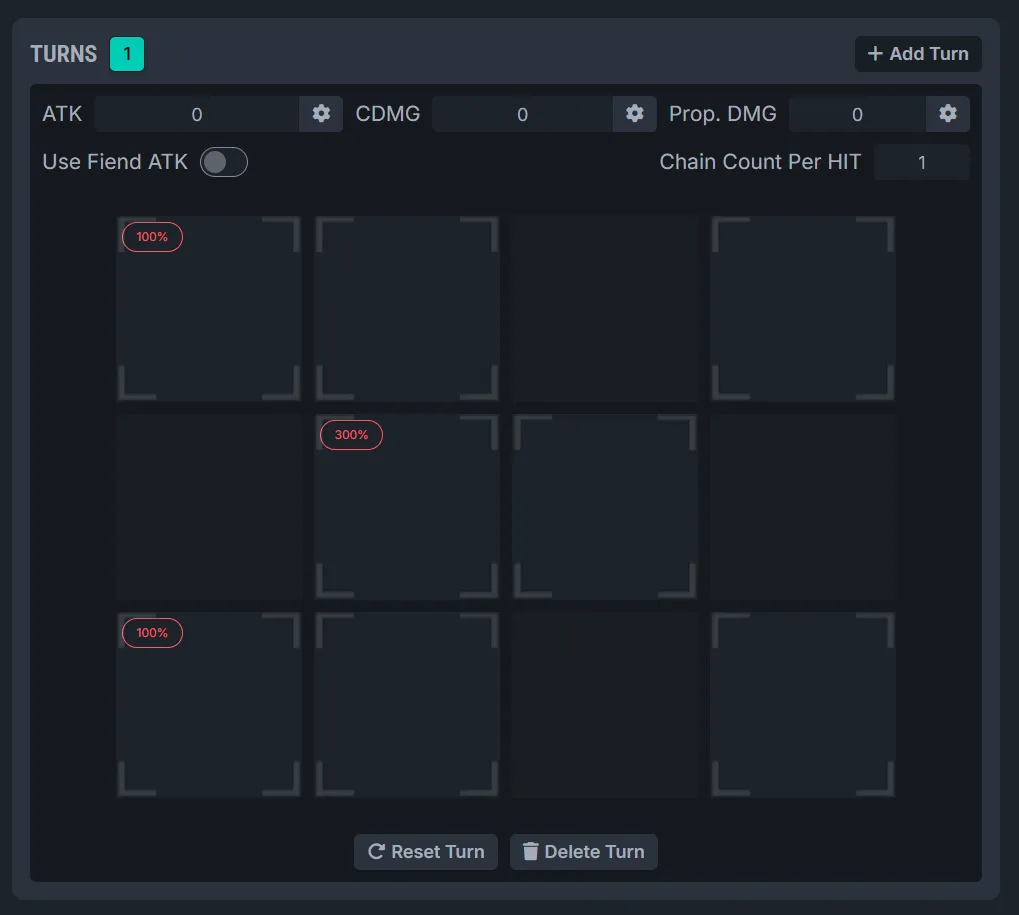
Turn Management
- Add, delete, or reset turns as needed.
- Switch between turns to configure them individually.
- Each turn can have its own action logic.
Buff Settings
- Configure buffs for ATK/Magic ATK, Crit Rate, Crit DMG, and bonus damage.
- Use quick-access buttons to apply common buffs easily.
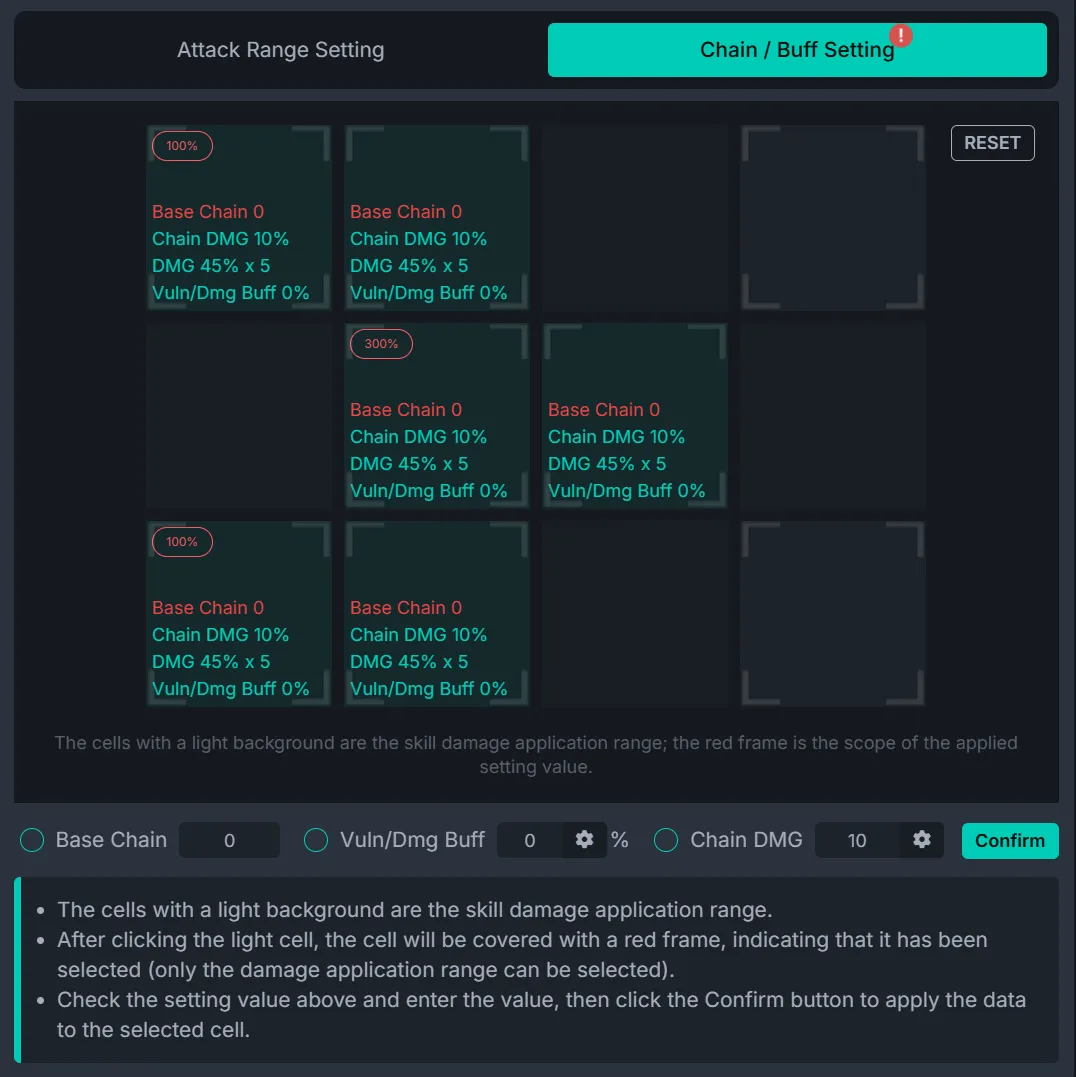
- Define combo value added per hit (Chain Count per HIT).
Detailed Setup
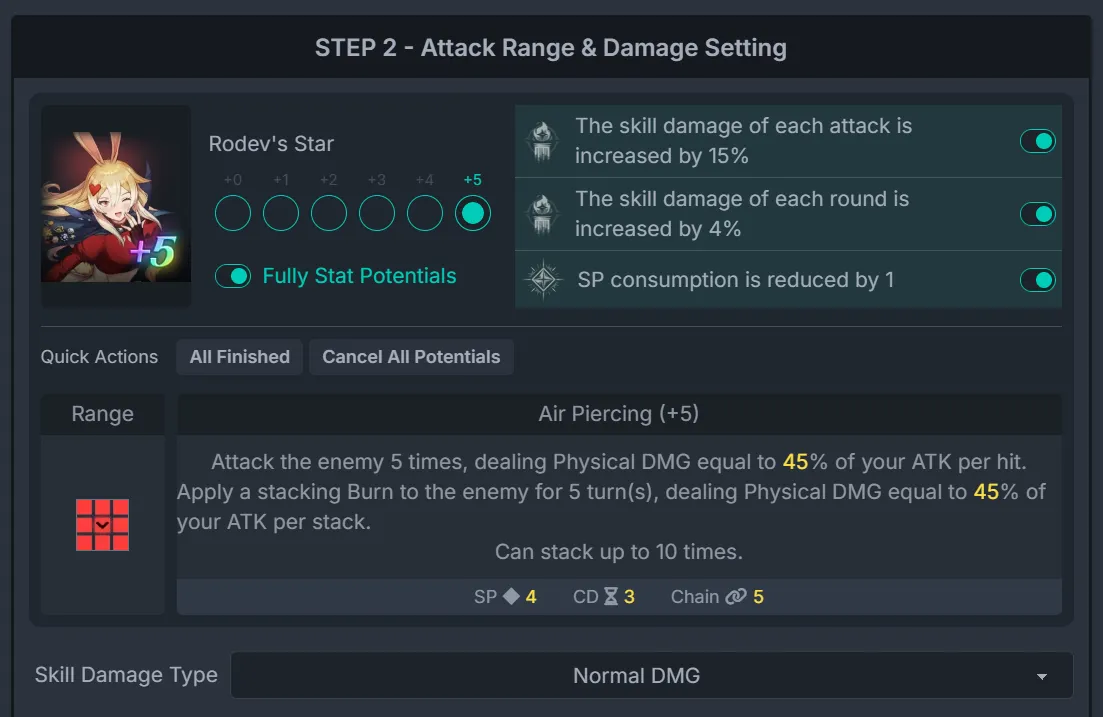
Click on a grid cell to open the detailed configuration window.
5. Current Stats
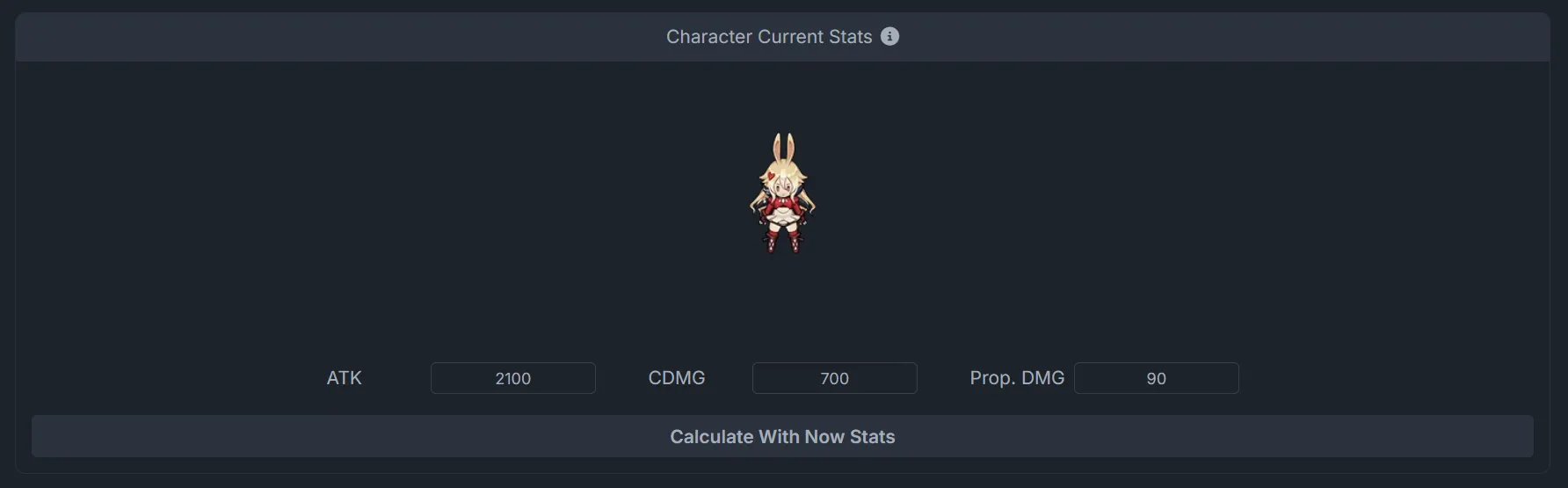
Stat Comparison
- Input current ATK/Magic ATK, Crit DMG, and bonus damage.
- Compare the damage improvement after optimization.
- Shows the percent increase in total damage.
Use Current Stats for Estimation
- Use current values to run an immediate damage estimate.
- The button will trigger a calculation using your existing stats.
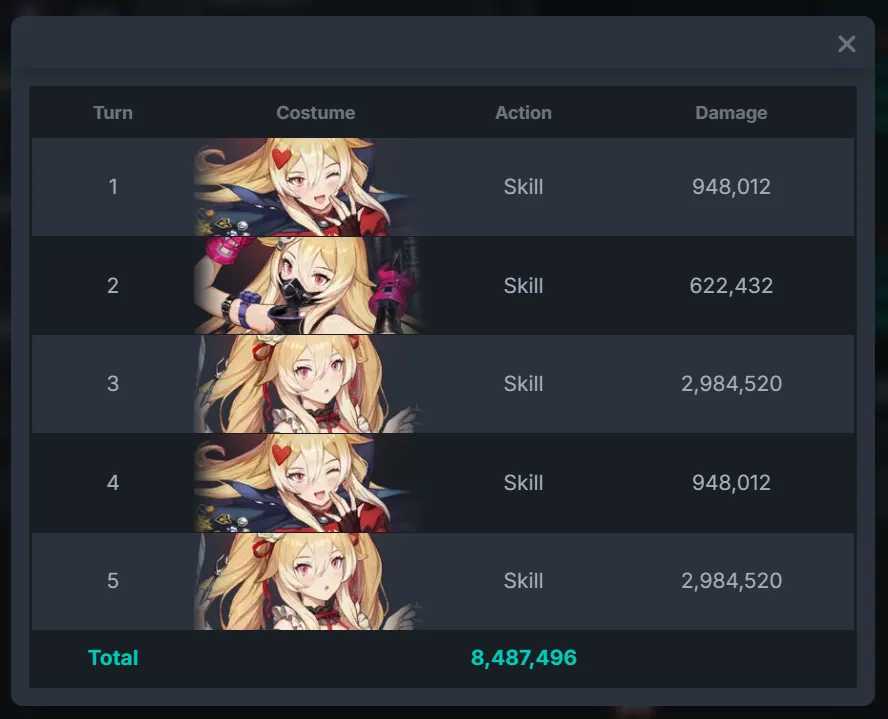
6. Calculation Results
Overview
Click the “Start Calculation” button to display results.
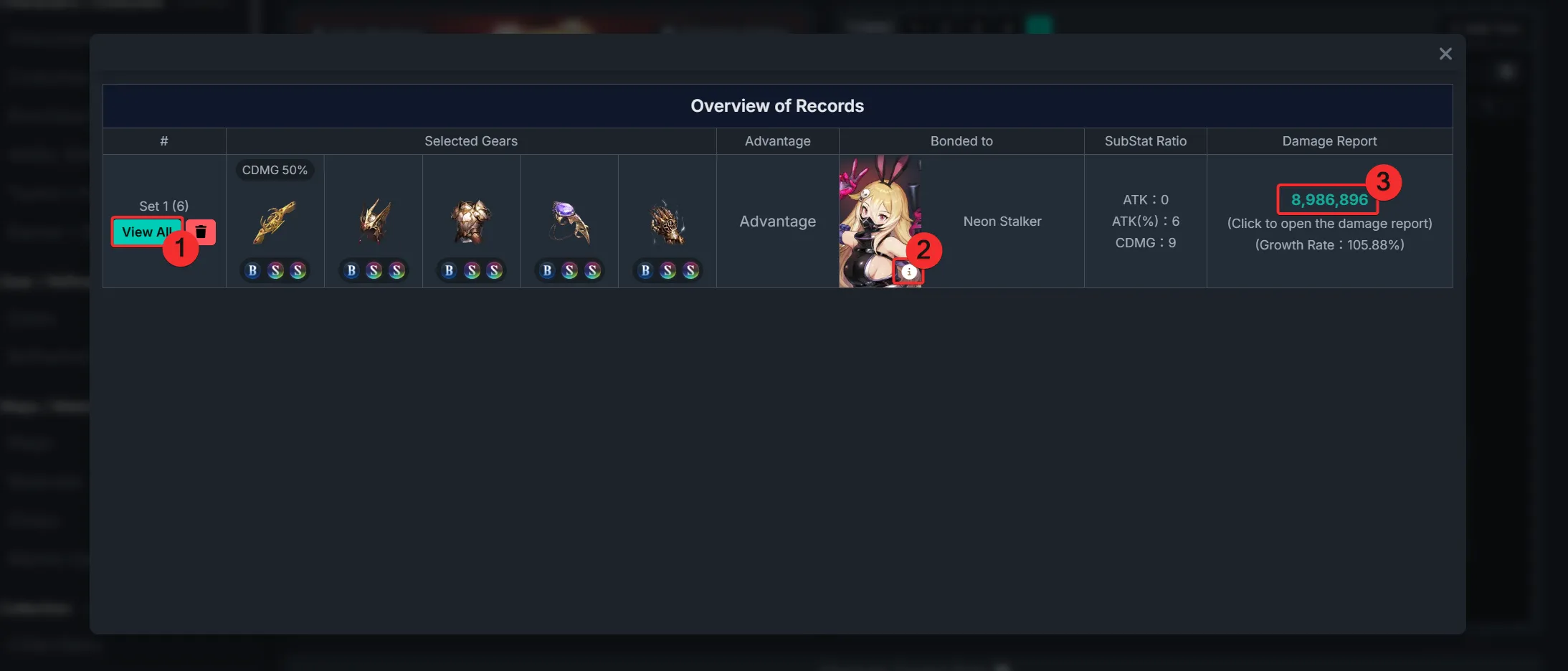
Selected Equipment: Recommended optimal gear for each slot
Elemental Advantage: Whether the character has an elemental advantage
Costume Binding: Suggested costume to bind (can be manually configured)
SubStat Ratio: Recommended distribution for ATK, ATK%, Crit DMG
Damage Report: Detailed damage per turn and overall total
- Use the “View All” button on the left to explore alternative setups
- Click the icon on the costume image to open stat details
- Click any damage value in the report to view detailed breakdowns
7. Turn Management
Turn Management helps organize action order across multiple turns. When your rotation includes many actions, needs similar turns copied, or requires checking each turn's character, range, and Buff settings, use this area for quick adjustments.
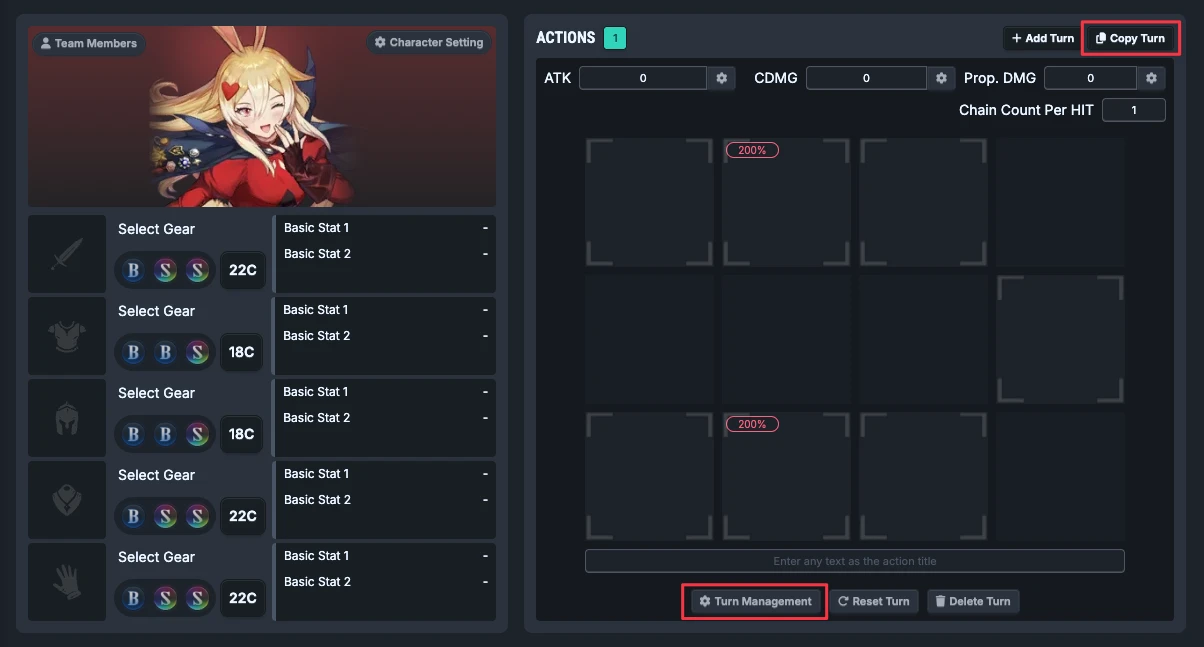
Switch turns
- The number buttons under
ACTIONSrepresent currently created turns. - Click a number to switch to that turn. The settings area on the right displays that turn's action content.
Add turn
- Click "Add Turn" to create a new blank turn.
- Useful when you want to continue adding character actions after the existing rotation.
Copy turn
- Click "Copy Turn" to duplicate the current turn settings.
- Useful when multiple turns differ only by a few Buffs, target cells, or skill settings.
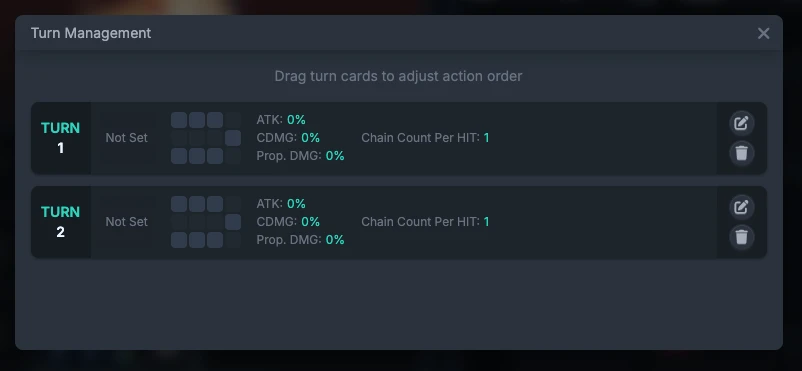
Turn Management window
- Click "Turn Management" to open the turn list.
- The list shows each turn's character, action, skill range, main Buffs, and Chain value.
- You can drag to reorder turns, or directly edit and delete specific turns.
Reset and delete
- "Reset Turn" clears the current turn's settings while keeping the turn slot.
- "Delete Turn" removes the current turn. If your rotation has multiple turns, confirm that the remaining order is still correct.
Suggested usage
- Complete the first turn's skill and range first, then use Copy Turn to create similar actions.
- After major order changes, open "Turn Management" to confirm all characters and actions still match your expectation.
- If you only want to reconfigure one turn, use "Reset Turn" first. If that turn is no longer needed, use "Delete Turn".
Import Costume Records / Reset
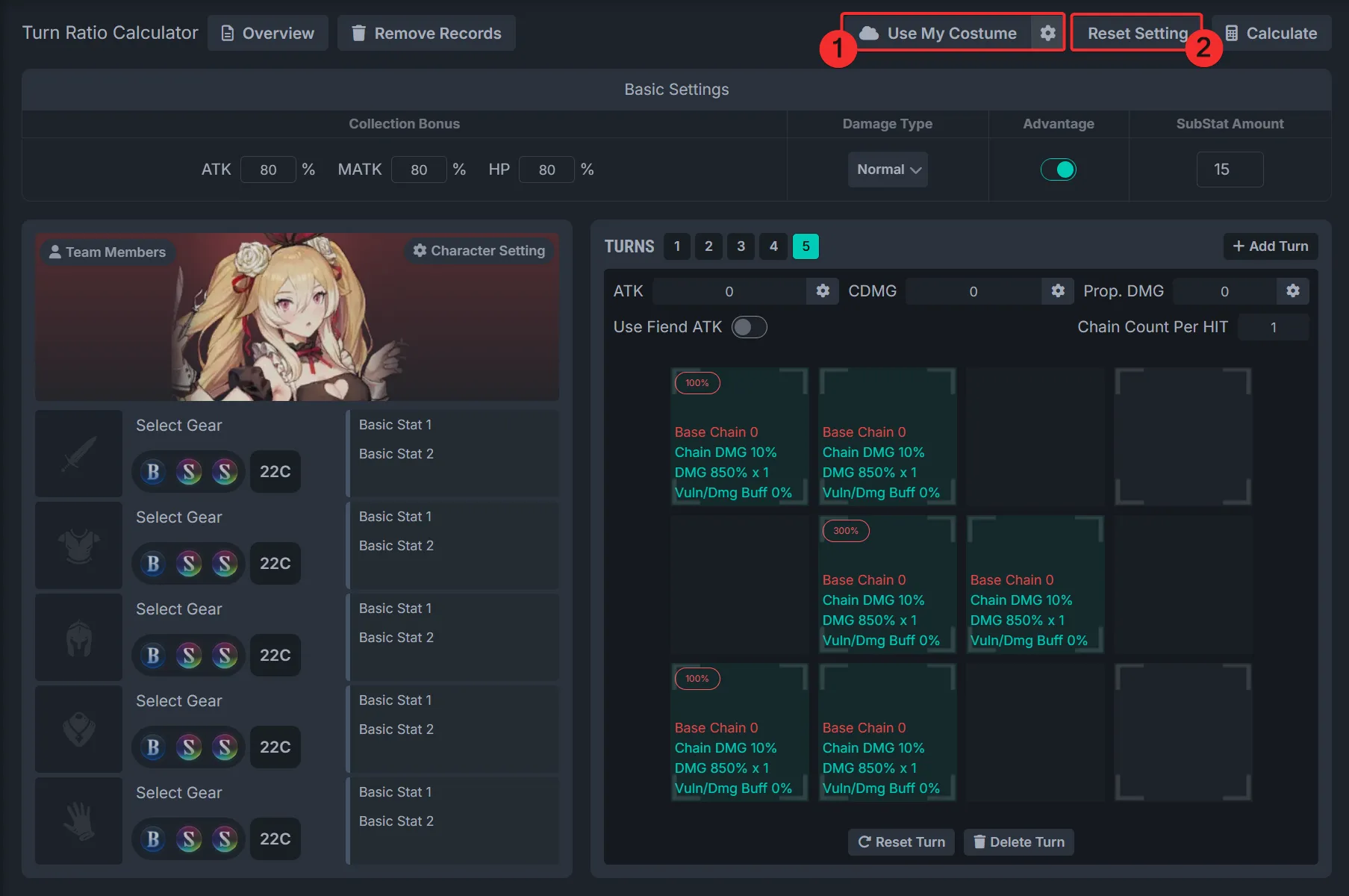
- Import Costume Record: If you’ve configured a costume in the record page, import it here. Use the gear icon to select from local or cloud data.
- Reset Settings: Resets all related configuration on this page, including environment, character, and turn setups.
Save Feature
You can save your current turn settings in the browser. After saving, you can freely apply previous setups or delete ones you no longer need.
Usage instructions:
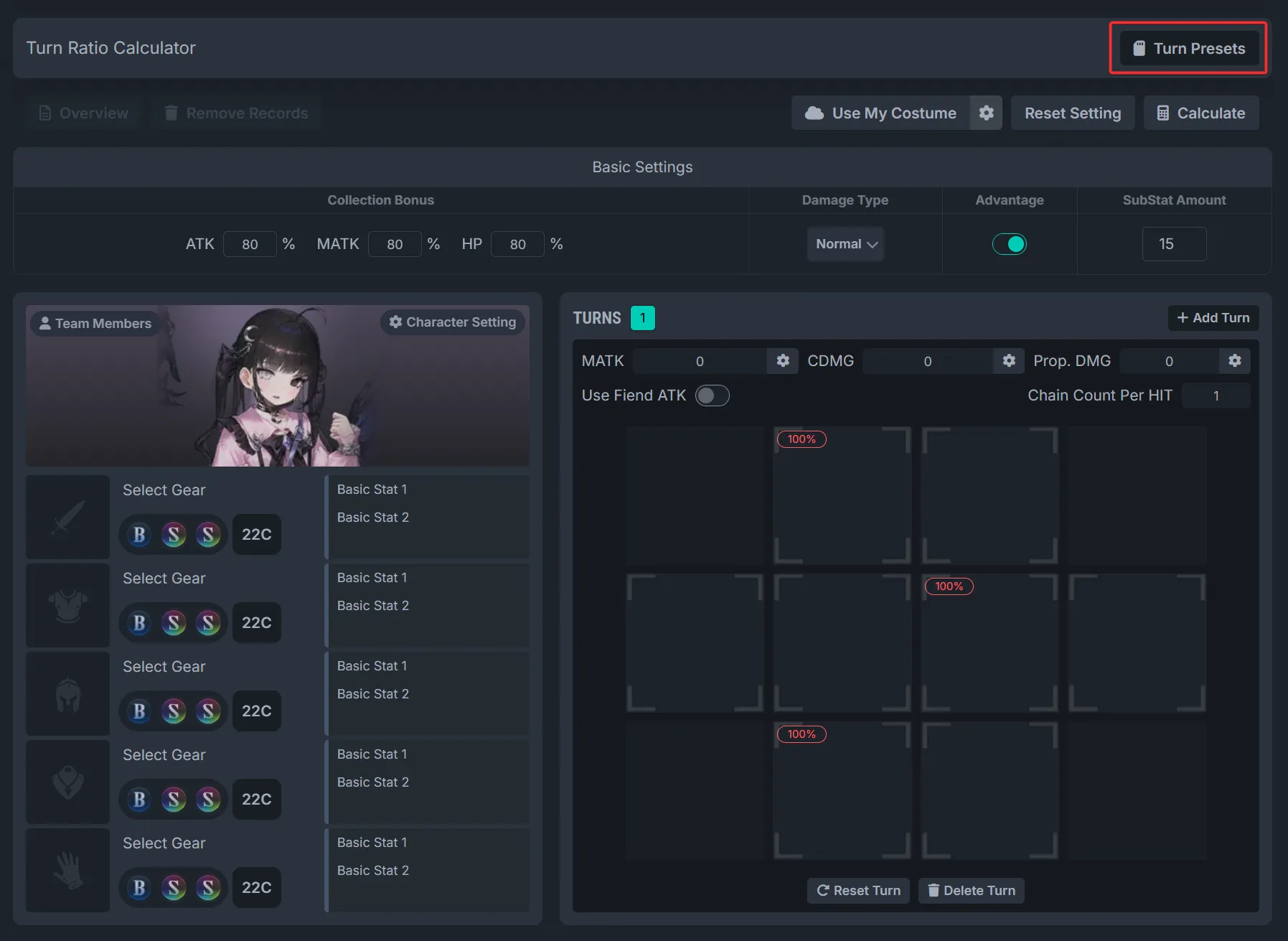
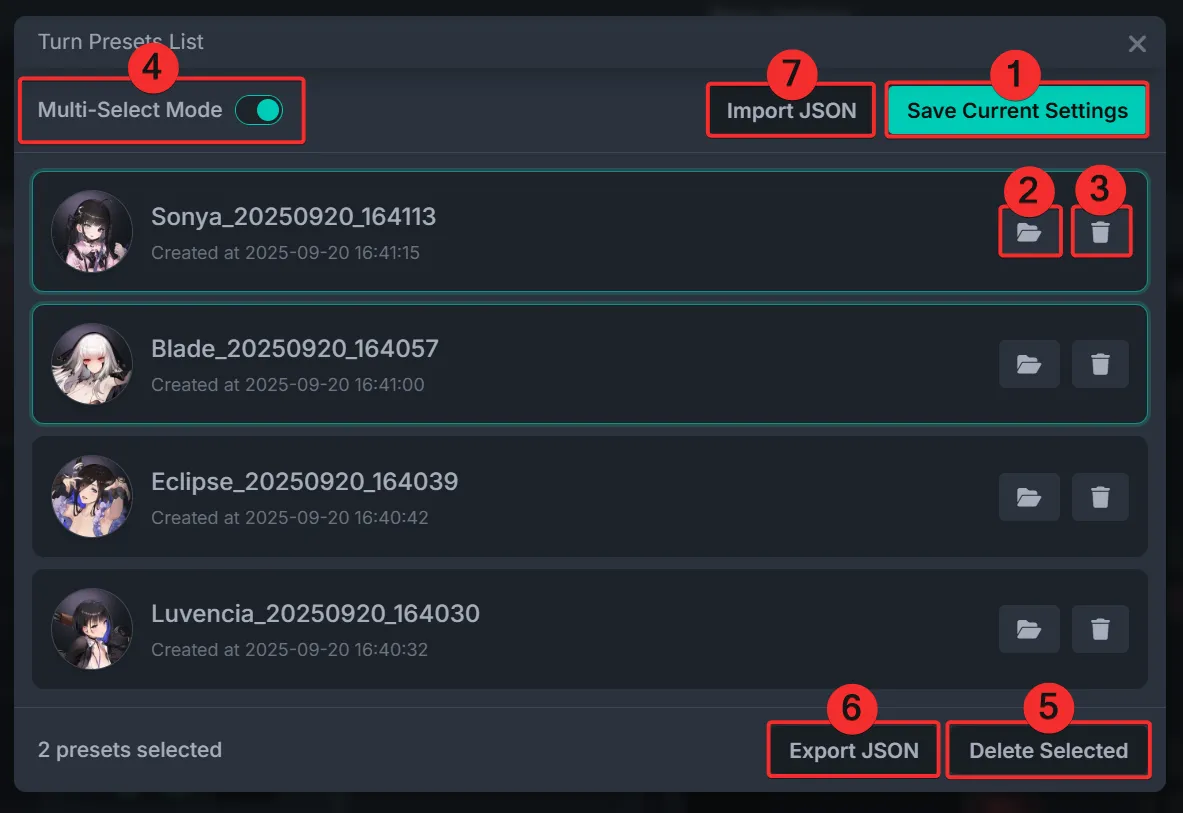
- Save the current turn settings
- Load a saved preset
- Delete a saved preset
- Enable Multi-Select Mode. Once enabled, you can export JSON files or delete multiple presets at once.
- Delete selected presets
- Export selected presets as a JSON file, which can be imported on other devices or shared with other users.
- Import the JSON file generated from step 6.
FAQ
Q. Why is the calculated result different from actual in-game damage?
A. This calculator is based on theoretical values. Differences may arise due to:
- Slight differences in calculation order versus the game
- Rounding behavior may not exactly match the in-game engine
- Use this as a reference only