Last Night Calculator
The Last Night Calculator (LNC) can select 20 costumes, arrange their sortie order, and derive gear and substat allocations automatically. You can also lock in some or all costumes and calculate using your own costume progression, gear, or character stats.
Last Night Calculator: Open the calculator
This guide starts with a fully automatic lineup, then introduces custom settings. Screenshots use the English interface. The costumes and numbers shown are examples of how to use the tool, not a fixed recommended team.
Fully automatic lineup
For your first calculation, you do not need to select characters or gear, or edit character stats. Enter your bonuses and choose a costume data source to get started.
1. Enter collection and support bonuses
Enter your collection and support bonuses under Basic Settings at the top of the page.
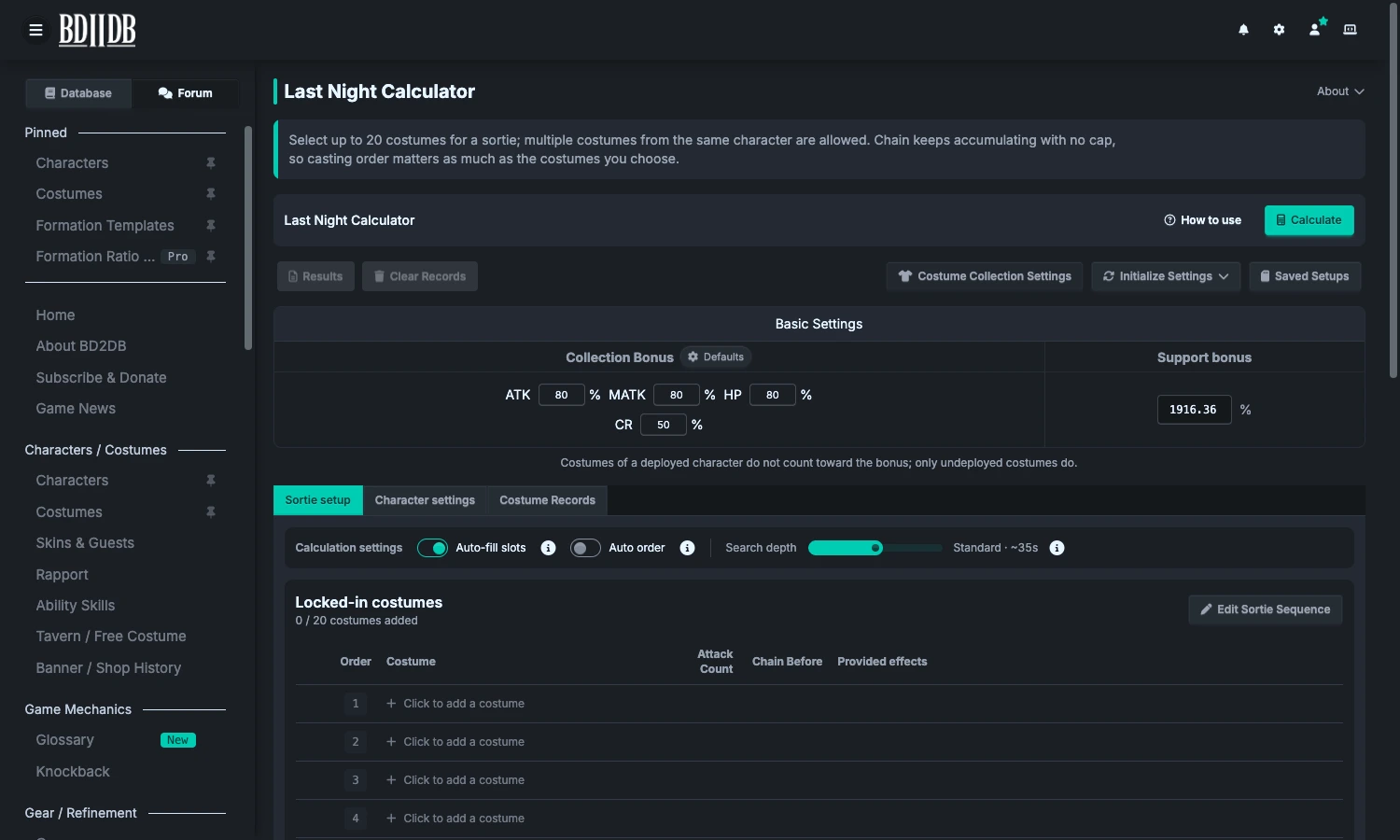
- Collection Bonus: Enter your own collection bonus values.
- Support bonus: Use the value shown at the bottom right of the in-game Last Night sortie screen. For example, enter
1900if the game shows1900%.
If changing your lineup changes the in-game support bonus, update this value too.
2. Choose a costume collection source
Click Costume Collection Settings at the top and choose which costume data to use.
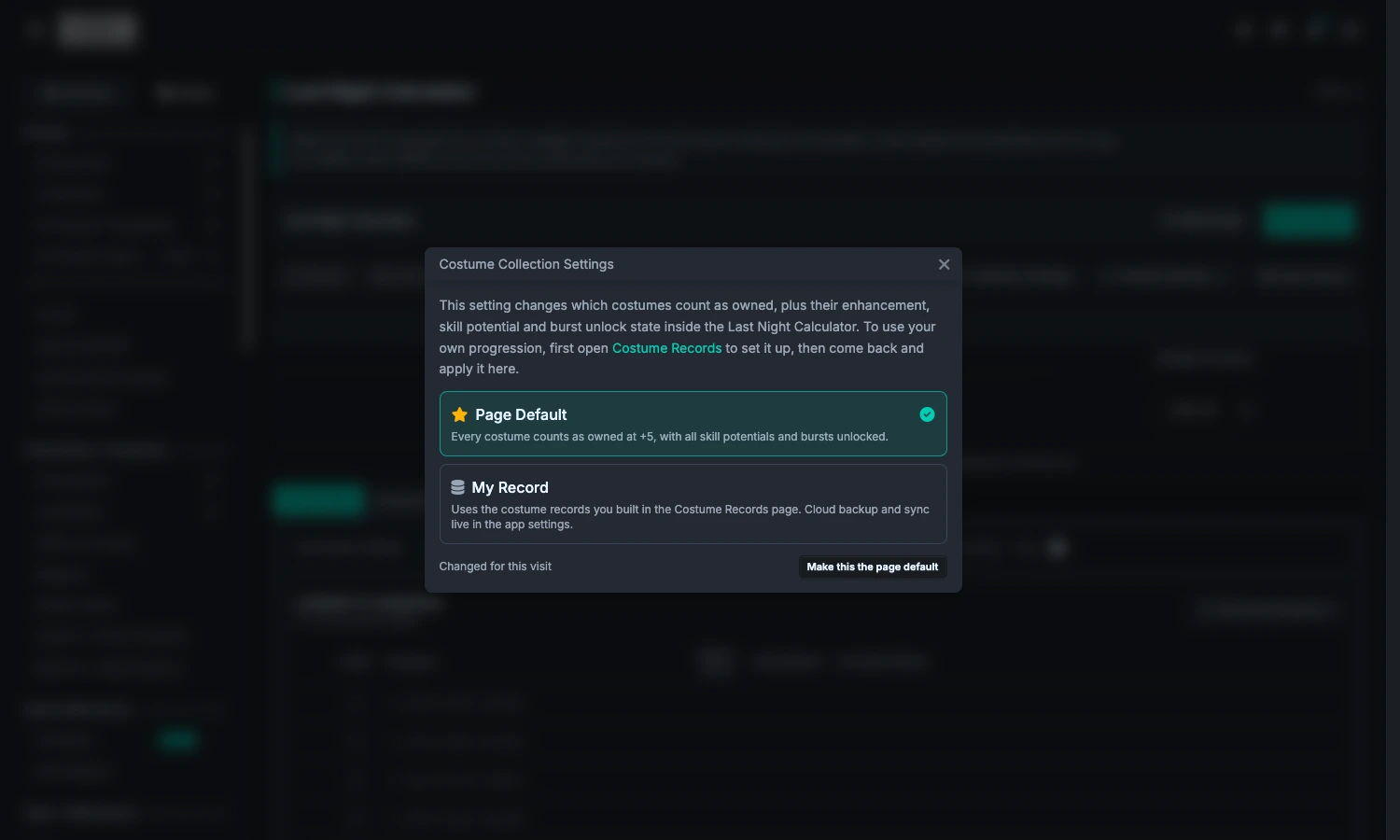
- Page Default: Treats every costume as owned at +5, with all skill potentials and bursts unlocked. This is a useful starting point for learning the tool.
- My Record: Uses the data you entered in Costume Records and saved locally. If you already have a record, you can use it without entering everything again.
Page Default calculates with fully upgraded costumes; it does not mean your account can necessarily build the same team. Switching collection sources does not clear custom character stats or gear. If you previously configured those, clear them too before testing an entirely default setup.
3. Enable auto-fill and calculate
- Leave Locked-in costumes empty at
0 / 20. If a lineup is already present, open Edit Sortie Sequence and click Reset to clear it. - Enable Auto-fill slots.
- Choose a search depth.
- Click Calculate at the top right.
The system selects costumes to fill all 20 slots and calculates a setup. With no costumes locked in, the lineup is fully automatic.
How Auto-fill slots changes the calculation:
| Setting | Behavior |
|---|---|
| On | Fills empty slots. Leave all slots empty to let the system select the entire team. |
| Off | Does not select costumes. You must fill all 20 slots before calculating. |
Search depth controls how thoroughly the system explores possible setups. Higher levels try more combinations and take longer; they do not change character progression or directly increase damage multipliers.
Start with a lower depth or Standard, then increase it to compare results. A deeper search may find a better setup or return the same result—it does not guarantee more damage each time you raise the level. The displayed duration is an estimate; actual time depends on your device and settings.
Basic workflow: Enter collection and support bonuses → Choose a costume collection source → Leave Locked-in costumes empty → Enable Auto-fill slots and choose a search depth → Calculate.
Viewing calculation results
When calculation finishes, the result window opens with the total score and each costume's damage, attack count, and chain values.
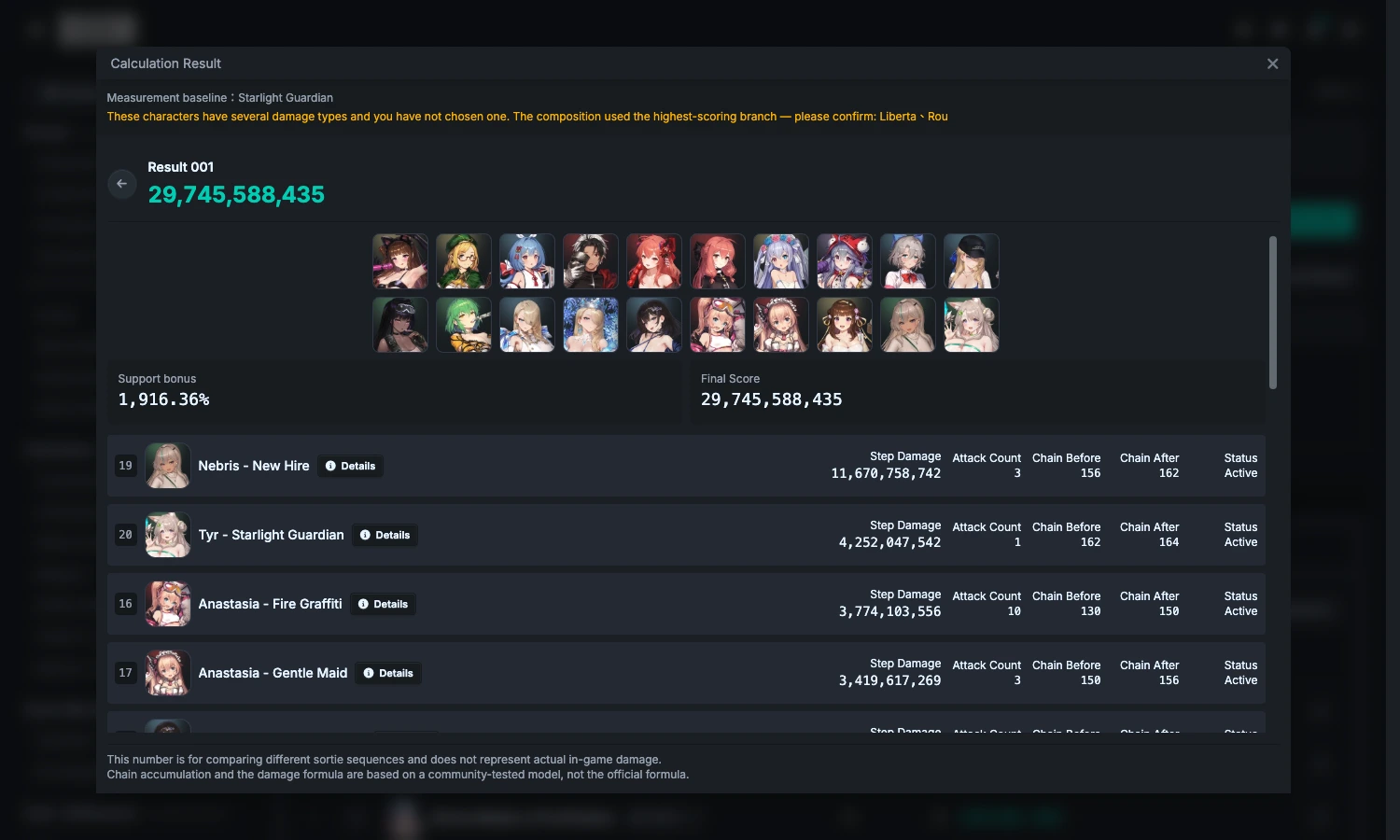
- Sortie order: Check the costume arrangement at the top, the order numbers beside costumes in the list, or return to Sortie setup.
- Damage list: Sorted by damage, not by action order.
- Details: View the gear, substat allocation, and character stats used in this calculation.
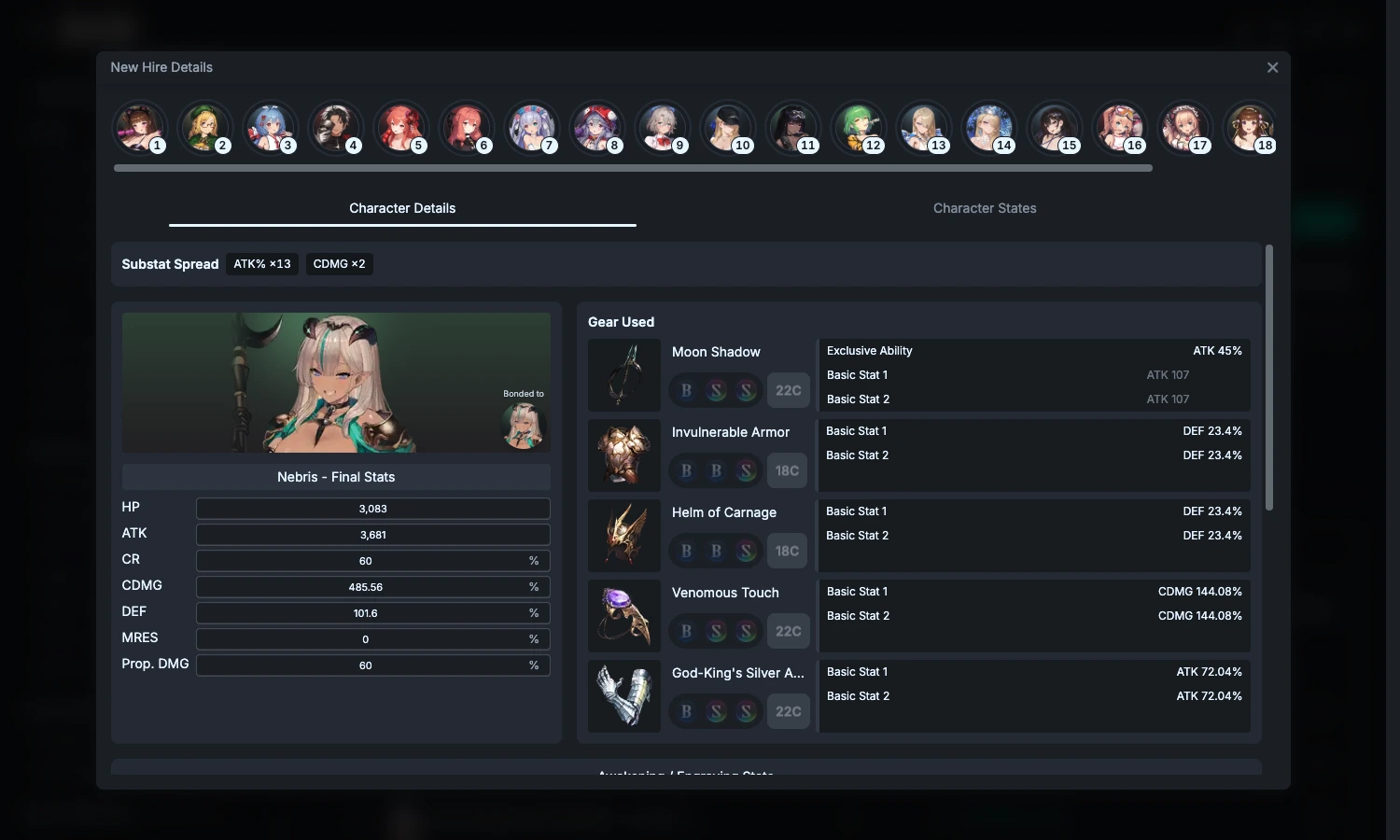
In the substat allocation, ATK%, MATK%, and CDMG mean attack percentage, magic attack percentage, and critical damage. The number beside each is the recommended number of substats to allocate to it.
When equipping your characters, consider the gear, basic stats, C values, and bonded costume together. You do not need to keep rerolling just to match every recommended value exactly. Start with similar gear, then use the custom stats feature below to compare your actual setup.
Locking in some costumes
If certain costumes must be included, lock them in first and let the system fill the remaining slots.
1. Select the costumes to include
Open Edit Sortie Sequence. Keep only the costumes you want to lock in and leave the other slots empty.
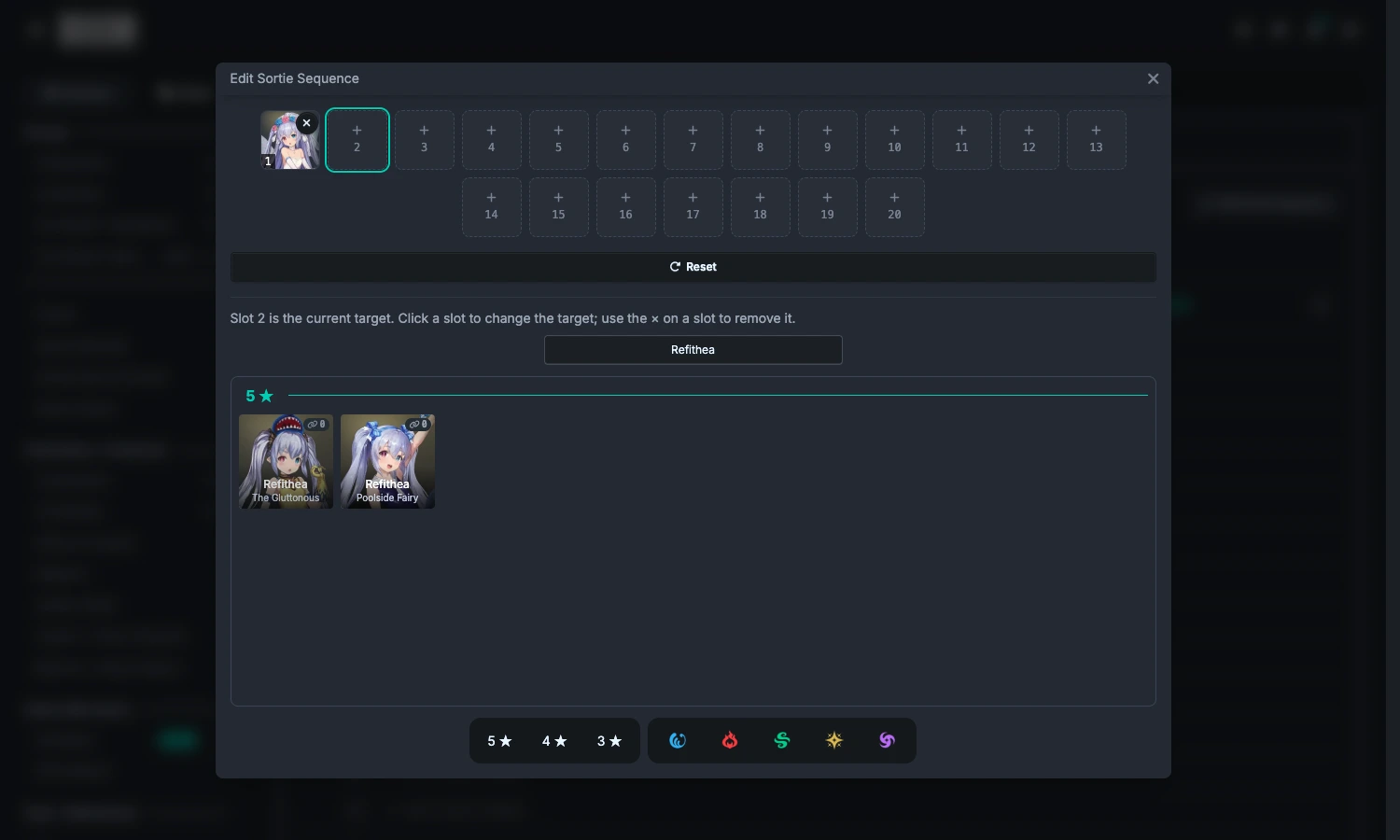
Click the slot you want to fill, then choose a costume below. You can also use the search field. You may lock in one costume or several.
2. Set auto-fill and auto order
Costumes in the selected area are required members. Auto-fill will not replace them.
| Goal | Auto-fill slots | Auto order |
|---|---|---|
| Include certain costumes and let the system choose the rest and their order | On | On |
| Keep selected costumes in their positions and fill only the empty slots | On | Off |
| Select all 20 costumes yourself and let the system arrange their order | Off | On |
| Calculate with exactly the 20 costumes and order you selected | Off | Off |
With Auto order enabled, you can place your selected costumes in any slot initially; their action positions will be rearranged during calculation. With it disabled, their specified positions are preserved.
Put costumes you do not want selected under Excluded costumes. If you cannot select a costume, check whether it is excluded. The question mark beside this section explains the default exclusion rules.
Adjusting costume progression
If you have not created costume records yet, or want to change progression for this calculation, edit it directly in the Costume Records tab.
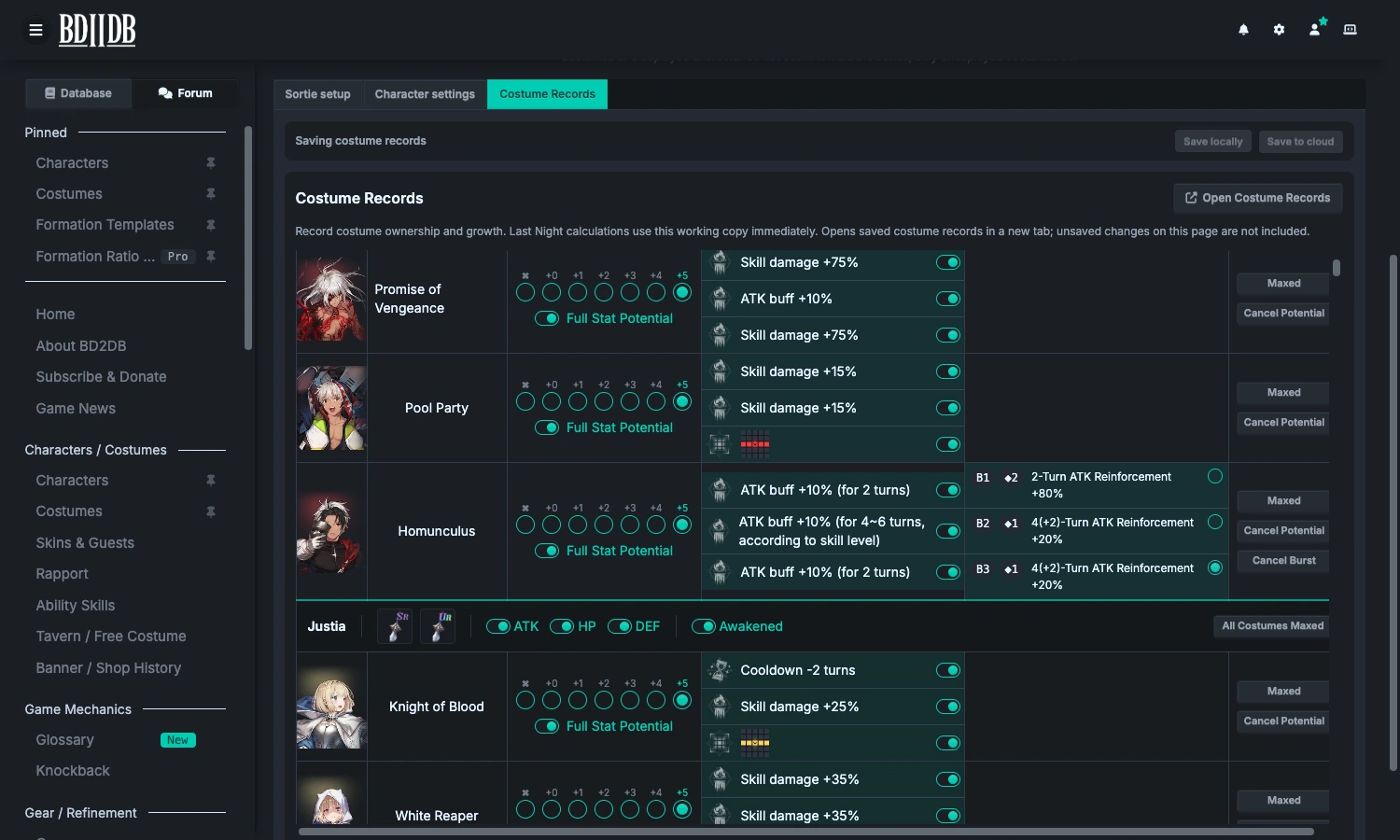
Set costume upgrades, skill potentials, and bursts to match your ownership and progression. You can click these fields directly. Mark costumes you do not own as unowned.
Changes apply immediately to calculations on this page. To keep them, use Save locally at the top of the tab. After signing in, you can also use Save to cloud.
Custom character stats and gear
Open the Character settings tab, find the character, and click their Character Settings button.
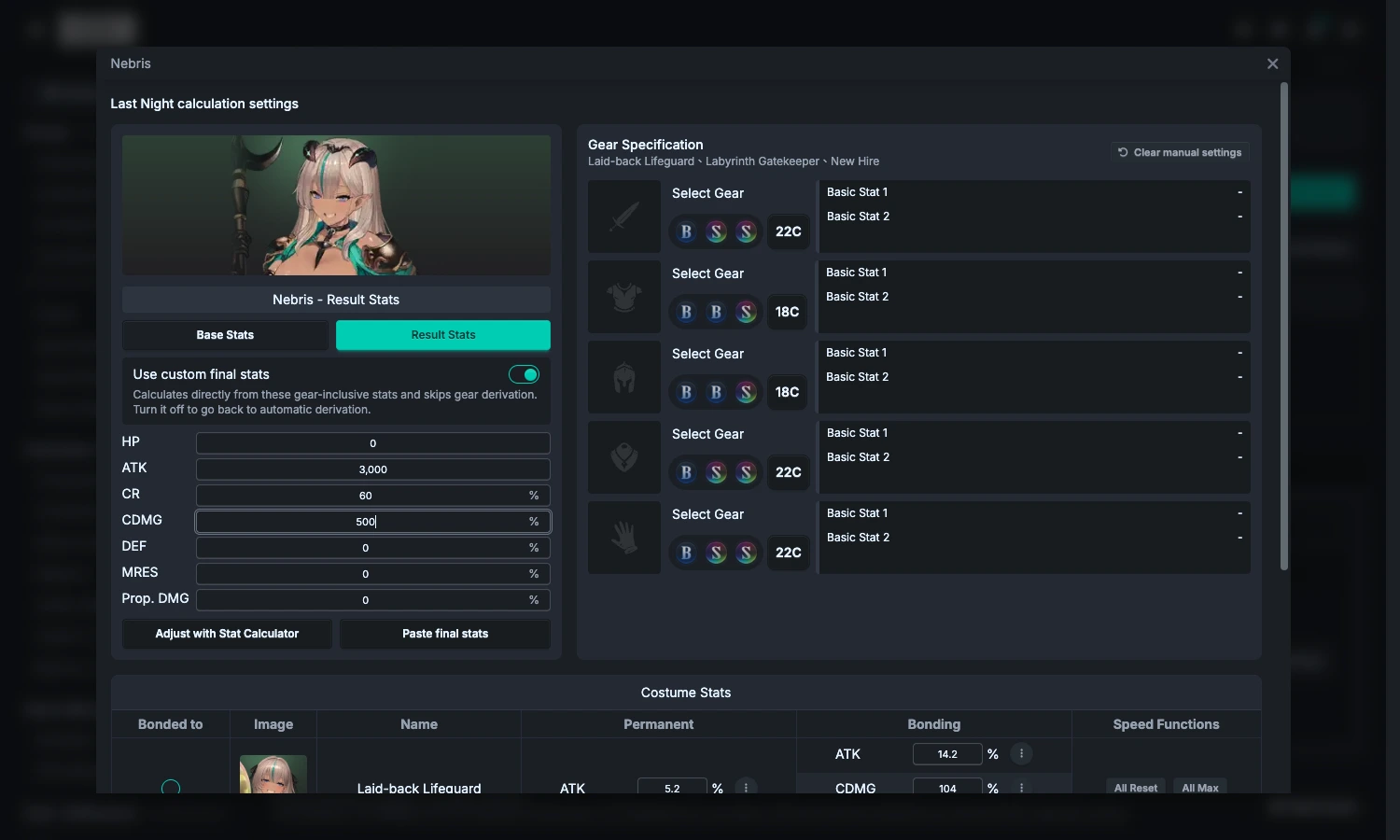
Specifying gear
Select the gear you intend to equip, adjusting its basic stats and C values to match. You can specify only some slots; the system will still derive gear for unspecified slots.
Keep Use custom final stats off when using this method, and check the character's base stats and progression settings. All costumes of the same character share these character settings.
Specifying final stats
- Switch to Result Stats.
- Enable Use custom final stats.
- Enter the character's in-game stats with gear equipped, paying particular attention to ATK/MATK, critical rate, and critical damage.
These values should include gear but not teammates' in-combat buffs. Do not add team buffs yourself.
When enabled, the system uses the entered final stats directly and skips gear derivation for that character. The result displays a Manual stats label. Turn the switch off to return to gear derivation.
Comparing and saving results
Each calculation adds a new result. Reopen them with Results at the top of the page.
You can compare these in sequence:
- An automatic lineup using fully upgraded defaults.
- A new automatic lineup using your own costume progression.
- Damage calculated with your actual character stats.
To compare one condition, keep everything else unchanged and adjust only that condition before calculating again. Clear the lineup or keep only required costumes when you want the system to select a new team. Keep the lineup when recalculating the current team, and disable Auto order if you also want to preserve its order.
- Save a lineup setup: Open Saved Setups and save the current configuration.
- Save costume progression: Save it separately, locally or to the cloud, from the Costume Records tab.
After loading a setup, check the costume collection source and your progression. Calculation history is not a permanent damage report; after refreshing the page, you need to calculate again.