FRC: Fiend Skill Settings
This page is an advanced manual-editing guide. If you have Premium access and an applicable official template, apply the official template first and then verify it; you do not need to recreate the official skills by following this page.
Manual skills are useful when no template is available, when you need to verify a specific effect, or when you need to adjust the current Fiend settings.
1. Open the Shared Skill List
First mark at least one attackable part in Environment Settings, then open the list from either of these entries:
- "Environment Settings" → "Fiend Skill Settings".
- "Fiend Settings" → "Fiend Skills" in a Round.
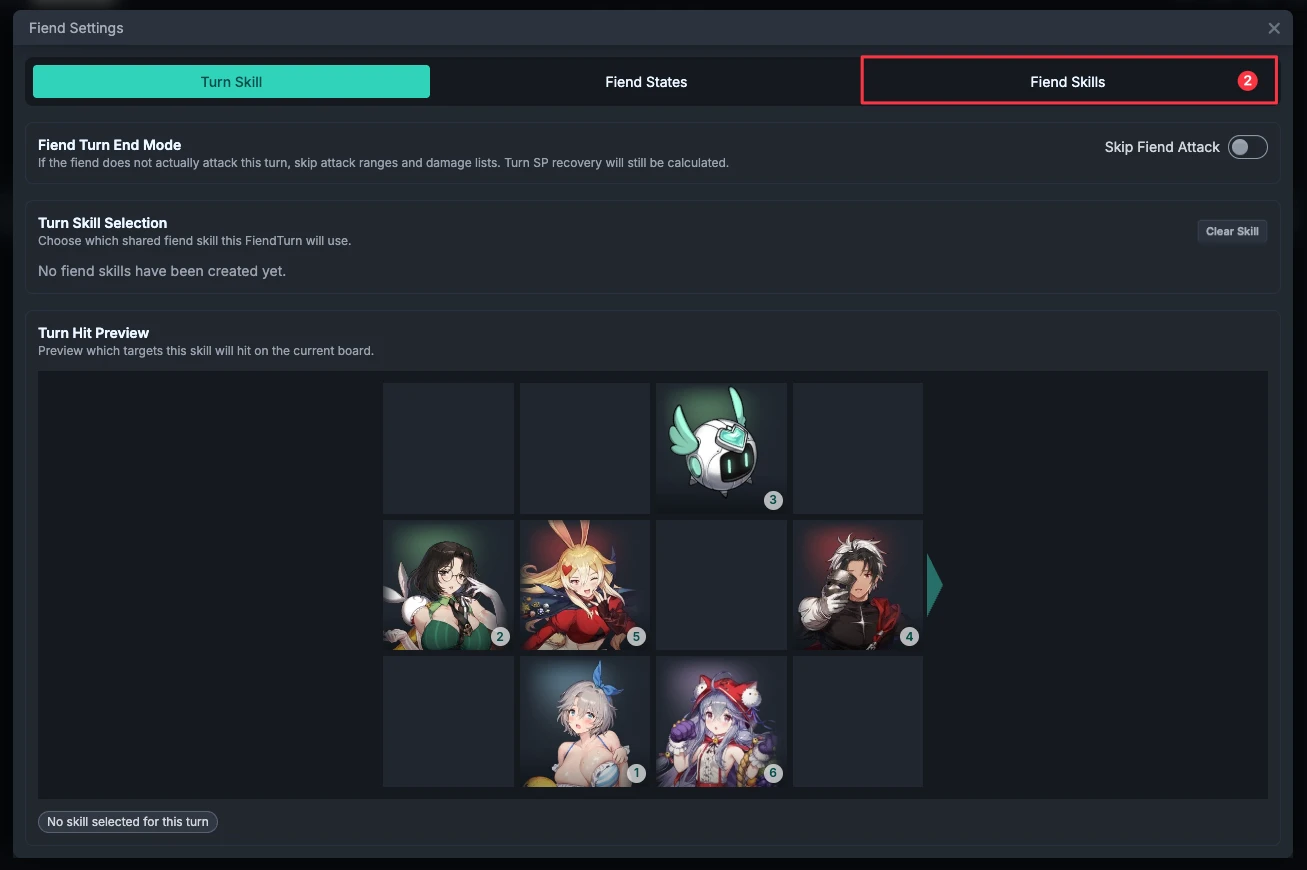
Skills are shared by all Rounds. Editing a skill affects every Fiend Turn that selects it; if you only want to change one Round, duplicate the skill first and select the copy in that Round.
The skill list edited from the Environment Settings window is applied only after clicking the outer "Confirm" button. State Preset management is an exception: creating, editing, and deleting Presets currently act directly on shared data, so do not rely on canceling the skill or Environment Settings window to undo them.
2. Add a Skill and Decide Its Content First
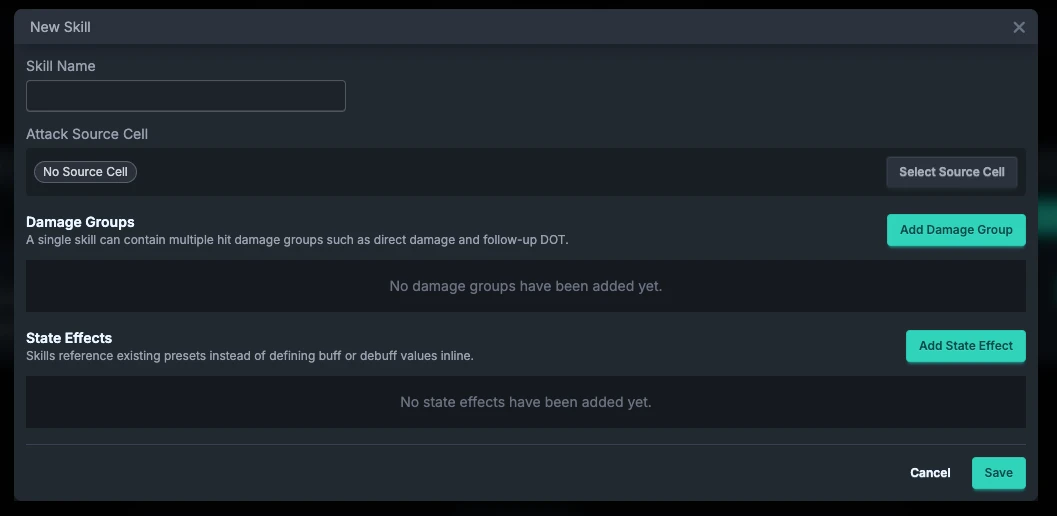
Click "Create Skill" and enter the required skill name; the description is optional. Then add damage groups or attached state effects according to the in-game skill. A manual skill may deal no damage, but it must have an actual effect; do not save an empty skill that only has a name.
An attack source cell is not universally required for every skill: the form determines whether to show the source-cell and skill-range fields from the damage target and target mode.
3. Create Damage Groups
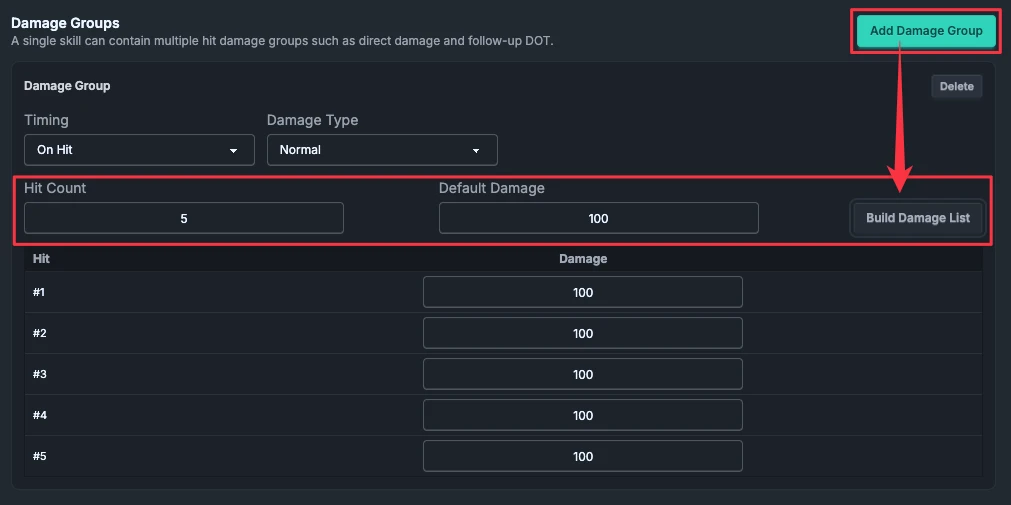
A skill can have multiple damage groups, such as separate groups for direct hits and follow-up Damage over Time.
- Click "Add Damage Group".
- Choose the damage target first: hit allies, all Fiend attackable parts, or custom Fiend parts. For custom Fiend parts, select the cells explicitly.
- Choose the trigger timing and damage type. Turn End damage can also specify duration in Turns, max stacks, and DoT type.
- Enter the Hit count and default damage, then click "Build Damage List".
- Check each Hit's value and save the skill. A skill cannot be applied if it has a Hit count but no generated damage list.
Pay attention to damage-type units: enter a plain number for Constant damage, not a percentage; enter other types according to the % shown by the form. Damage over Time applied to allies belongs in a Turn End damage group; do not add a duplicate DOT through a State Preset.
4. Configure Ally Targets, Source Cell, and Range
Player target controls appear only when the skill contains a "Hit Allies" damage group. A skill targeting only the Fiend uses each group's own target parts and does not need an ally source cell or range.
| Target mode | What to configure |
|---|---|
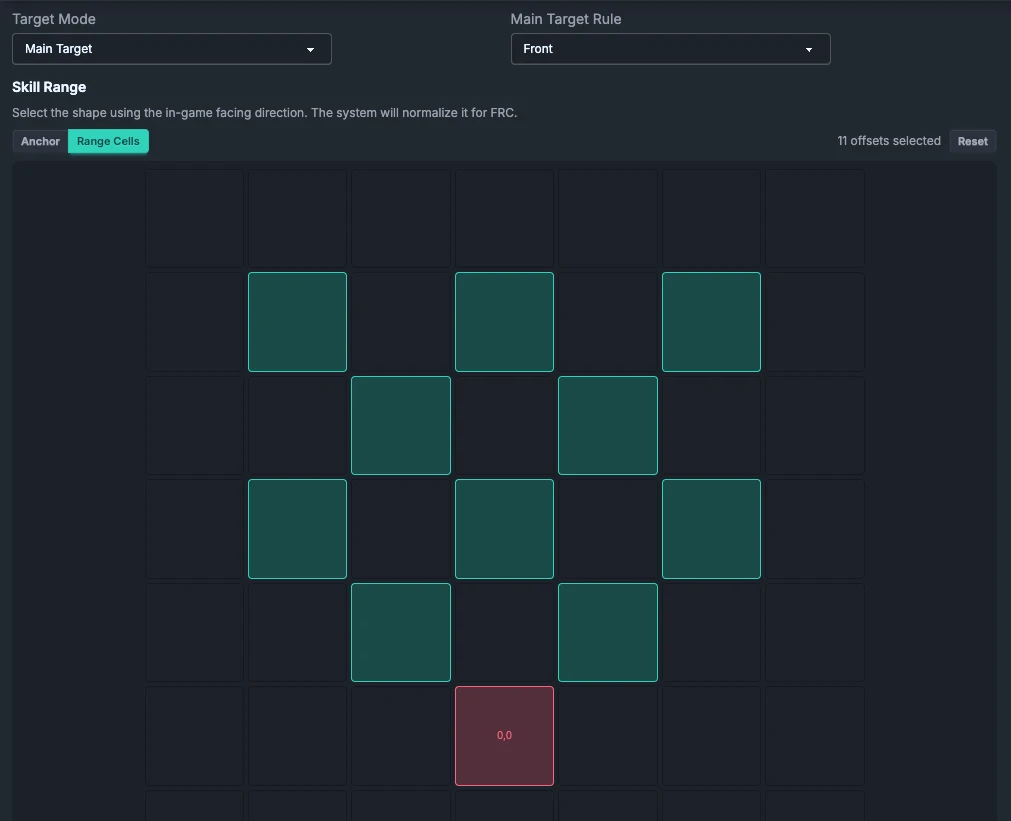
| Main Target | Choose Front or Skip, then configure the source cell and skill range. The actual main target is also affected by states such as Taunt and Concentrated Fire. |
| Fixed Target | Specify the target cell on the ally board, then configure the source cell and skill range. |
| All | Hit the entire ally board; no source cell, fixed cell, or skill range is needed. |
"Front / Skip" is a rule within Main Target mode, not a fourth mode alongside Main Target, Fixed Target, and All.
When a source cell is needed, click "Select Source Cell" and choose one cell from the Fiend's attackable parts. The source cell is used as the source and trace point for this attack; it is not the counterattack target. Counterattacks default to the Fiend head.
In the range editor, select cells according to the direction shown in the game; do not rotate the shape yourself before entering it. When ally and Fiend target groups are mixed, this player range affects only the ally group and does not override the parts selected by the Fiend groups.
5. Attached State Effects
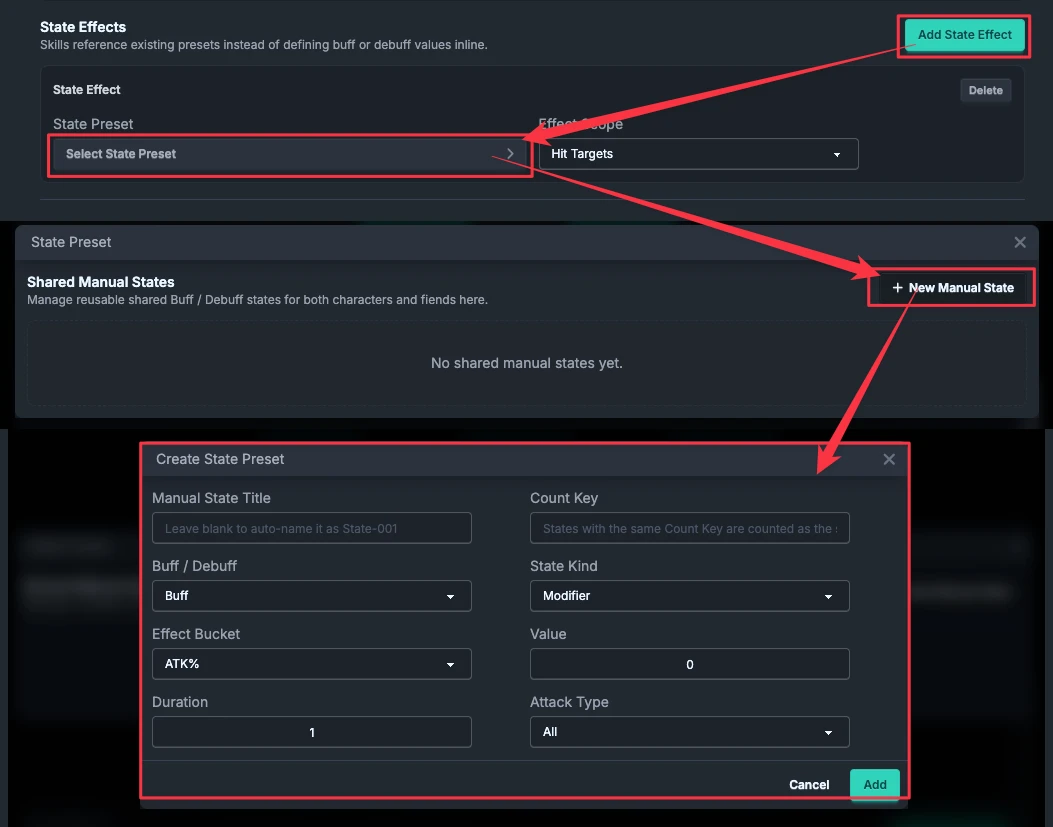
Choose the effect type first, then enter the fields required by that type:
- Apply State: select or create a State Preset, then specify its scope. Set the max stacks in the Preset; when different skills reference the same Preset, they share its stack count.
- Remove Buffs, Remove Debuffs, Remove Recovery Effects, Remove All States: no Preset is needed. "Remove Recovery Effects" is not another name for removing all Buffs.
- Instant Death: no Preset is needed; specify the targets handled by the skill. This differs from the instant-death ending mode for an entire Round.
- Extend Buff / Debuff Duration: enter a positive integer number of Turns to extend.
- Reduce Costume Cooldown: also asks for a number of Turns, but means how much cooldown to reduce, not how long to extend a state.
The effect scope can target all allies, all Fiend cells, a custom Fiend range, or units determined by who this attack hits:
- Hit Allies / Hit Sub-targets / Hit Targets (Custom Range): the skill must have a damage group targeting allies; a state-only or Fiend-only damage group cannot substitute for it.
- Hit Sub-targets: does not include the main target.
- Hit Targets (Custom Range): can select only cells the skill would originally hit and cannot expand outside the skill range; do not use this option for an All-target skill.
- Custom Fiend Range: select the Fiend parts that should receive the effect.
The form also provides effect-application conditions such as "Target chain reaches threshold". This determines whether one effect within a skill is applied; it is not the read-only official-template summary of when the entire skill activates. Do not confuse the two.
When the Fiend applies Vulnerable to itself, configure it as a Debuff and set the target to the Fiend. Removing or extending a regular state also does not mean that an effect derived from a Domain can be removed or extended.
6. Return to the Round and Verify
After saving, return to the target Fiend Turn, select the skill, and check the main target, range, states, and hit preview. If the preview is not as expected, check in this order: which skill this Round selected → target mode → source cell / range → character positions and target states.
An entire-Round "Instant Death", Break's "No Action", and a skill's targeted "Instant Death" serve different purposes. Choose according to Instant Death, No Action, and Skill Instant Death rather than setting everything to No Action.