FRC: Rounds and Actions
Each Round contains an Ally Turn and a Fiend Turn. Complete one Round first, then copy or add later Rounds; this is easier to check than creating many empty Rounds at once.
1. Specify the Team and Ally Actions
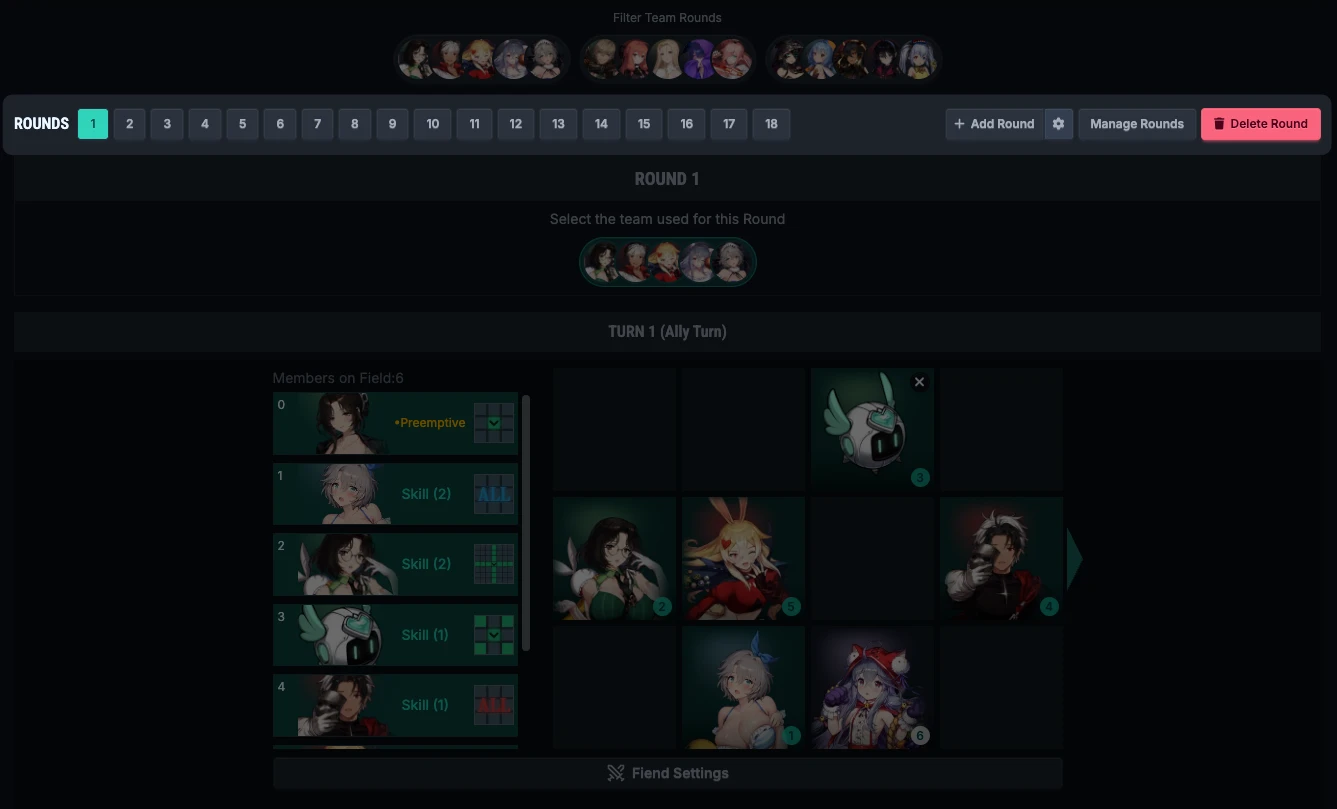
- Click a Round number to switch to the Round you want to edit.
- Select the team used by this Round in the Round details. Changing the team may clear the Round's existing action settings, so confirm whether you need to save them first.
- Drag ally action cards to adjust their order, then click an action card to open "Action Details".
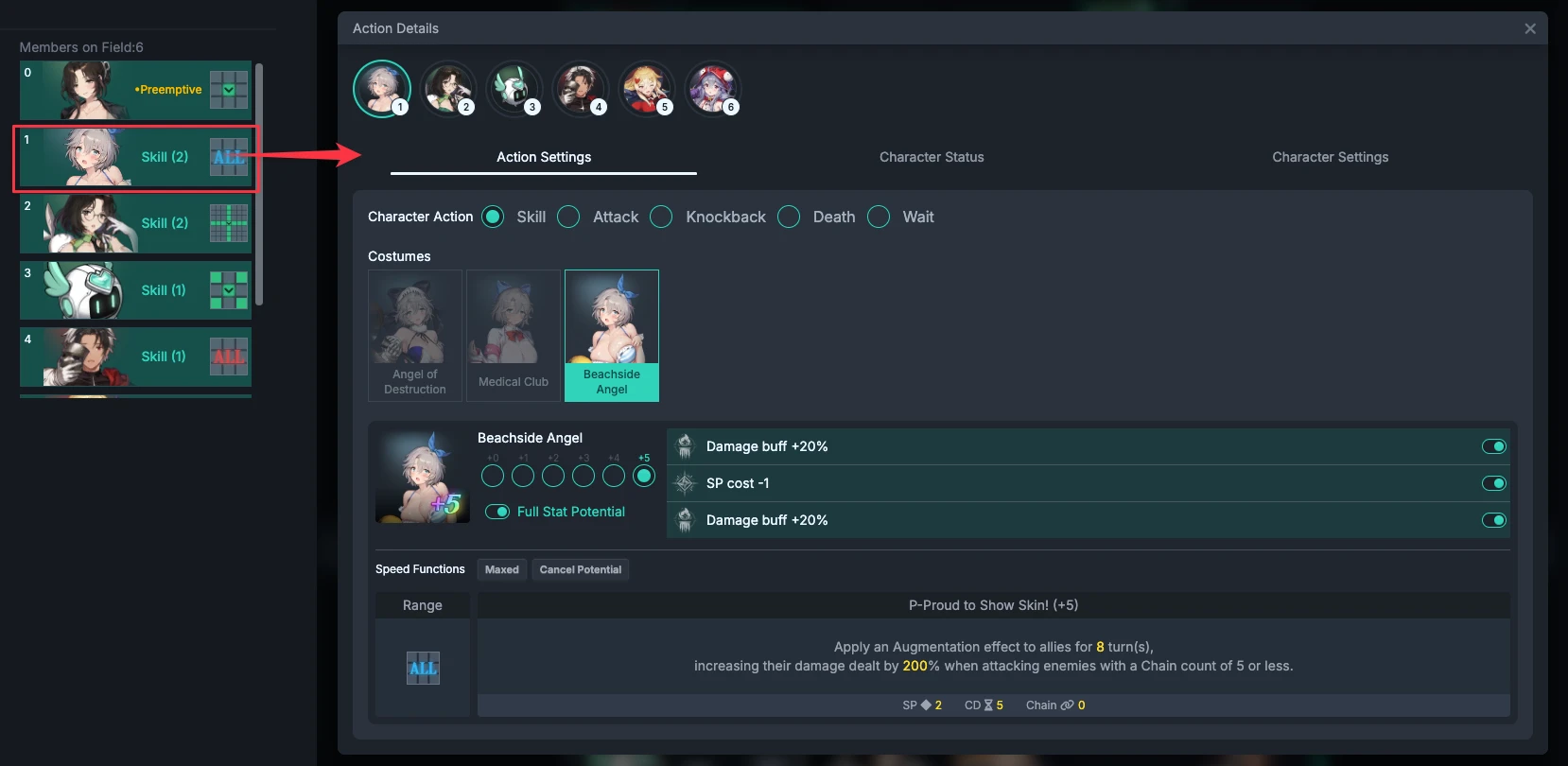
- Choose actions such as a skill, normal attack, or wait, then confirm the costume, burst level, and skill range; also arrange positions in an editable workspace.
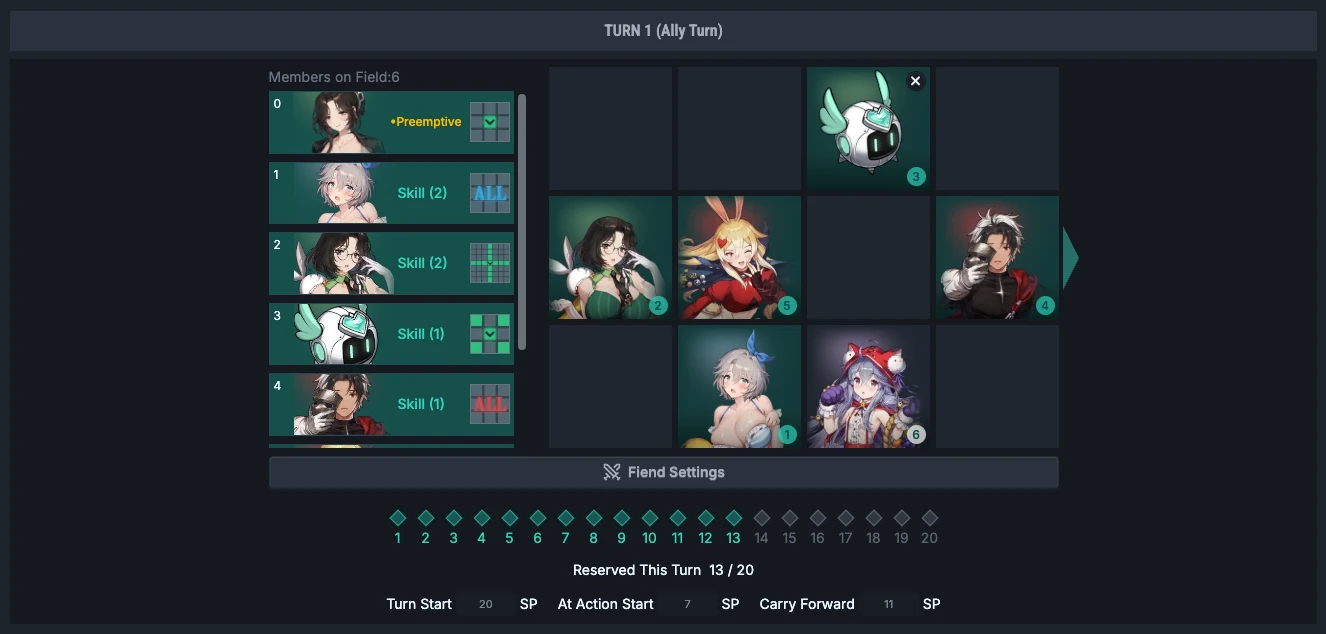
"Action Details" lets you view action settings, character states, and character settings. The timeline preview is useful for checking hit range and states, but it is not an exact HP-loss simulation; check incoming damage and death warnings in the calculation results.
2. Configure the Fiend Turn
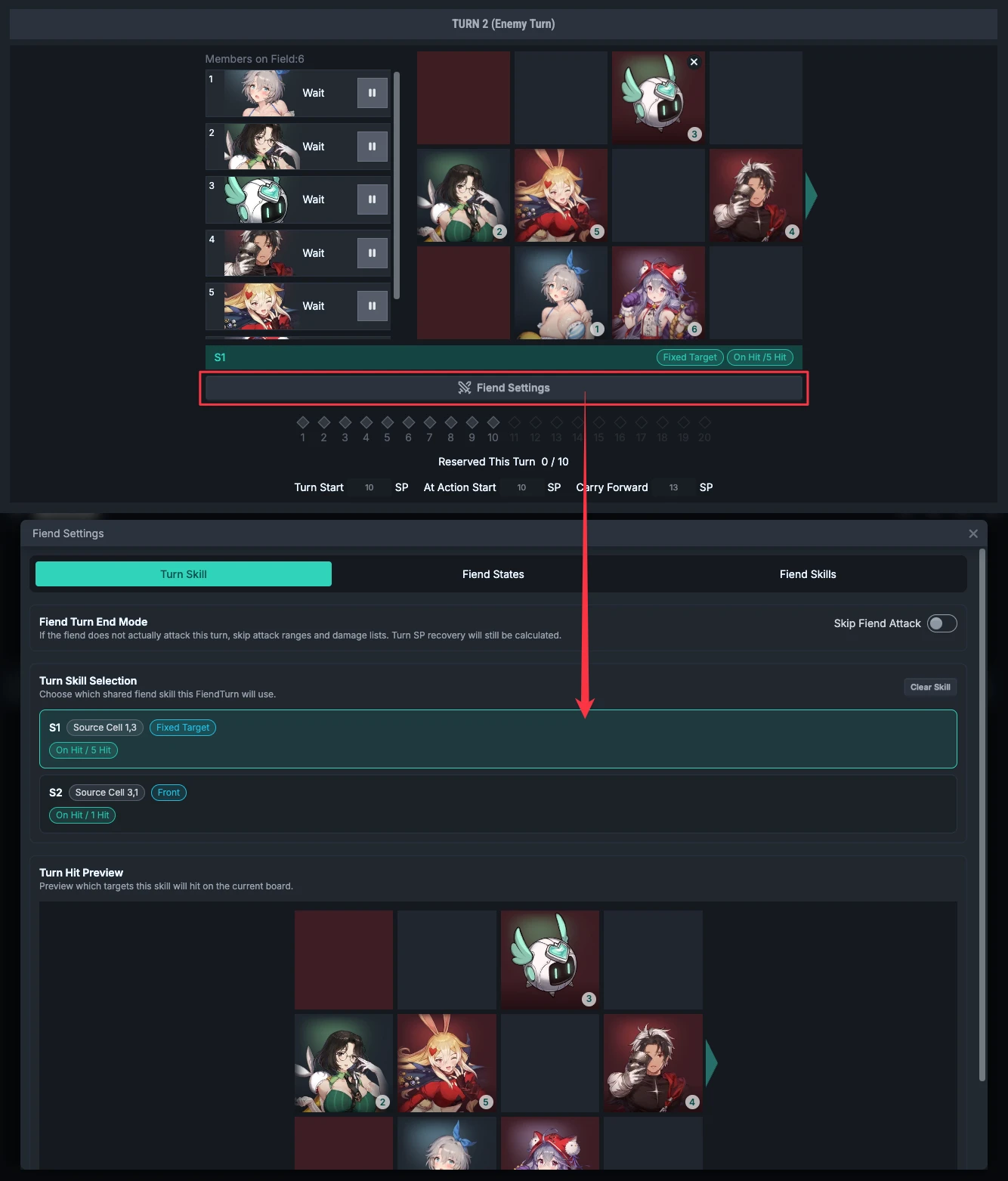
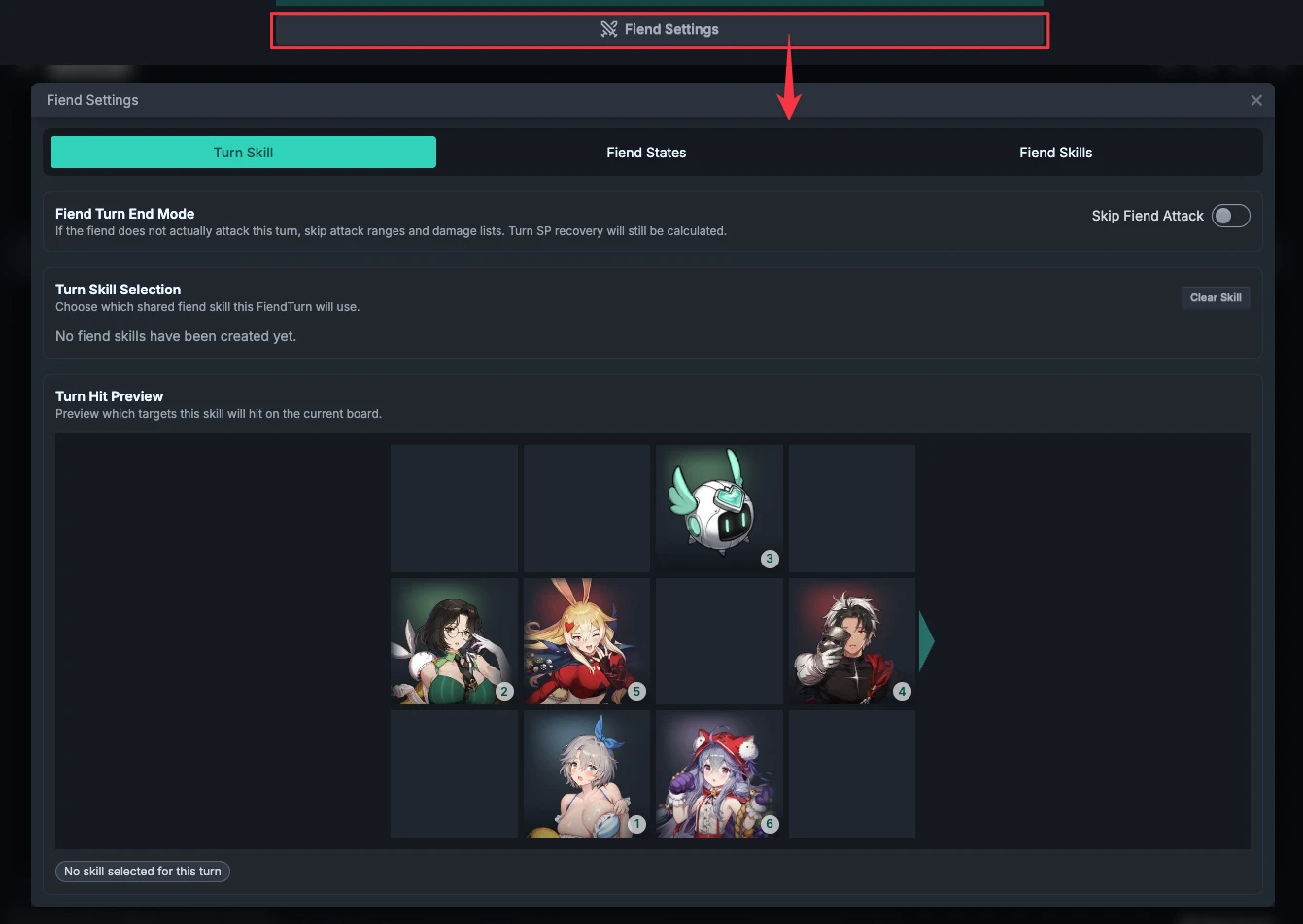
Click "Fiend Settings" in the Fiend Turn, then switch to "Turn Skill". You can also open Fiend settings from the Ally Turn to edit shared skills or states, but the skill selected for this Round and the ending mode belong to the Fiend Turn.
Select a Skill Manually
Select this Round's skill from the list and check the hit preview. If the list does not contain the skill you need, create it through advanced manual editing. Changes to a shared skill affect every Round that selects it, not only the current Round.
Auto-select Fiend Skills
This is a Premium feature and requires you to first apply an official Fiend template. Manually created skills do not have official automatic-selection data, even if their names use S1 / C1.
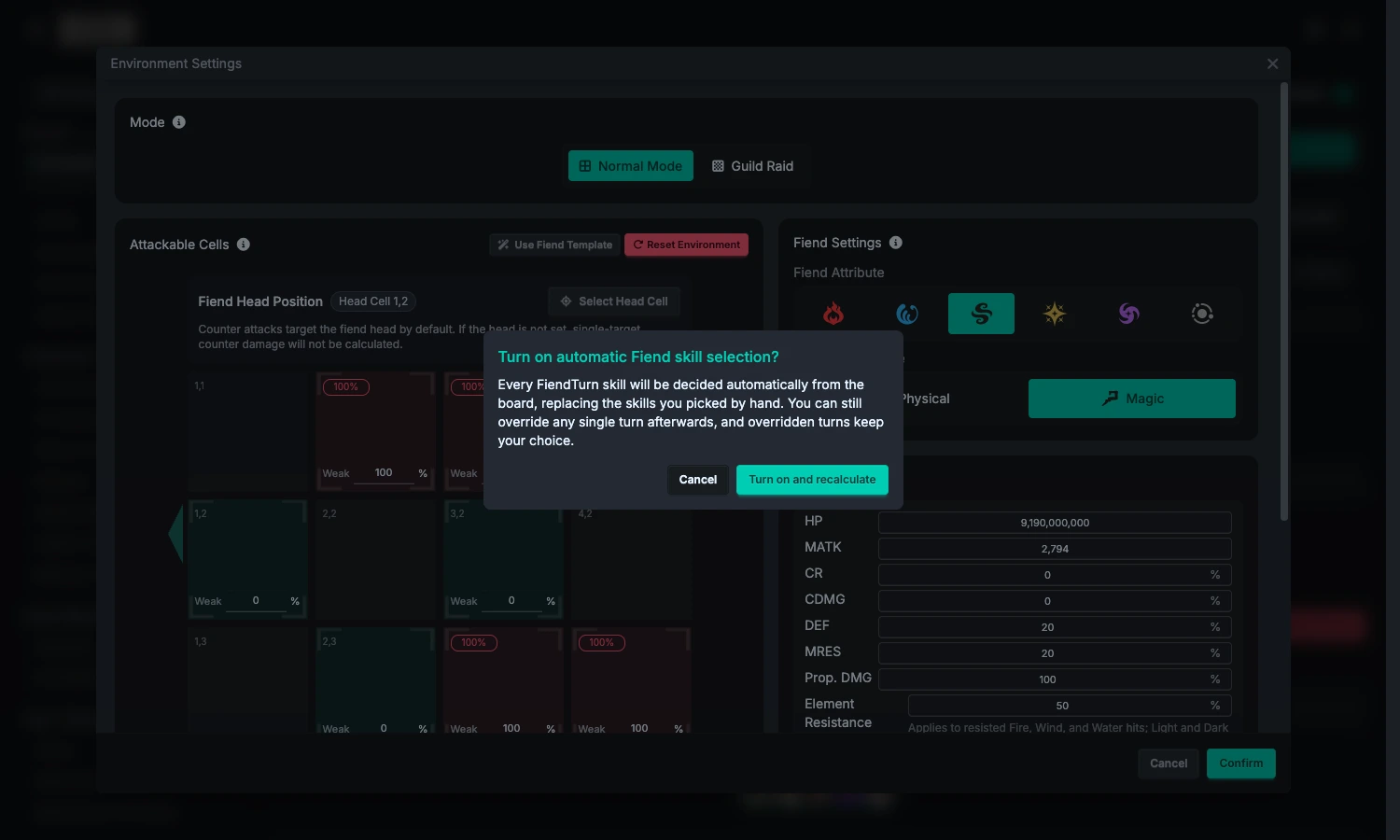
You can turn on "Auto-select Fiend skill" from Environment Settings or this Round's Fiend skill area:
- Confirm that the official template and level are correct.
- Turn on the switch and read the confirmation that existing selections will be replaced.
- If you changed it from the Environment Settings window, also click "Confirm" in that window; canceling the window does not enable the pending switch change.
- Return to each Round and review the automatically selected skill, source reason, and hit range.
The system first chooses conditional skills whose conditions are met and that still have uses remaining. If no conditional skill applies, it uses normal skills in order; it selects the finisher only after the normal skills are used up. If no finisher is available, it sets the turn to No Action. Conditions are evaluated from the state, Chain, and SP at the end of the Ally Turn; they are not a fixed rotation based only on the Round number.
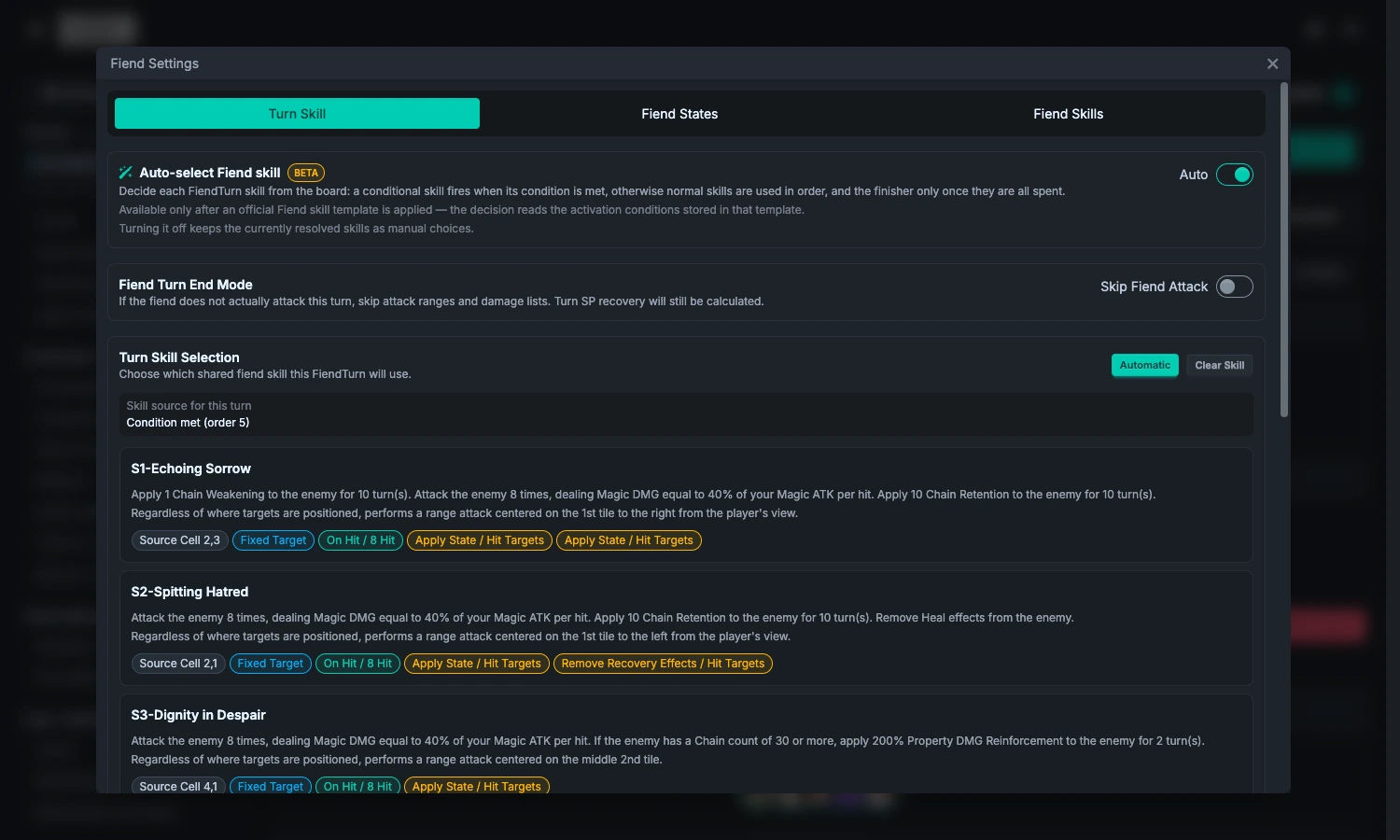
- Override one Round: select a skill directly in that Round; it is then decided manually for that Round. Select "Automatic" to return it to the system. A skill used manually still affects later usage counts and automatic ordering.
- Turn off automatic skill selection: keep the current selections and freeze them as a manual timeline; it does not restore the old timeline from before automatic selection was enabled.
- Unsupported-condition notice: the system skips conditions it cannot evaluate. This does not mean the condition is false in the game; compare with the game and manually override the Rounds that need it.
Instant Death, No Action, and Skill Instant Death
Do not mix up these three settings:
| Situation | What to use | How FRC handles it |
|---|---|---|
| The Fiend's full-team finisher / instant-death Round | The "Instant Death" ending mode (instantDeath), or an official finisher that includes this mode | Ends the entire active section as a battle-ending mechanic; the Round's regular Fiend attack and attached skill effects are not executed. |
| A Round where the Fiend definitely does not act, such as Break | "No Action" (noAction) | Creates no Fiend attack for this Round; it is not a replacement for an instant-death ending. |
| A skill that makes only specified targets die instantly | Under a regular ending mode, choose Instant Death in the skill's "State Effects" and specify the scope | Handles only the specified characters hit by the skill; the rest of the skill still runs according to its settings. |
The first two non-normal ending modes still calculate SP recovery. If you simply forgot to select a skill, select one instead of hiding the omission with No Action.
3. Check SP and Skill Cooldowns
SP
Each Round shows starting SP, the amount available during actions, and the carryover to the next Round. Use "SP Detail" to inspect skill costs, recovery, and manual adjustments. When SP is insufficient, first check the environment starting value, action order, costume level, potentials, and bursts, then check whether manual additions or reductions match the actual battle.
Cooldown (CD)
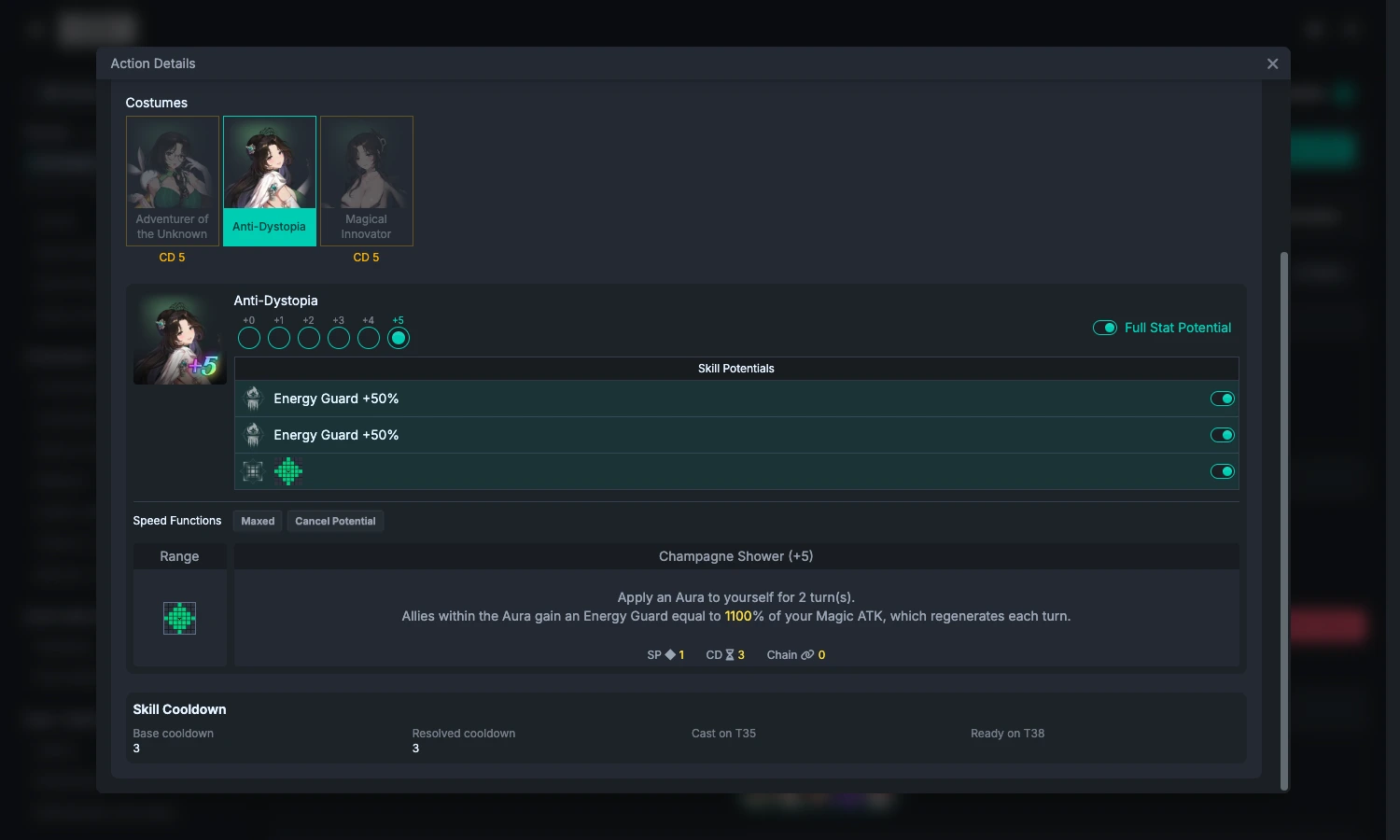
The costume selection row shows remaining cooldown. Action cards and Manage Rounds also mark costumes that are still on cooldown. A cast that qualifies for an exemption during transformation has a different label; this does not mean the original cooldown disappeared.
In Action Details' cooldown details, you can trace the base skill cooldown, potential / burst reductions, the turn when counting starts, the turn when the skill becomes available, and adjustments caused by other skills. Fiend Turns also count toward cooldown, and a costume that leaves the field continues counting down.
4. Expand and Organize the Full Timeline
Use "Add Round" and the settings menu beside it to choose the insertion position and copy source. When there are many Rounds, open "Manage Rounds":
- Round Mode: drag individual Rounds to sort them, and view ally actions, Fiend skills, SP, and ending mode.
- Team Mode: drag consecutive segments that use the same team to organize multi-team rotation.
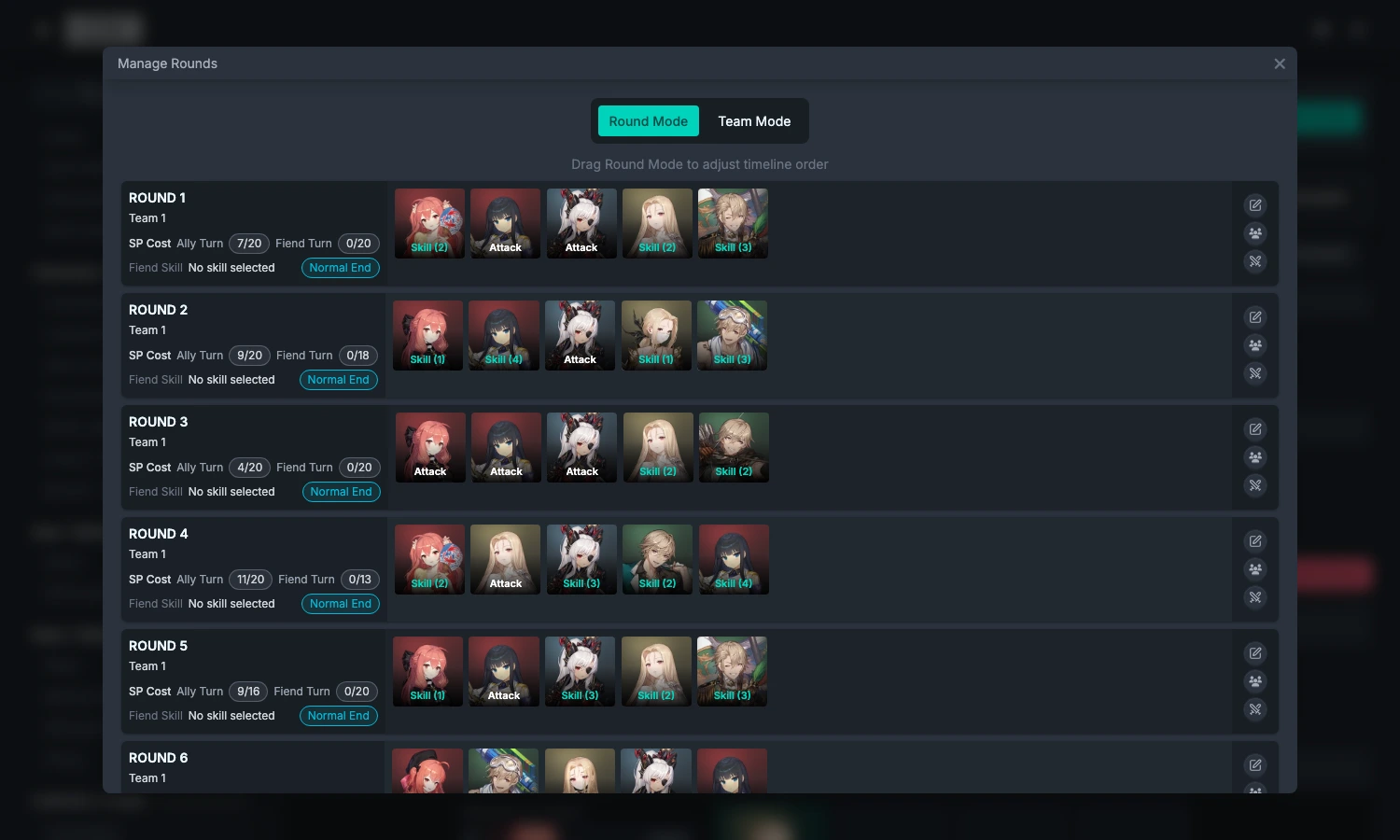
The issue indicator beside a Round title summarizes insufficient SP and cooldown violations. Before formal calculation, scan from the first to the last Round for teams, actions, selection reasons, and these warnings, then continue to Calculation Settings and Results.