FRC: Save and Share
FRC has its own format for saving and exchanging data. First decide whether you want to continue calculating later, give someone else the full settings, or collaborate through normal formation templates; do not mix these three kinds of data.
| Purpose | Entry to use | What it preserves |
|---|---|---|
| Keep different FRC versions in the same browser | Save Formation | Teams, environment, Fiend skills, both sides' timeline, and calculation settings; not a backup of calculation reports. |
| Back up / exchange FRC settings | Share → JSON / Share Code | A cleaned snapshot of the fixed workspace; personal custom final stats are not shared. |
| Publish or collaborate on a normal formation template | Formation Template menu (Premium) | Primarily the ally team and timeline; it cannot fully restore FRC-only settings. |
Basic / Premium users can use local FRC saves and exchange settings through JSON / share codes. Demo does not read or write regular FRC local drafts and cannot use imported data to replace its fixed teams.
1. Save Your Own FRC Version
Click "Save Formation" to open the list, select "Save Current Settings", and give the version an identifiable name, such as the Fiend, level, and plan. Do not rely only on automatic retention of the current workspace; an automatic draft is not a substitute for named multi-version saves.
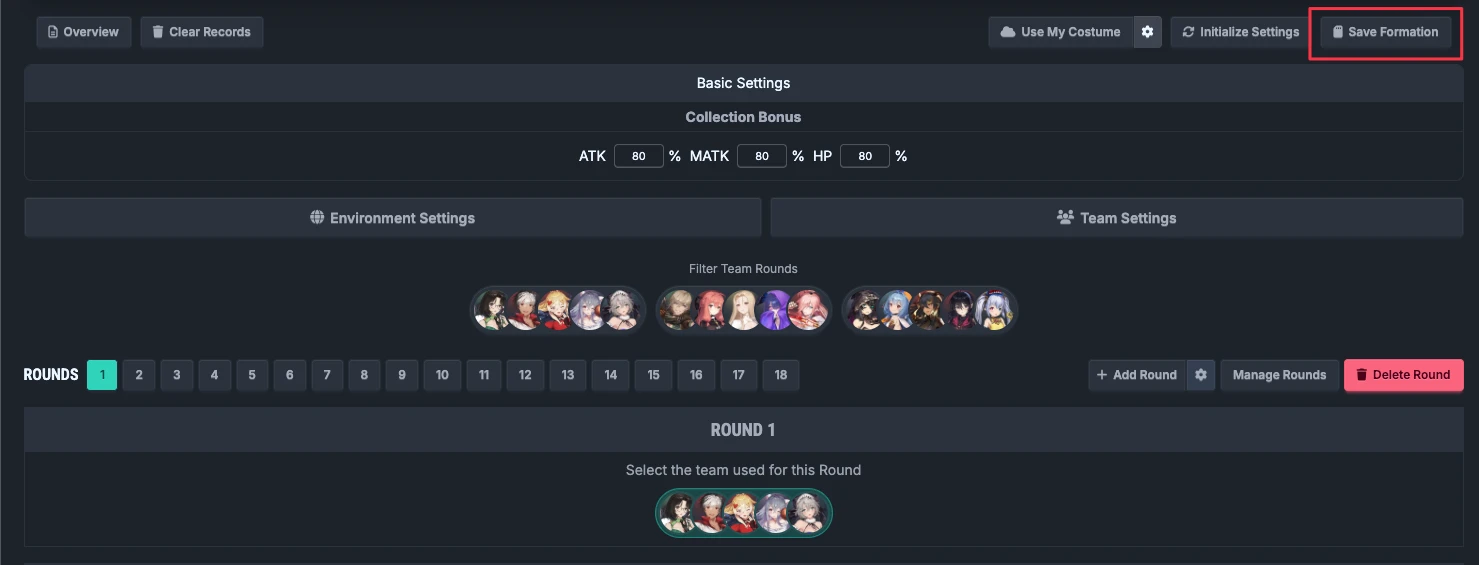
When you need to continue editing, select a save in the list and explicitly click "Apply". Save the current version first if it has changes you have not kept; after applying, check the character data source, custom panel, and calculation mode, then calculate again.
- Local saves remain in the current browser. Do not expect them to appear automatically after changing devices or clearing site data.
- Saves preserve editable settings, not damage reports, calculation progress, or an open window.
- Personal custom values in local saves have their own retention rules. Applying a save should not be treated as an operation that necessarily overwrites your panel. If the interface asks whether to use the saved values, first verify their owner and contents.
- Download JSON for a long-term backup, but remember that shared JSON cleans custom panels. Record important personal panels separately.
2. Share the Current Workspace
The workspace must have at least one team member. Click "Share" on the main page, then choose Download JSON or Create Share Code; you do not need to create a local save first.
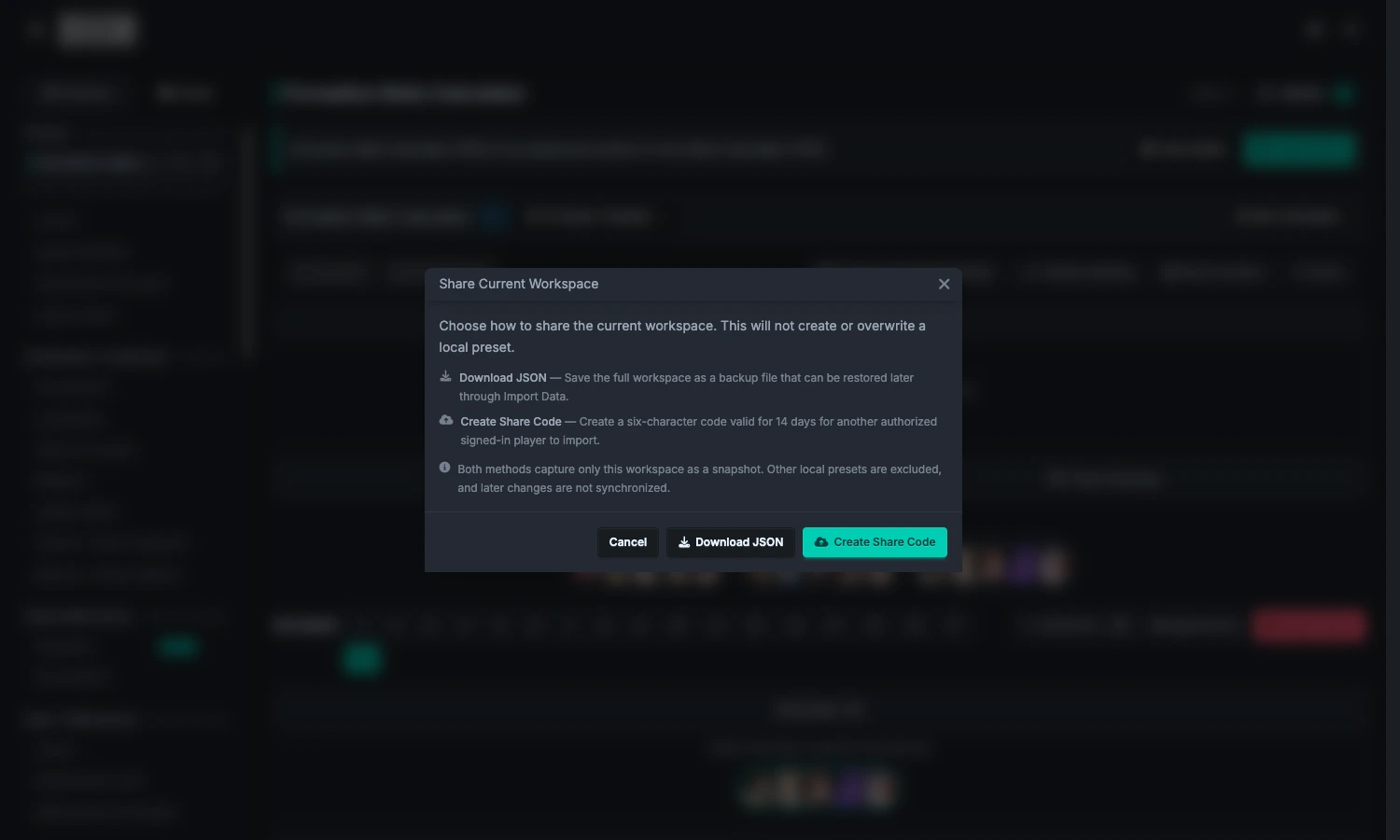
JSON
Download an exchange file for the current workspace. It is suitable for your own backup or sending through another channel. It does not include other local saves in the list and does not track later changes automatically.
Share Code
You must be signed in and have the required access. A created code is six characters and valid for 14 days; use the expiration time shown in the result window as the authority. Give the code to the recipient; do not use a normal formation-template link as an FRC share code.
A share code stores a fixed snapshot from the time it was created. Changing the timeline does not update the old code; create another one. After it expires, ask the sender to create a new code; an old code cannot be extended.
Personal Stats Are Not Shared
JSON and share codes use the same cleanup: personal-stat snapshot data is removed, custom final stats are cleared, and the Use Custom Final Stats switch is turned off so the character's calculation mode returns to optimization. After receiving data, confirm your own calculation mode and panel again; this exchange file is not a backup of all personal data in the other account.
3. Import JSON or a Share Code
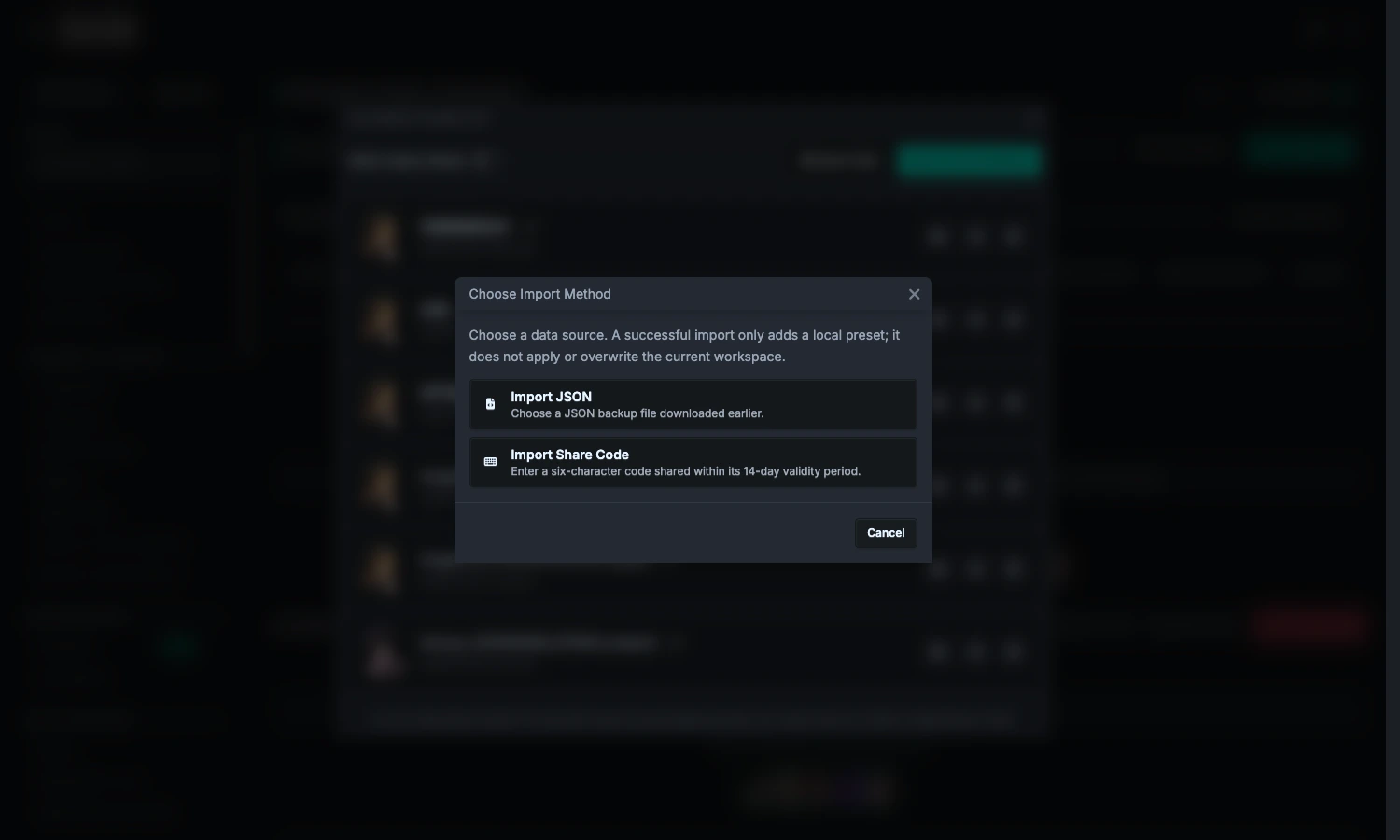
- Click "Save Formation" → "Import Data".
- Choose JSON and select a file, or choose Share Code and enter a valid code.
- Read the import success message and the notice about data not being applied.
- Find the newly imported item in the local list, then manually click "Apply".
- Check the environment, skills, timeline, personal panel, and candidate gear, then calculate again.
4. When You Do Not Have Access to Official Fiend Templates
Basic can send and receive FRC data, but that does not grant Premium access to official Fiend skills through sharing.
If shared content came from an official Fiend template and the importer does not have official-template access:
- The teams, character and gear settings, Rounds, ally timeline, and Fiend environment skeleton (mode, stats, head, parts, and SP) are still used.
- The official Fiend skill list is not used. Related skill selections and attacks for each Round are cleared, and automatic skill selection is turned off.
- During import, the template name or source identifier indicates which official data was not used; this is not silently treated as a complete restore.
This cleanup is completed before the local save is added; the data is not first imported in full and then locked only at calculation time. After applying, go to Fiend Skill Settings, complete manual skills, and select them in each Round. After obtaining Premium access, you can also reapply an applicable official Fiend template, but read the overwrite warning again.
Manually created skills by another user do not have this official-source restriction; the cleanup of personal panels still applies.
5. Clear and Reset
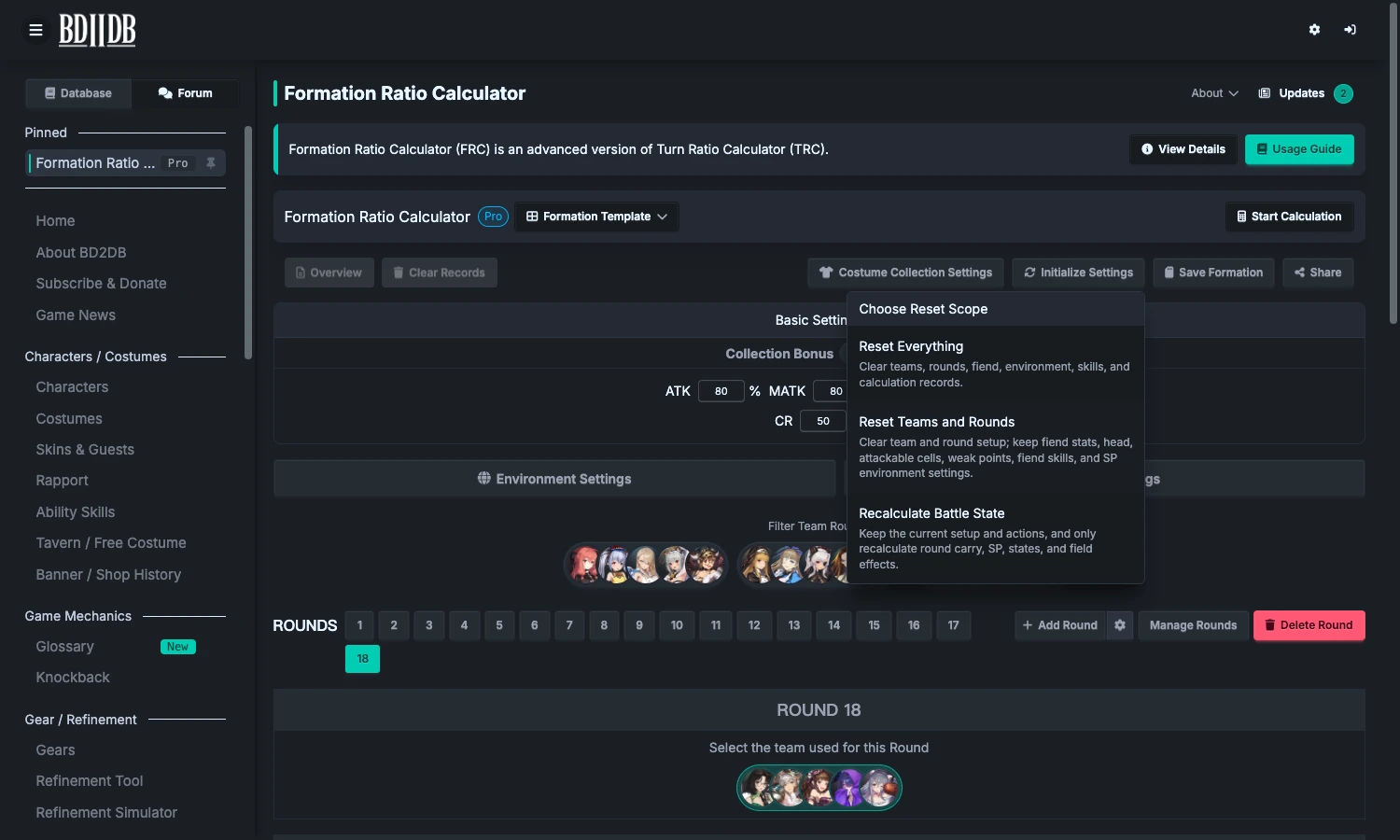
Save first before operating. "Clear Records" and "Initialize Settings" on the main page are not the same:
| Operation | Clears / recalculates | Keeps |
|---|---|---|
| Clear Records | The current calculation result list | Team, environment, and timeline settings. |
| Reset Everything | Current teams, character settings, Round actions, Fiend data, parts, head, weak points, skills, state settings, SP, and calculation results; the current automatic draft is also cleared. | Separately saved local presets and independently saved personal custom panels. |
| Reset Teams and Rounds | Team members, character settings, candidate gear selections, all Rounds and actions, and calculation results | Fiend data, parts, head, weak points, skills, State Presets, SP environment, and basic settings. |
| Recalculate Battle State | Rebuilds cross-Round carryover, SP, states, and field effects | Current settings, teams, actions, candidate gear, and existing calculation results; it does not rerun the final damage calculation. |
If you only changed settings and want to recalculate damage, click "Start Calculation" again; you do not need to reset everything first. Use "Reset Teams and Rounds" when you want to keep the Fiend and build a different team.
6. When Should You Use a Normal Formation Template?
To publish in the formation-template list, share an ally timeline, or continue the template editing workflow, use Premium's Working with Formation Templates. It is not another FRC JSON / share-code format; Fiend skills, Fiend turns, and calculation settings should still be saved as an FRC preset.