FRC: Calculation Settings and Results
Complete the environment, teams, and both sides' timeline, then check the SP / cooldown warnings before clicking "Start Calculation". This page explains how to choose stat sources and read results; the previous save and reset guide has moved to Save and Share.
Images demonstrate operation locations and warnings; they are not recommended clear teams or guaranteed-completable timelines.
1. Choose a Stat Source for Each Member
"Calculation Members" does not only select who produces output. It determines which panel each character uses in the battle calculation.
| Method | Use |
|---|---|
| Normal mode: Gear Optimization | Find gear / SubStat ratios from the character's FRC gear settings; it does not allocate GearManager inventory. |
| GearPicker: Gear Optimization | Choose from the actual candidate gear selected for this calculation and allocate gear within the calculation. |
| Custom Final Stats | Use stats entered manually or applied from the Character Stat Calculator; do not adjust this character's gear / SubStats. |
| Automatic Final Stats | GearPicker Mode only: reuse the panel from this calculation's initial quick pass; do not allocate gear or reserve inventory for this character. |
Main damage dealers usually use optimization. For a character whose panel is already known and whose timeline you only want to verify quickly, use custom final stats. Support Buffs, Shields, or Recovery may also vary with the support's own panel, so do not set them to zero simply because the character is not a damage dealer.
2. Optimization Target
By default, gear is selected to maximize own damage. When the current timeline needs this character's ATK, MATK, or HP for another effect, the character row provides the applicable stat target.
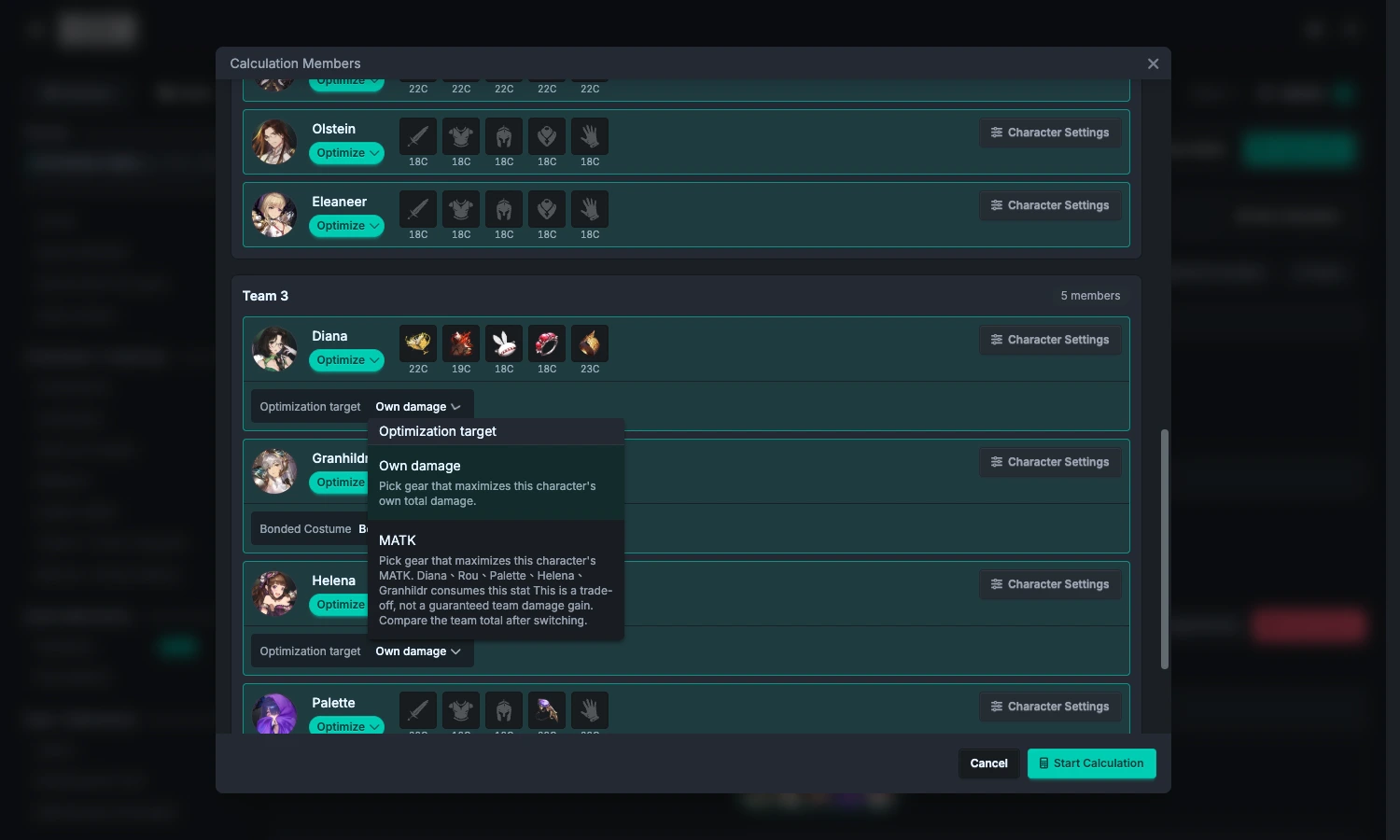
- Check the "Optimization Target" menu and which characters consume that stat.
- To strengthen a support effect, choose the applicable ATK, MATK, or HP target.
- After calculating, compare total team damage and survival, not only this character's panel.
The highest stat does not guarantee the highest total team damage. This is a trade-off, not a switch for a globally optimal team solution. Available targets change with the timeline; when "Target no longer applies" appears, review the selection. A character with no related use will not show every stat option.
3. Allocate Actual Gear with GearPicker
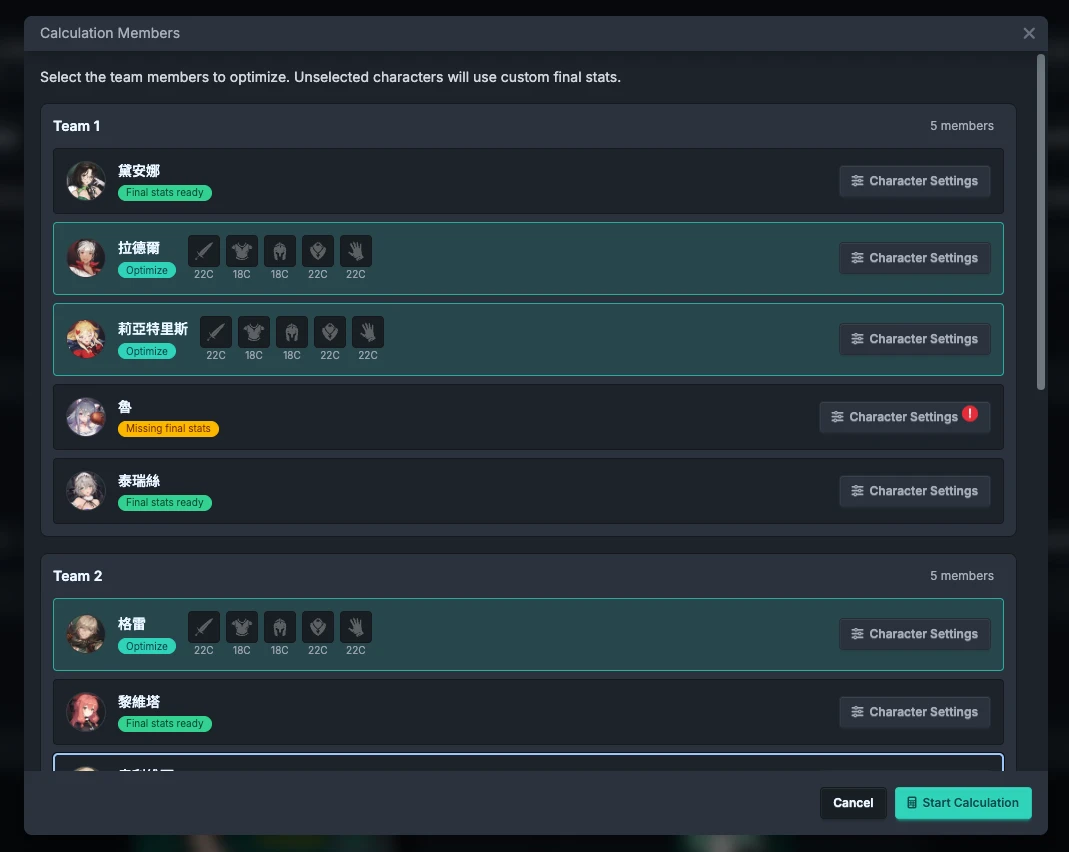
- Import and organize gear in GearManager first.
- Enable "GearPicker Mode" in Calculation Member Settings. If the gear data source defaults to "My Record", it may already be enabled on first entry; existing session settings take priority.
- For members who need gear allocation, select "Optimize" and check "Inventory Candidates" and "GearPicker Settings" for each slot.
- Members who do not need allocated gear can use Automatic Final Stats or Custom Final Stats.
- Confirm that the candidates are complete before starting the calculation.
The system runs an initial quick pass, then lets higher-damage members choose first. Gear already selected is locked during the same allocation, so later members cannot reuse it. This does not automatically mark GearManager gear as permanently used.
After turning off GearPicker Mode, Automatic Final Stats returns to optimization; Custom Final Stats is retained. Check every member again after switching modes.
4. Custom Panels and the Character Stat Calculator
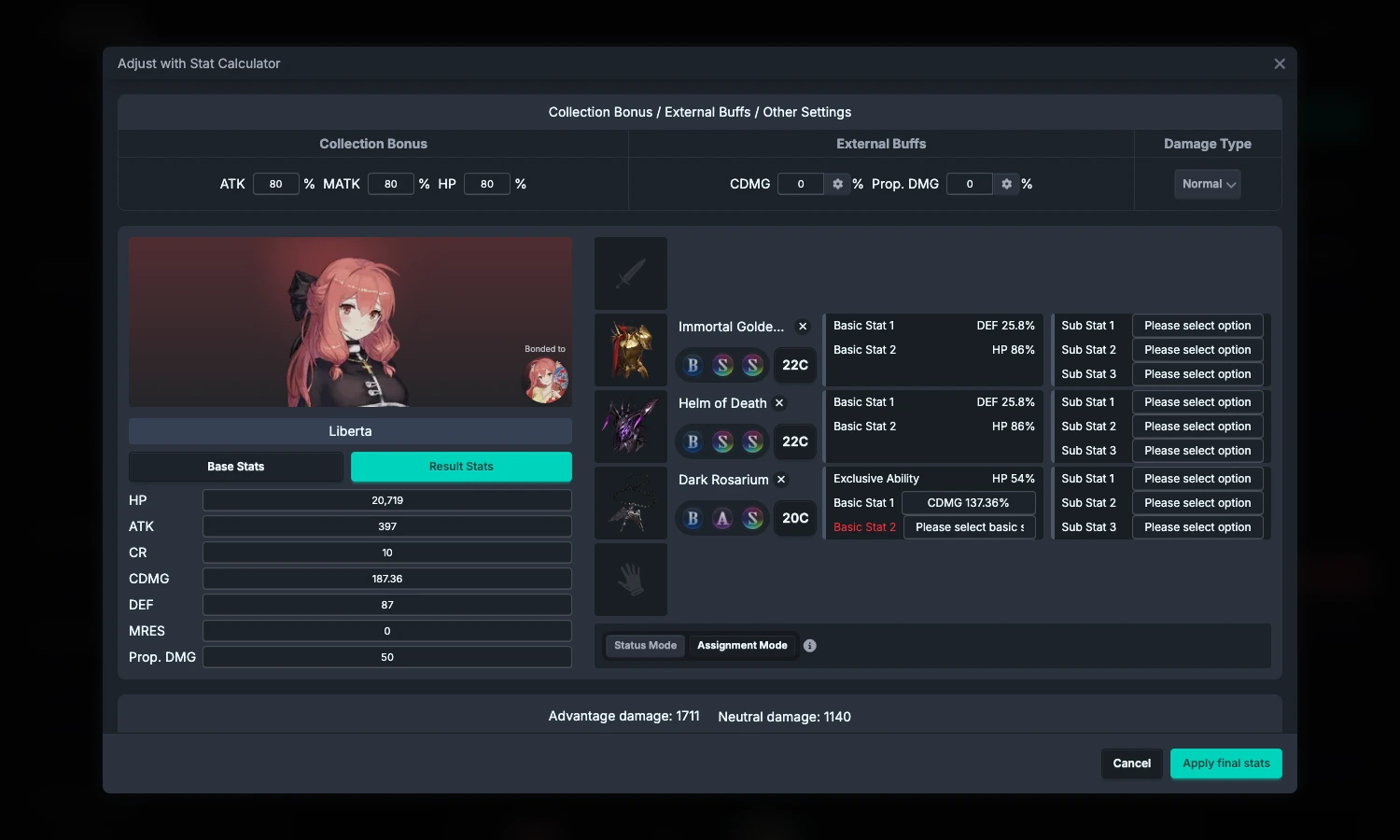
- Click "Character Settings" in the character row and switch to "Final Stats".
- Enable "Use Custom Final Stats".
- Enter the values manually, or click "Adjust with Character Stat Calculator".
- In the Character Stat Calculator, check gear, costumes, engravings, awakening, collection bonuses, and the bound costume, then click "Apply Final Stats".
- Return to Calculation Member Settings and confirm that this character uses Custom Final Stats.
If custom stats are required but there is no valid panel, the system reminds you to provide the data. Check this especially after receiving someone else's share: sharing clears personal custom final stats and does not treat the other person's entered numbers as your panel.
5. Survival Priority and Calculation Progress
Premium users can enable "Survival Priority" in Calculation Member Settings. This switch and GearPicker are separate: regular optimization can also use it. Basic does not have Survival Priority after the grace period ends.
When the original best-damage setup would die from incoming damage, the system tries to select a setup that survives, then expands some defensive / HP gear and survival SubStats if needed. When it finds and uses a survival setup, the result is marked "Survival Priority".
You can view each member's progress or stop the calculation while it runs. The number of optimized members, candidate gear, and survival search all affect the time required; if you only want to verify a timeline, use known custom panels first to reduce the search.
6. Start with the Overview and Death Warnings
After calculation finishes, click "Overview", select a result record, and view total team damage, incomplete members, and each character's contribution. Use multiple results to compare different targets or gear setups.
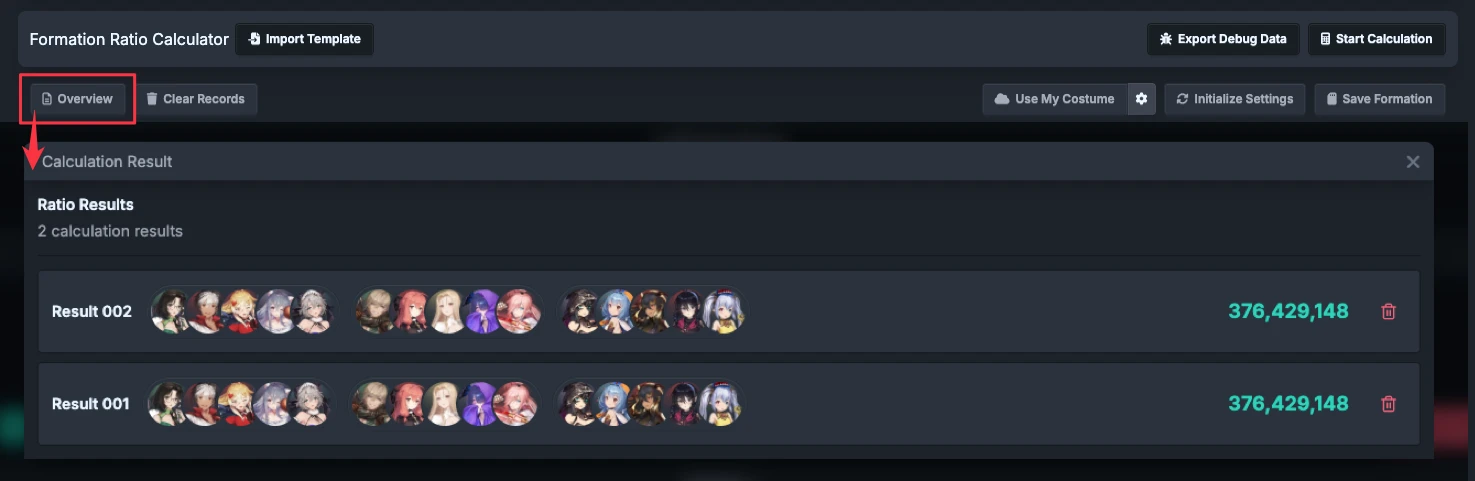
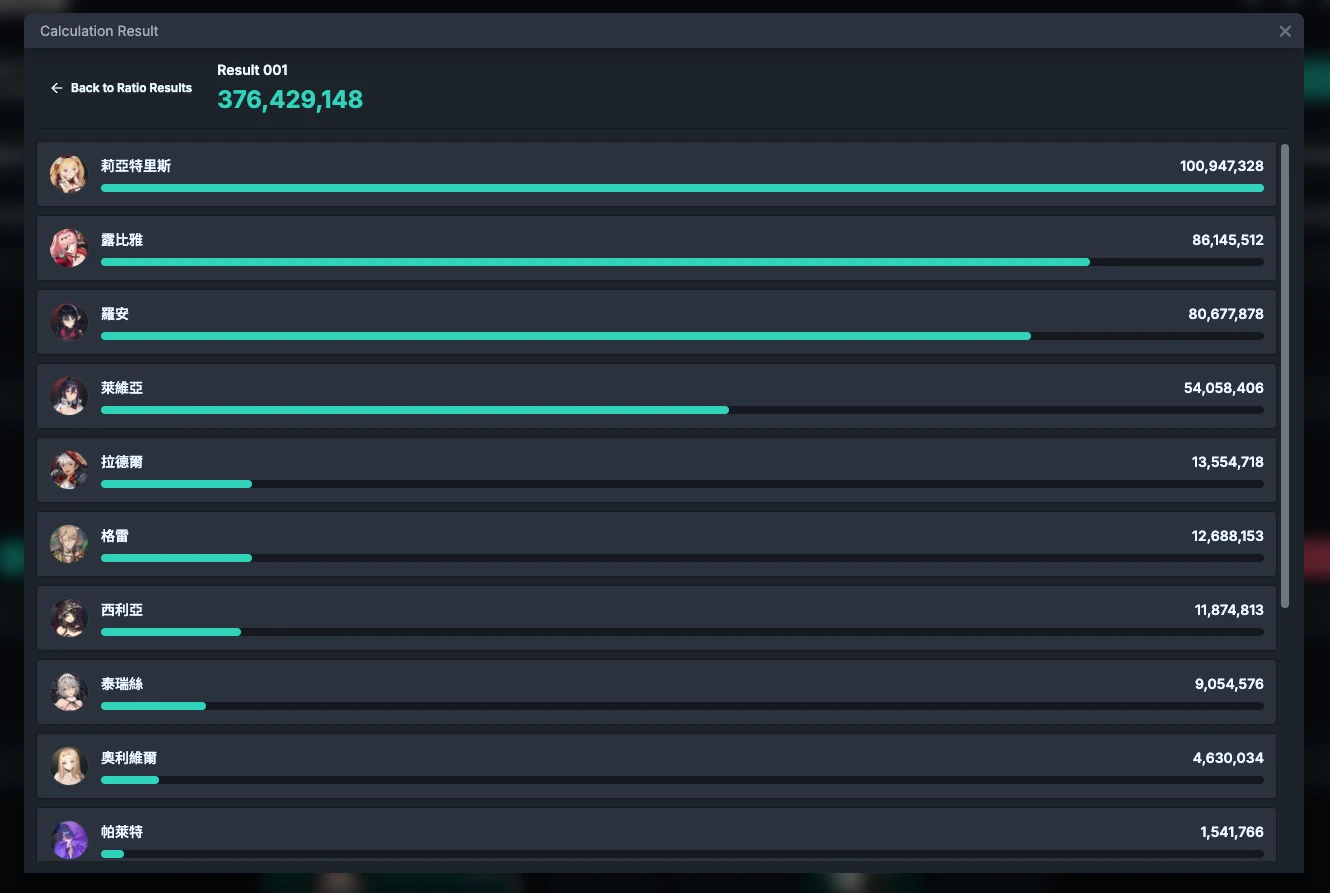
Death warnings do not automatically delete later damage or rewrite actions in the editor. Even if a character is warned as dead, the total may still include later timeline damage from that character; do not treat the total directly as damage that can be completed in-game. Return to the timeline, adjust it, explicitly set later dead-character actions when needed, and calculate again.
The instant-death ending mechanic for an entire Round and manually configured death are not the same as an "unexpected incoming-damage death" warning. A skill-targeted Instant Death is included in the warning, but Survival Priority does not resolve it automatically.
7. Character Reports and Action Details
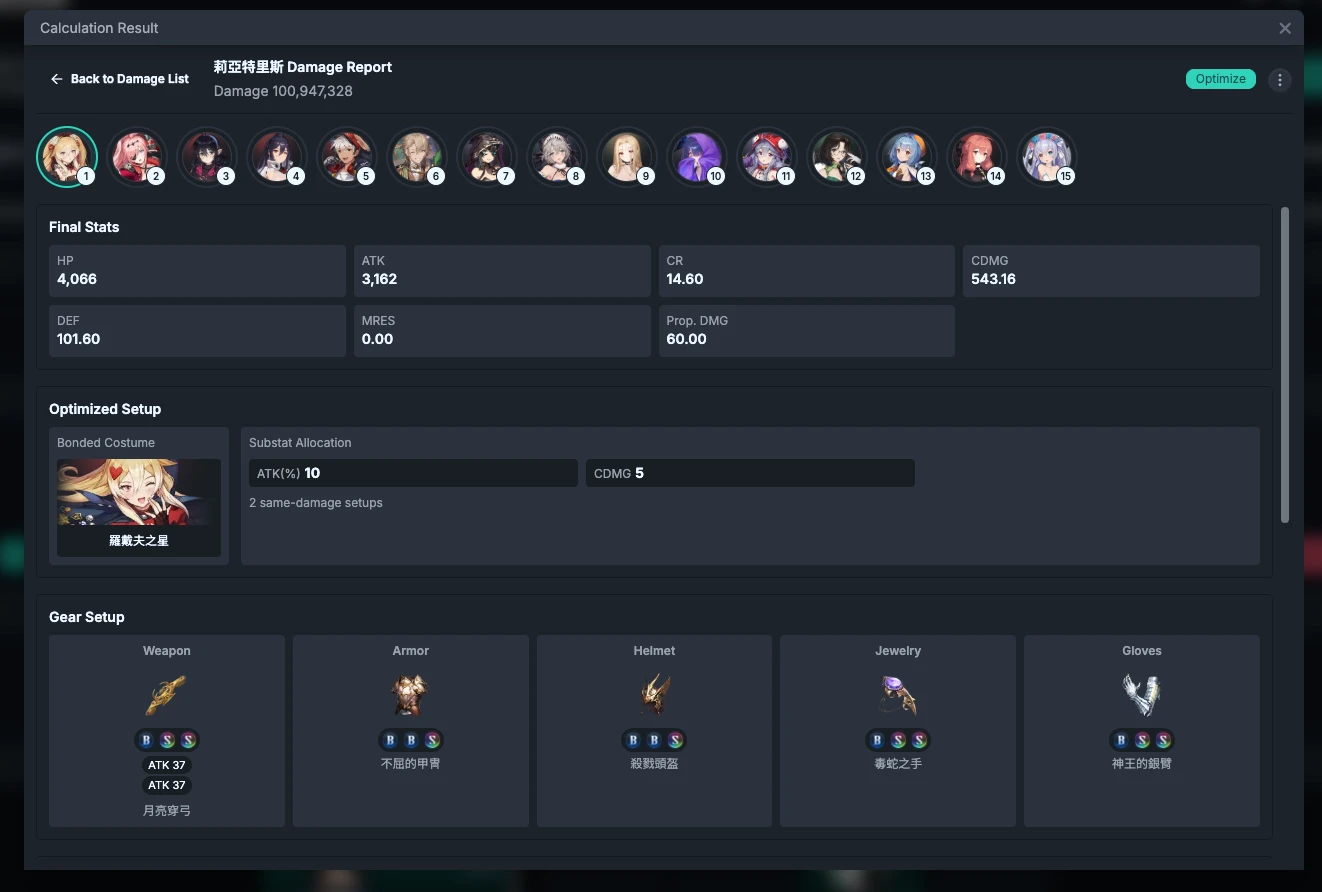
Open a character report to view final stats, the bound costume, gear / SubStats, and costume, Round, and action damage. Custom Final Stats does not list optimized gear ratios; Automatic Final Stats does not list GearPicker allocation results.
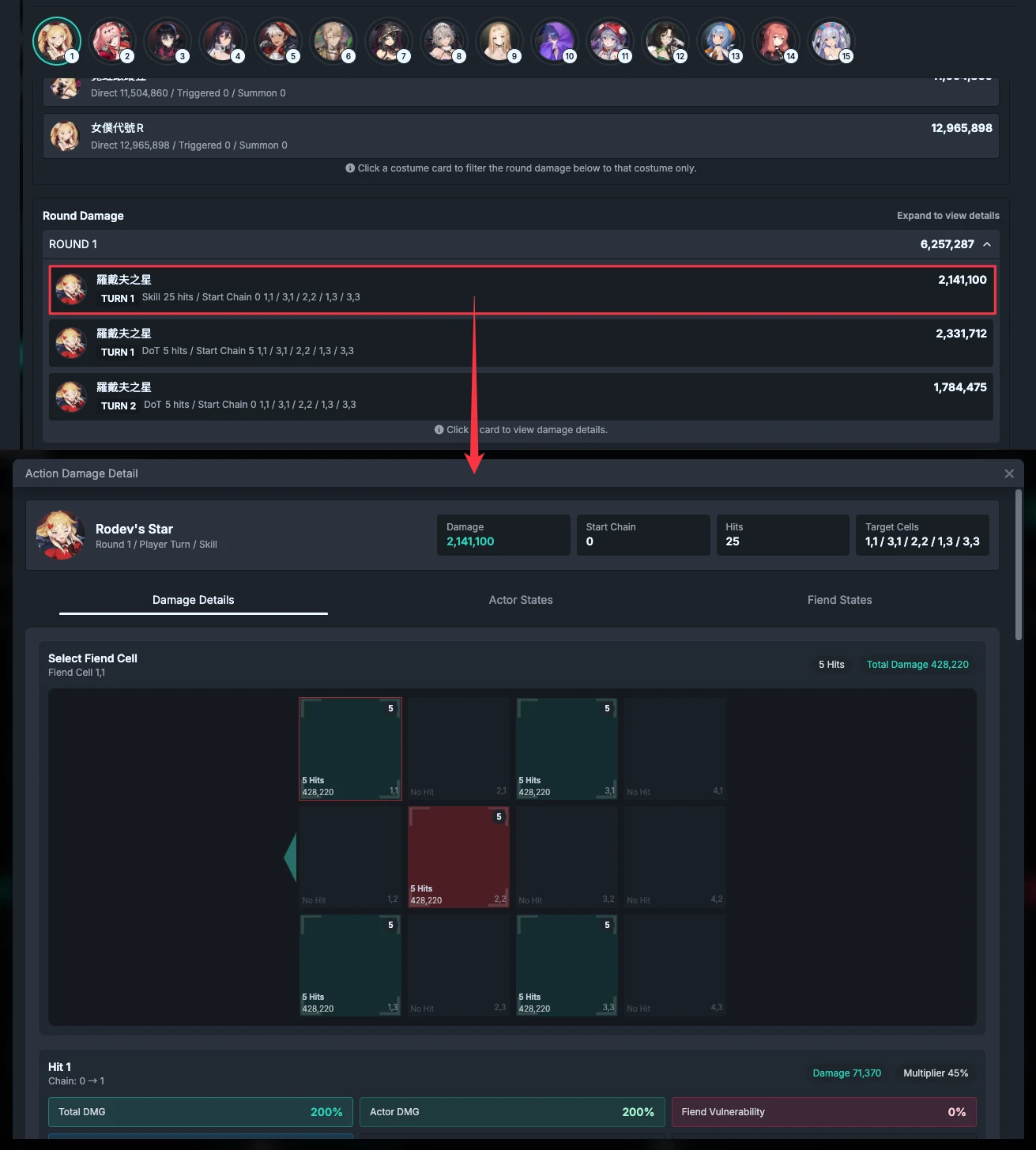
Click an action card to trace its hit range, damage per Hit, Chain changes, and the character and Fiend states at that timing. If total damage differs from expectations, find the first differing Round / action instead of repeatedly adjusting the character's final panel.
Results are not permanently saved with a preset. You must also recalculate after changing settings; an old record is not a result for the new settings. To preserve a settings version, continue to Save and Share.
8. Formation Presets
This operation has moved to Save and Share: Save Your FRC Version. This entry remains for old links.
9. Clear and Reset
See Clear and Reset for the differences between "Clear Records", Reset Everything, Reset Teams and Rounds, and Recalculate Battle State.