FRC: Working with Formation Templates
FRC can convert data to and from the site's existing formation templates. You can import an ally timeline from a formation template, then complete the Fiend environment, Fiend skills, and calculation settings in FRC. You can also export the current FRC ally timeline as a formation template, then save, share, or collaborate on it through the formation template system.
This is a Premium cross-tool workflow, not a required step for first-time FRC use. If you only need to exchange FRC settings with Basic, use FRC JSON / Share Codes directly; you do not need a normal formation template.
Formation templates are good at saving and sharing ally timelines, while FRC handles both sides' battle timelines and calculation. Converting between them is not a complete backup and restore.
1. Open the Formation Template Menu
Click the "Formation Template" menu at the top of the FRC main page.
The menu contains two main actions:
- Import Formation Template: create the current FRC data from an existing formation template.
- Export as Formation Template: send the current FRC ally timeline that can be converted into the formation template save flow.
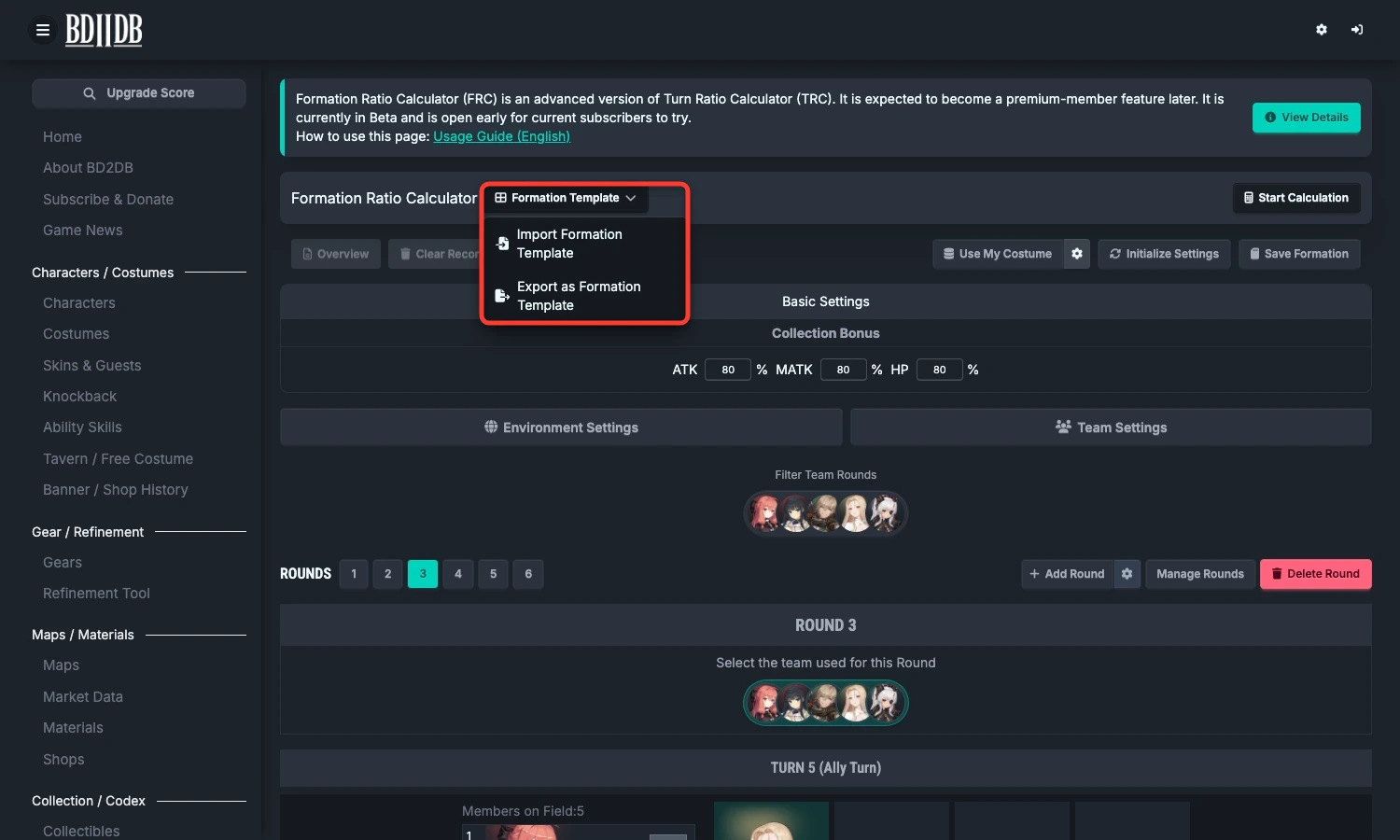
If there are no team members yet, "Export as Formation Template" is unavailable. Finish environment and team settings first, and create at least one convertible ally action.
2. Import a Formation Template into FRC
Importing is useful when you have already arranged teams, positions, and ally actions through formation templates, but want to use FRC to add Fiend turns, Fiend states, and full-team calculation.
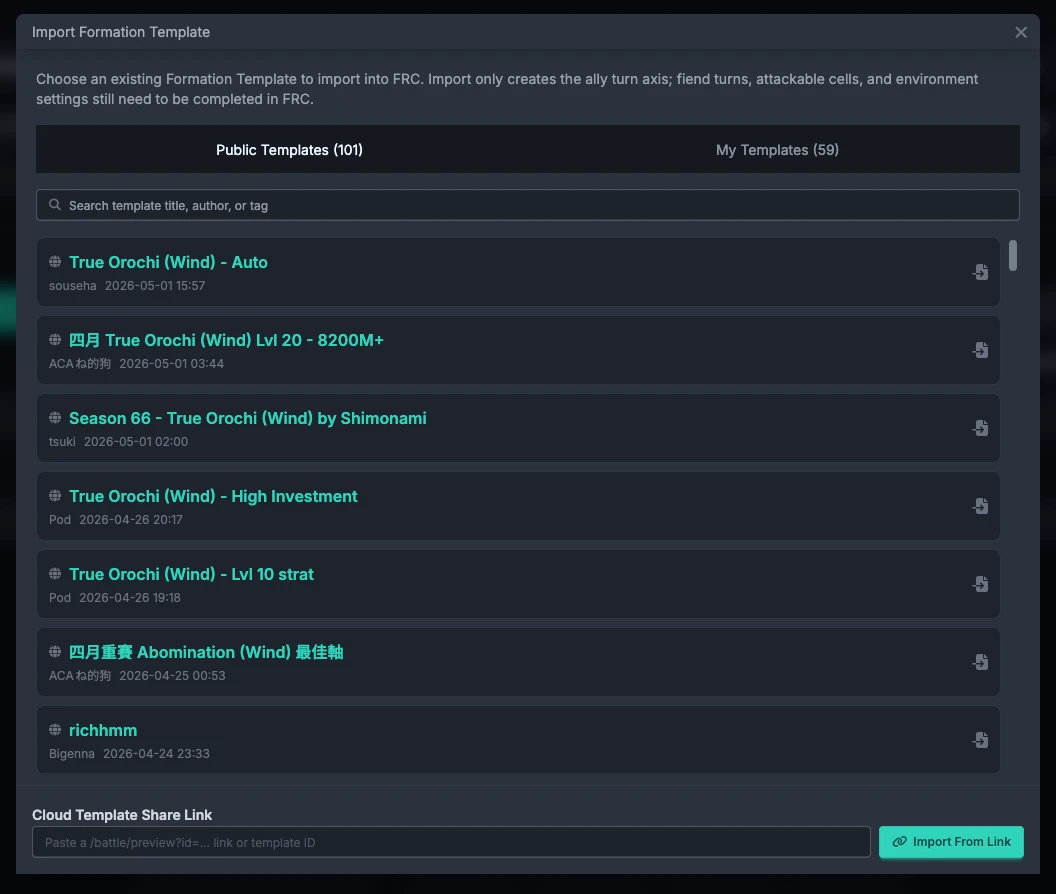
Available sources currently include:
- Public Templates: formation templates publicly shared by other players.
- My Templates: templates you created or saved, including local and cloud templates.
- Share Link: paste a cloud formation-template share link or template ID to load the specified template directly.
Before importing, note that the template replaces the current FRC teams and timeline data. If you need to keep the current FRC timeline, save it with "Save Formation" first.
3. What Should I Check After Import?
Formation templates mainly describe ally timelines and do not fully replace FRC's Fiend or calculation settings. After importing, check these items in order:
- Whether Environment Settings match the current Fiend.
- Whether Fiend attackable parts, weak point bonuses, and head position are correct.
- Whether Fiend attribute, attack type, base stats, and SP are correct.
- Whether team members, Rounds, positions, and ally actions match the original template.
- Whether Fiend skills have been created, and whether each Fiend Turn selects the correct skill.
- Whether calculation members use gear optimization or custom final stats; enable GearPicker when actual gear needs to be allocated, because only that mode provides Automatic Final Stats.
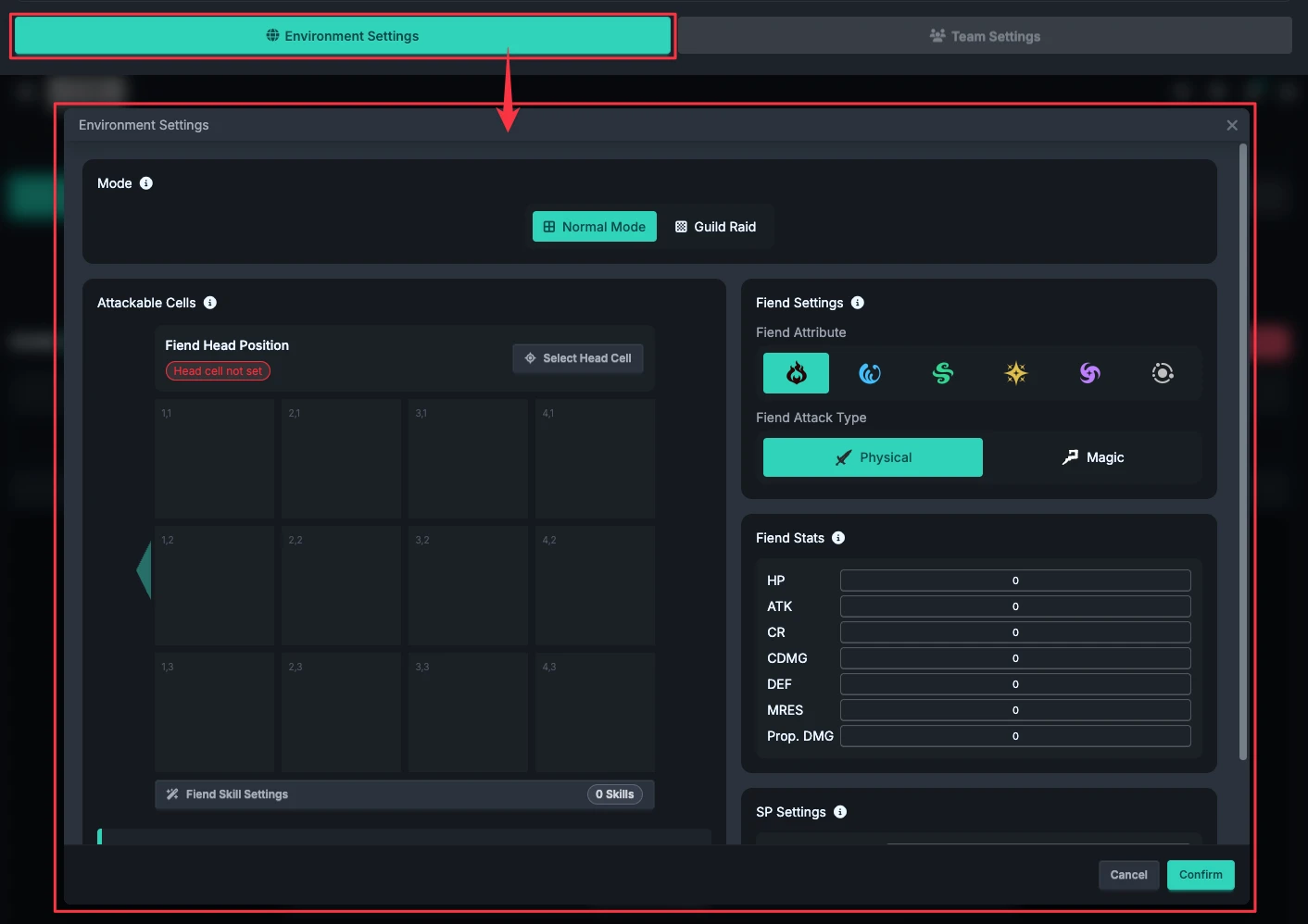
Importing a template in the same mode preserves the current FRC environment, including element resistance; a different mode rebuilds the board and environment. Danger zones in a template are only visual hints: they do not automatically become Fiend attacks with damage and effects. You still need to configure each Fiend Turn.
4. Export FRC as a Formation Template
After organizing ally action order, team rotation, and positions in FRC, click "Export as Formation Template" in the "Formation Template" menu.
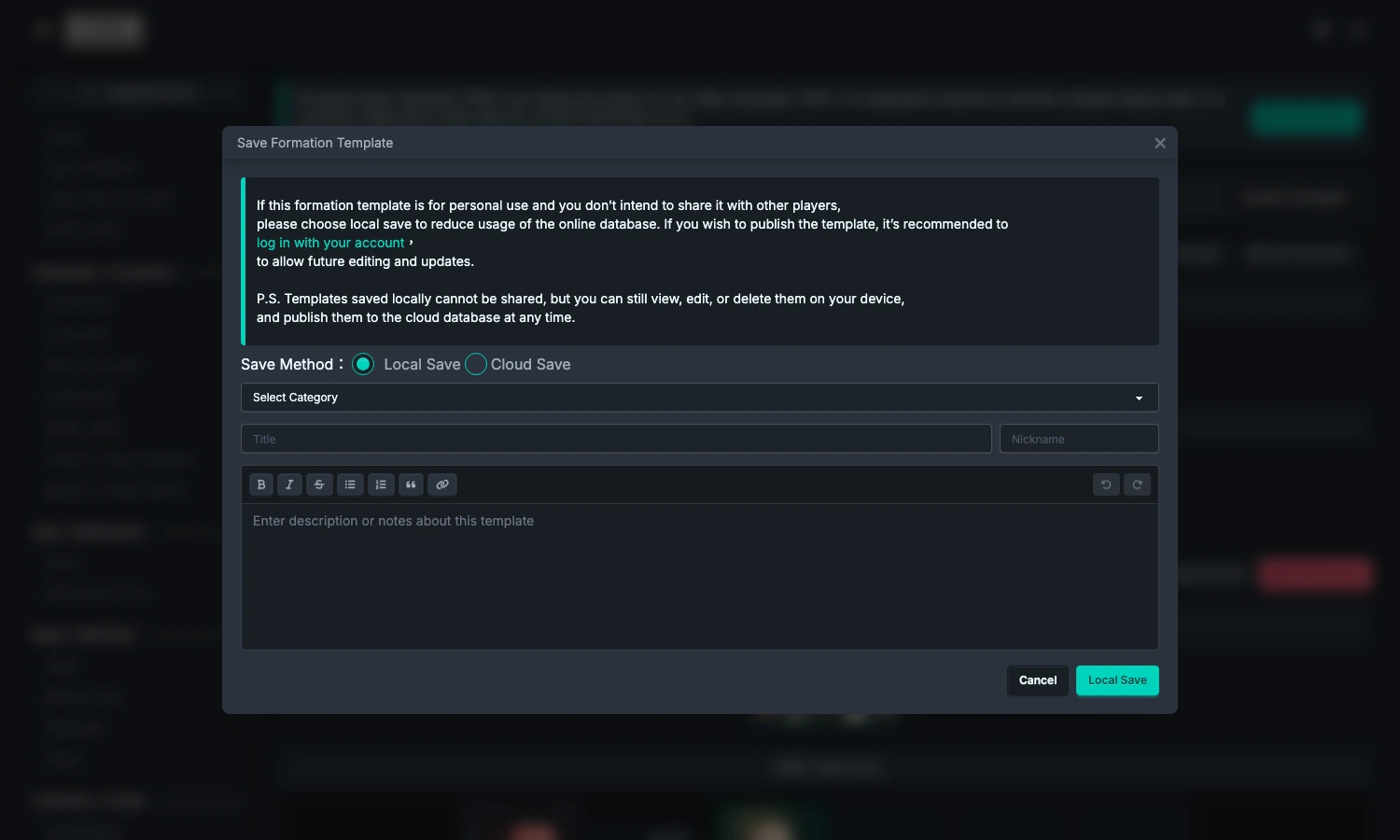
The formation template save flow opens after export. You can choose local saving or cloud publishing; the later steps are the same as for a normal formation template.
FRC attempts to convert:
- The mode and environment information that formation templates can understand.
- Teams and ally actions from Rounds.
- Character positions, action order, skills, and burst settings.
- Guild Raid Assistant actions.
- Convertible SP settings and Fiend cell information.
- The parts of player collection data that formation templates can save.
5. FRC-only Data Not Included in Export
A formation template is not an FRC save, so it does not fully preserve the FRC calculation environment. Keep the following editable settings separately with "Save Formation":
- Fiend skill settings.
- Each Fiend Turn's skill, states, damage groups, and ending mode.
- GearPicker Mode's calculation-member settings and candidate selections.
Calculation results, character reports, gear allocation results, and battle states generated by the timeline are not reports that an FRC save permanently preserves. Recalculate after loading the settings again.
An exported formation template can include Fiend attack target cells as danger-zone hints and the current-turn skill name as a description. It does not include Fiend skill damage or state logic, and importing it back into FRC cannot restore those parts.
If your goal is to return to FRC later and continue calculating, use Save and Share. If your goal is to share the ally timeline in the formation template list, use "Export as Formation Template".
6. Recommended Flow
From formation template to FRC
- In FRC, click "Formation Template".
- Choose "Import Formation Template".
- Import from public templates, My Templates, or a share link.
- Check the environment, teams, Rounds, and ally actions.
- Complete Fiend skills, Fiend turns, and calculation settings.
From FRC back to a formation template
- Complete the environment, teams, and ally Round timeline in FRC.
- Click "Formation Template".
- Choose "Export as Formation Template".
- In the formation template save window, fill in the title, category, description, and save method.
- If you still need to preserve FRC-only Fiend and calculation data after exporting, save it separately with "Save Formation".
FAQ
Q. Why do I still need to set Fiend turns after importing a formation template?
A. Formation templates mainly save ally team and action data. FRC's Fiend skills, Fiend states, Fiend turns, and calculation settings must be completed separately.
Q. Can I continue editing after importing?
A. Yes. The imported content becomes the current FRC timeline. You can continue adding Rounds, adjusting actions, changing teams, or completing Fiend settings.
Q. Does exporting as a formation template affect the current FRC data?
A. No. Export only sends convertible data from the current FRC page to the formation template save flow; it does not clear or modify the data on the current FRC page.
Q. Can the exported formation template be imported back into FRC?
A. Yes, but it can only restore the data that formation templates can save. FRC-only Fiend skills, Fiend turns, and GearPicker settings should be saved separately as an FRC save; calculation results are not permanently saved and must be recalculated after returning.