Gear Picker
Introduction
The Gear Picker calculates the highest-damage gear setup using only the gear you already own, without changing any substats.
With this tool, you can:
- Find the best gear combination based on your personal gear library.
- Mark used gears to avoid reusing them for other characters.
- Manage multiple characters' gear setups and records.
Gear Picker URL: Click here
Quick Start
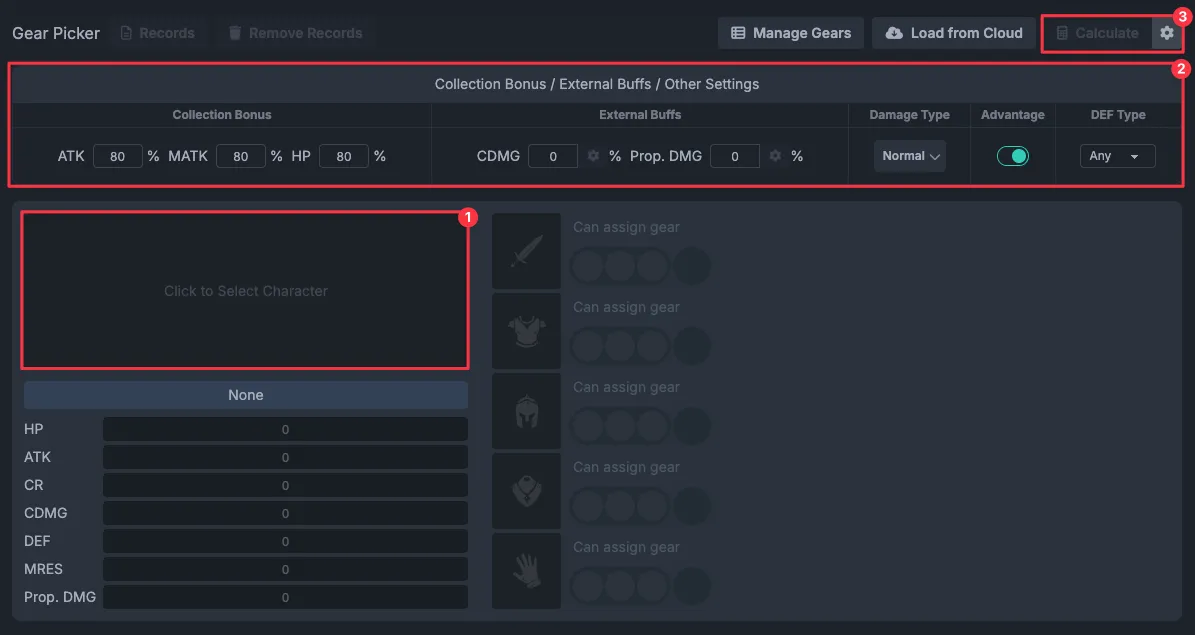
- Select a character.
- Adjust other settings as needed (damage type, element advantage, defense type, etc.).
- Click the 「Calculate」 button.
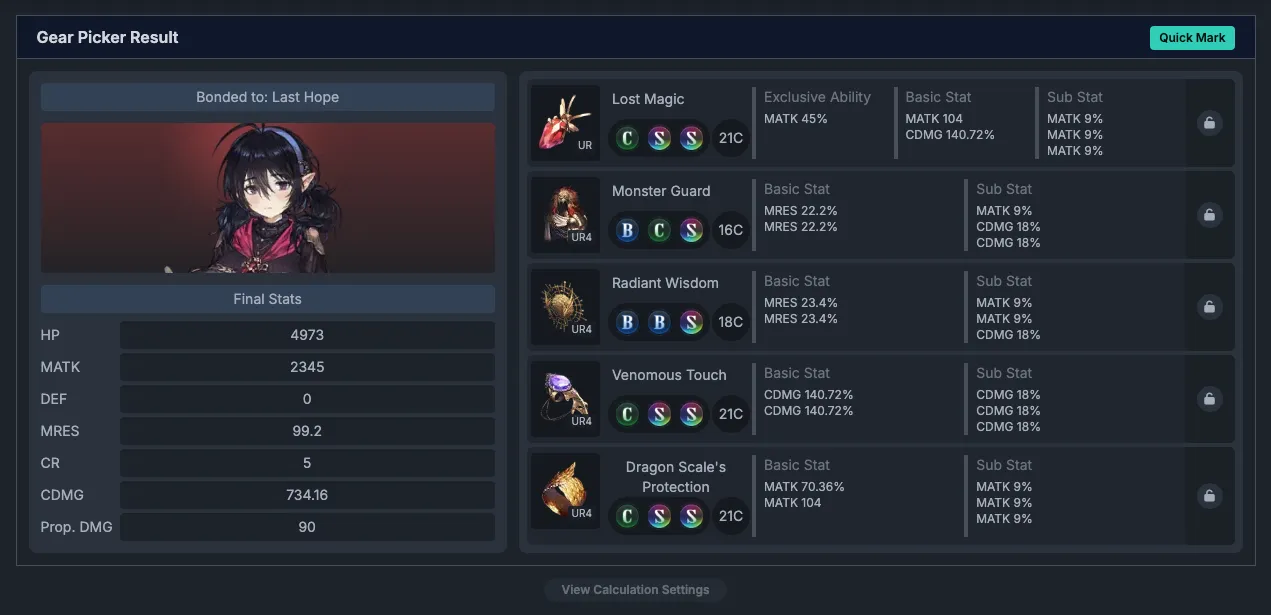
After calculation, the result window will show:
- Selected Gear: Recommended gear for each slot
- Bound Outfit: Suggested outfit to bind
- Damage Value: Estimated damage and related stats
1. Preparation
Before using the Gear Picker, you need to create your personal gear data.
Add Gear Data
Go to the Gear Manager page to build your gear library.
That page provides full gear management features:
- Create / edit / delete gear
- Duplicate gear to quickly create similar copies
- Search and filter
- Multiple sort options
- Local and cloud sync
For detailed usage, please refer to the Gear Manager documentation.
2. Using the Gear Picker
Basic Flow
1. Load Gear Data
Method 1: Auto load
- The system automatically reads locally saved gear data
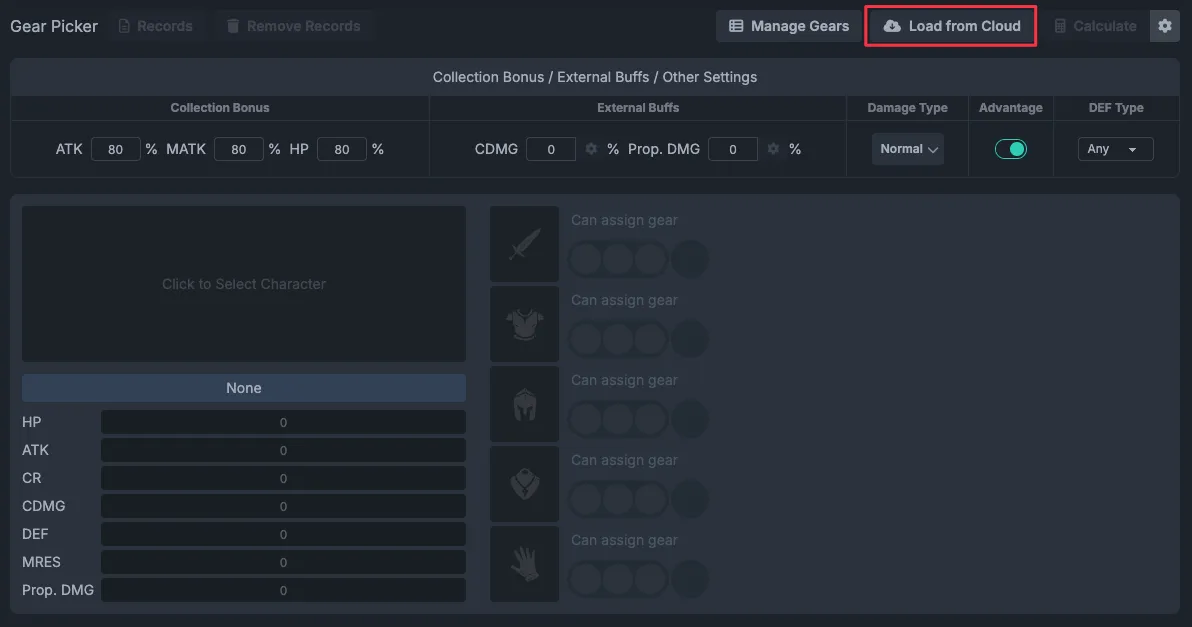
Method 2: Load from cloud
- Click 「Load from Cloud」 (sign-in required) to load your cloud gear data
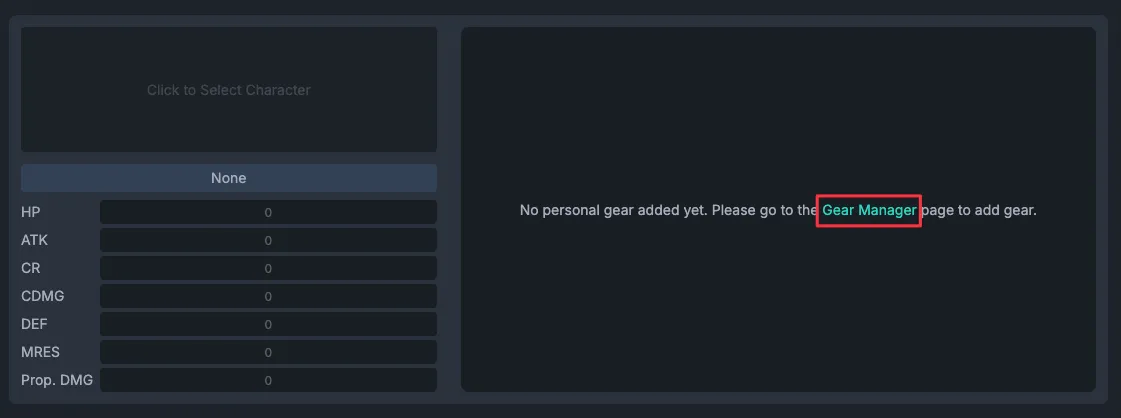
If no gear data exists, a hint will appear and guide you to the Gear Manager page.
2. Select a Character
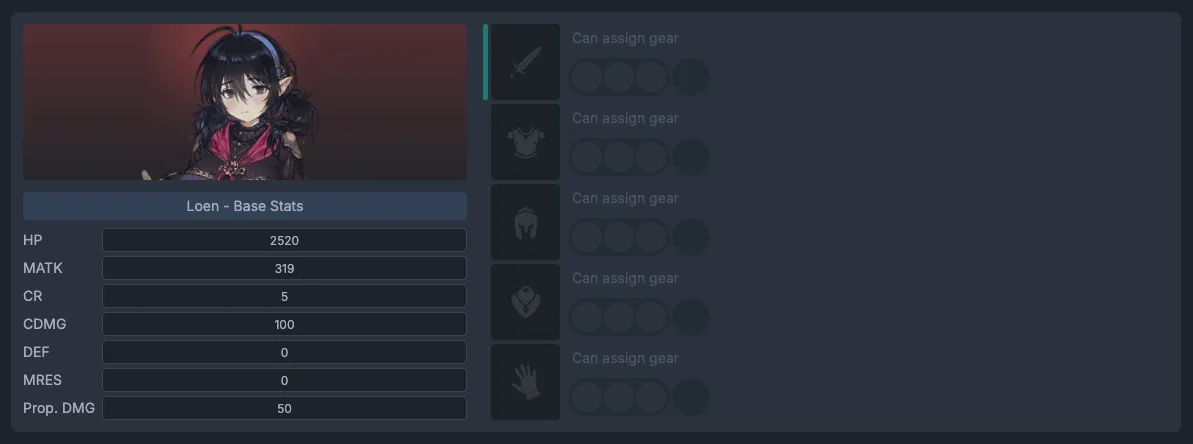
Click the character card to open the character selector and choose the character you want to build.
The base stats for that character will be loaded automatically.
3. Character Status Settings
Engraving / Awakening
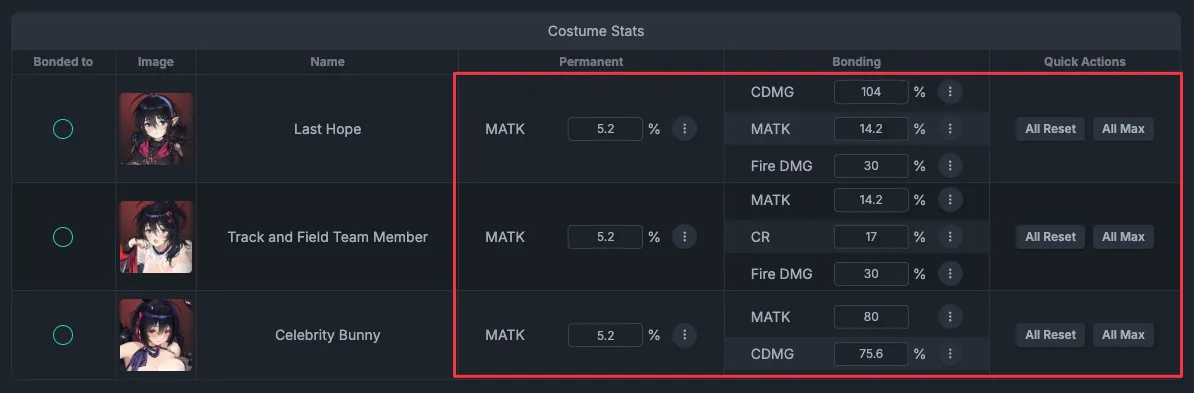
- Set engraving level
- Set awakening level
- Quick buttons are available (Max / Reset)
Outfit Settings
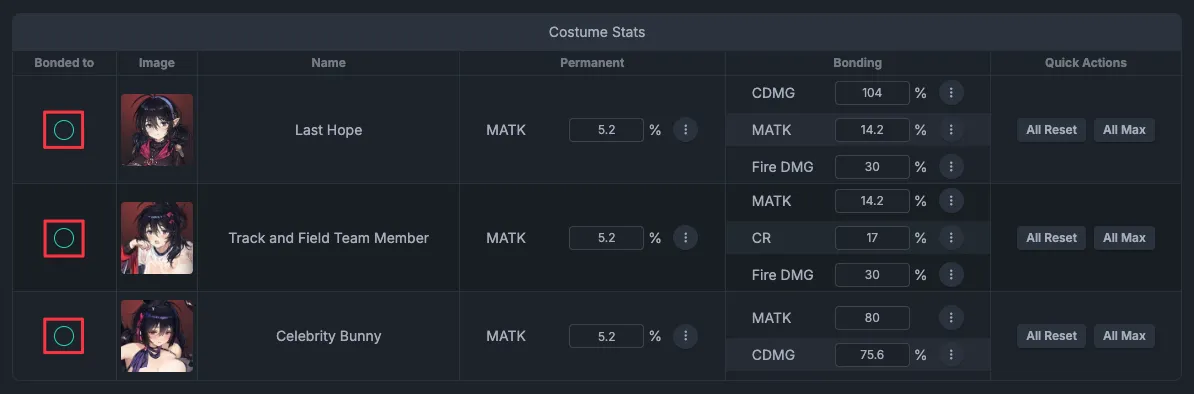
- Choose whether to bind a specific outfit
- If none is specified, the system will search for the best outfit automatically
4. Other Settings
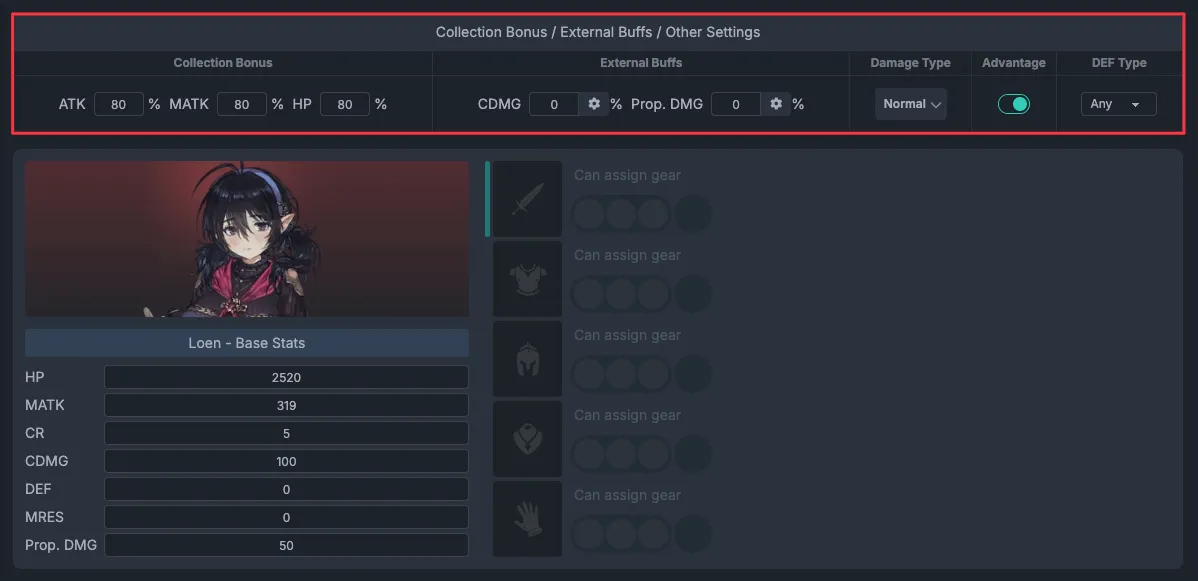
Collection Bonus
- Set ATK / MATK and HP collection bonus percentages
- Defaults to max
External Buffs
- Set buffs from support characters or skills
- Quick buttons are available for common supports
Other options
- Damage Type: Normal / Fixed / HP-scaling
- Element Advantage: Whether to include elemental advantage bonus
- Defense Type: Choose physical or magical defense for the target
5. Assign Specific Gear (Optional)
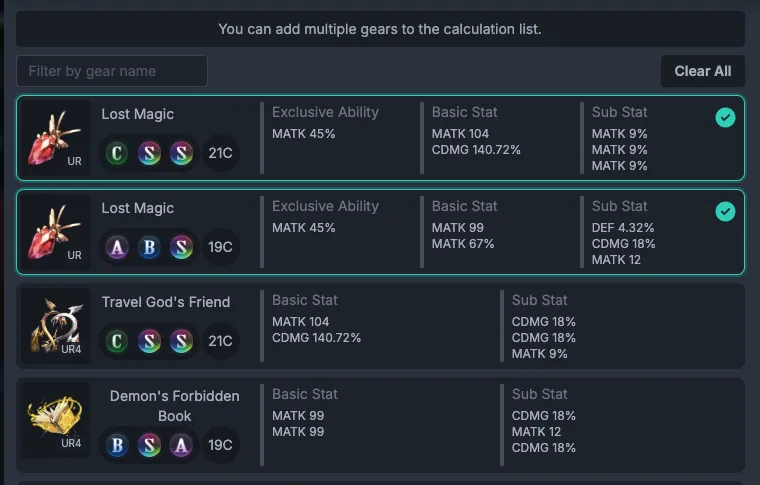
If you want a certain slot to use specific gear, click that slot and select one or more gears.
During calculation, the system will always use the assigned gear and will not try other options.
Typical use cases:
- You own the exclusive weapon and want to always use it
- You already have a very strong piece for a slot and want to lock it in
6. Filter Gear Types
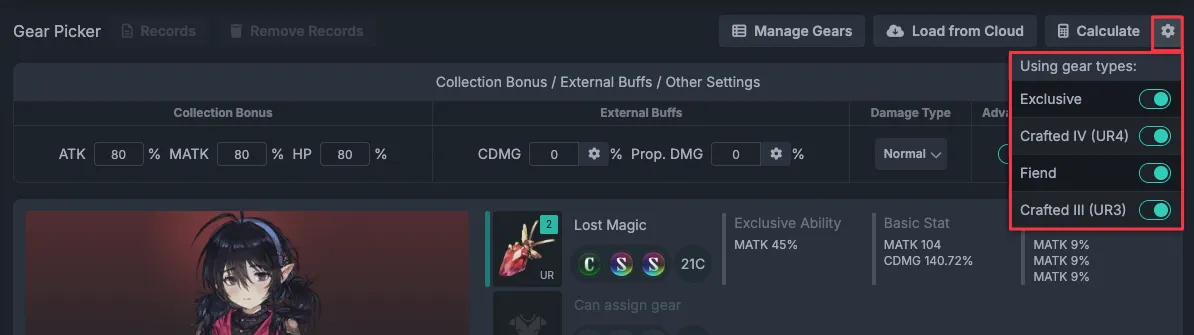
Click the gear icon next to the 「Calculate」 button to choose which gear types to include:
- EX (Exclusive)
- UR4
- Monster
- UR3
Unchecked types will be excluded from the calculation.
Calculation Results
Click 「Calculate」 to start the calculation.
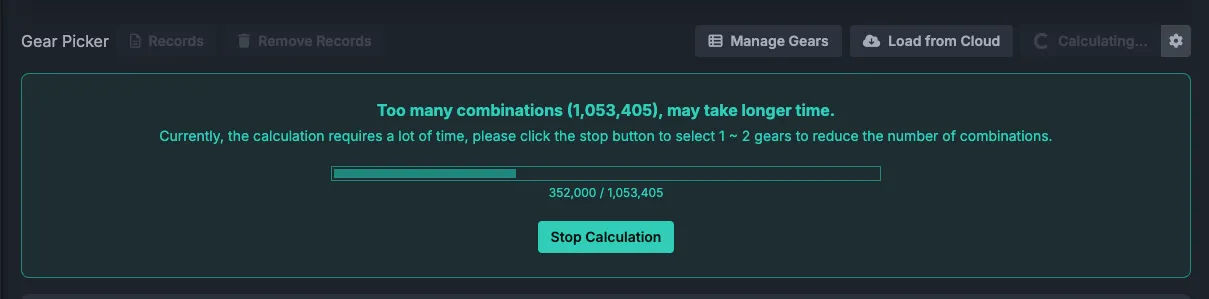
During calculation
- A progress bar is shown
- Shows current combinations vs total combinations
- You can stop the calculation at any time
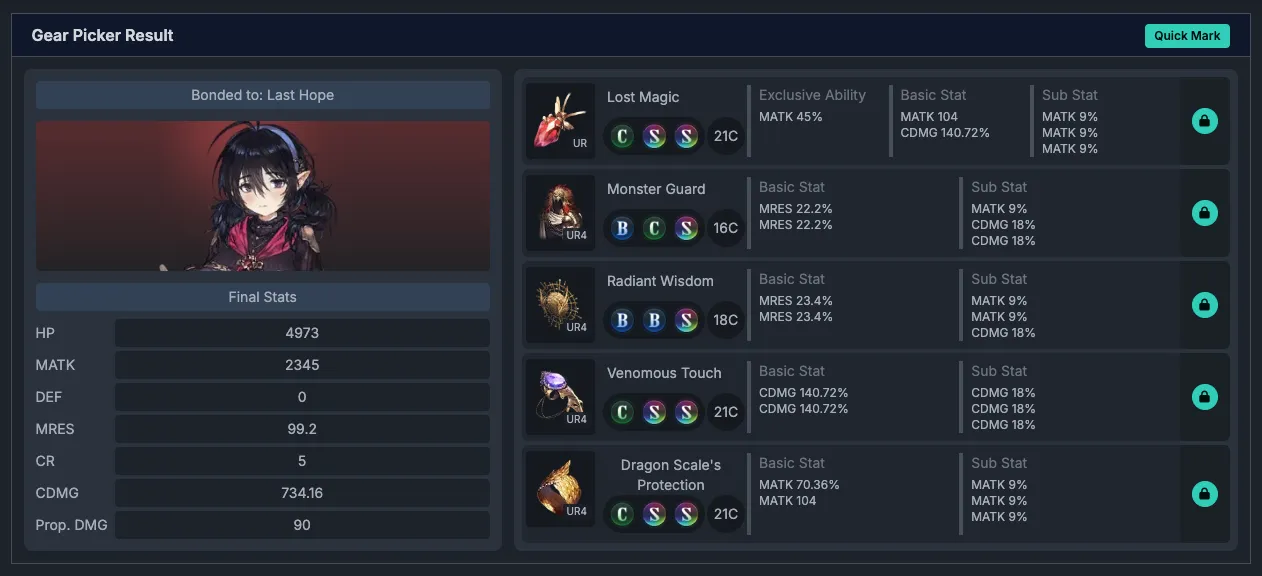
Result window
The result window shows the best setup, including:
- Selected Gear: Recommended gear for each slot (weapon, helmet, armor, pants, accessory)
- Bound Outfit: Recommended outfit
- Stat Preview: Final stats and estimated damage
- View All: See other possible combinations
Quick Mark
At the top-right of the result window:
- Mark all as used: Mark all gears used in this result as “used”
- Unmark all: Mark them back as “unused”
Managing Gear Usage Status
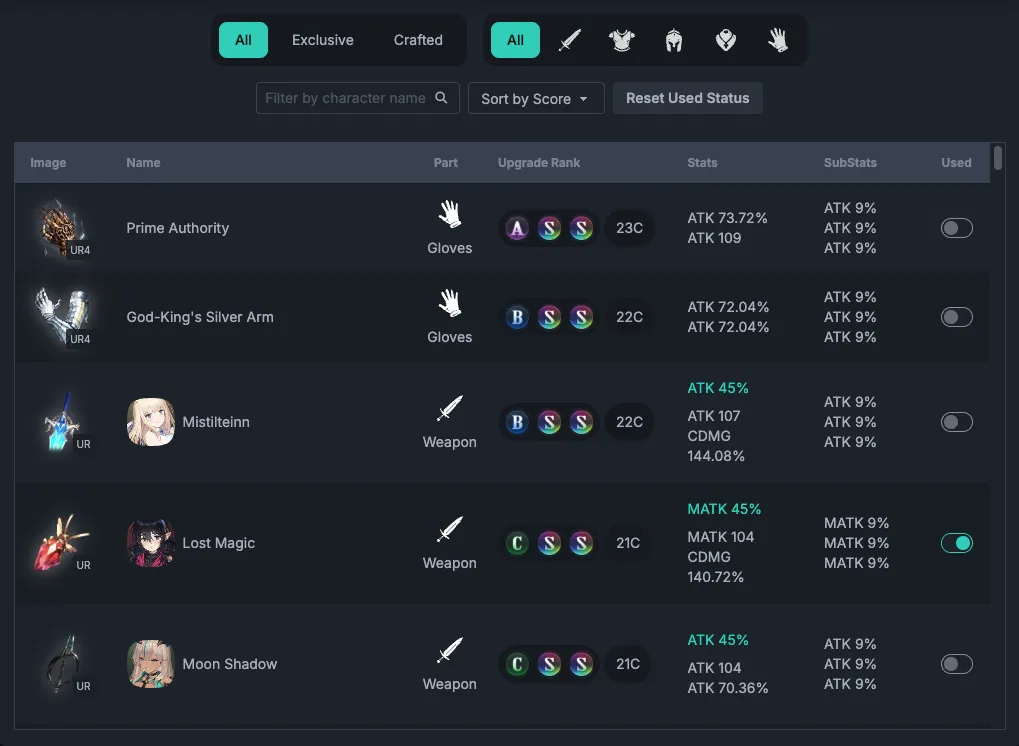
Marking as used
After finishing a build for character A, it is recommended to mark the used gears:
- Check the gears you want to mark in the result window
- Or use the quick mark buttons to mark all at once
- Used gears will be highlighted
Why mark them?
When calculating for the next character:
- Used gears will not be included
- Each character can get a unique set of gear
- You can build multiple characters in sequence without overlap
Example flow:
- Calculate for character A (using your best gear)
- Mark all gears used by A as “used”
- Calculate for character B; the system will avoid A's gear and use the next best options
Build Records
Click the 「Records」 button to view all saved builds.
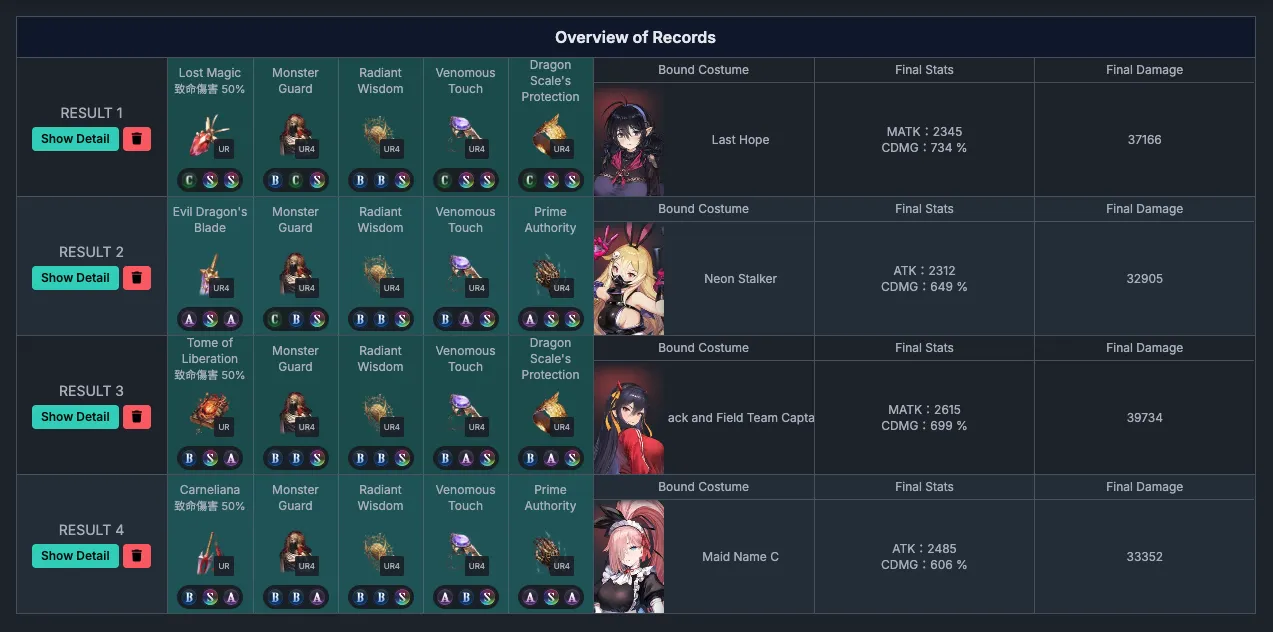
Record list features:
- See a list of characters with saved builds
- Gears with a colored background are marked as used
- Click 「Result」 to reopen the detailed result for that character
- You can unmark gears from the detail window
Clear All Records
Click 「Clear Records」 to remove all build records.
You will be asked whether to also reset gear usage:
- Yes, reset gear usage: Clear records and mark all gears as unused
- No: Clear records only, keep gear usage as is
Tips
Recommended flow for multiple characters
Start with your main DPS
- Calculate for the highest-priority damage dealer
- Give them your best gear
Then build secondary characters
- Calculate for other characters one by one
- The system will automatically use the next best gears
Check records regularly
- Review how gear is distributed
- Recalculate or adjust as needed
Adjust flexibly
- You can always unmark gears and redistribute them
- Change build priority based on content and teams
FAQ
Q. Why is my gear list empty?
A. Please go to the Gear Manager page and add your gear first. The Gear Picker requires existing gear data to work.
Q. How is this different from the Option Calculator?
A.
- Option Calculator: Assumes you can freely assign substats and calculates an ideal theoretical ratio
- Gear Picker: Uses only the gear you actually own (without changing substats) and finds the best combination
They serve different purposes and can be used together.
Q. How can I see which gears are already used?
A. Used gears are highlighted. You can also see the usage status in the gear management modal.
Q. If I delete a record, can gear usage be reset automatically?
A. Yes. When deleting a record, a confirmation dialog will ask whether to reset the gear usage of that build.
Q. Can I keep records for multiple characters at the same time?
A. Yes. The system stores all build records and you can review them in the 「Records」 screen.
Q. If I assign specific gear, will the result always use it?
A. Yes. Assigned gear will always be used in the calculation, even if there is a theoretically stronger alternative.
Q. Can I exclude specific gear types from calculation?
A. Yes. Use the gear icon next to the 「Calculate」 button to choose which gear types (EX / UR4 / Monster / UR3) to include.