Gear JSON Import Guide
The Gear JSON import feature lets you export your in-game gear data as JSON, then import it into Gear Manager so Gear Picker can use your actual in-game gear data.
Import page: Click here
1. Install BrownDustX (BDX)
Before exporting gear JSON, install BDX first.
BDX is an external plugin for BrownDust2's PC Client. Refer to:
For the first installation, follow the official BDX guide to complete:
- Install BepInEx
- Install BrownDustX (BDX)
- Start the game and confirm BDX works correctly
After the game is updated, wait for the BDX author to release a compatible version before installing a new BDX version.
2. Export gear JSON from the game
After installing BDX, enter the game and open the BDX window:
F8 -> GearExport -> Export GearClick Export Gear, and BDX will export a gear JSON file.
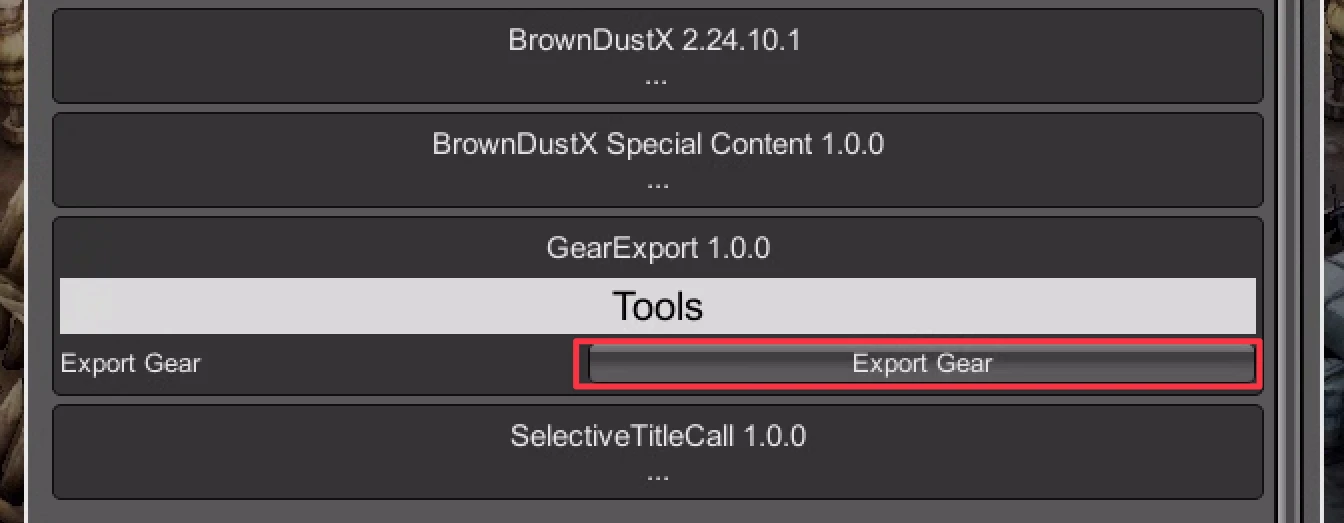
Exported JSON location:
"X:\Neowiz\Browndust2\Browndust2_10000001\BepInEx\plugins\BrownDustX\GearExport\gear...json"This path is only a reference. The game folder may differ depending on each user's installation environment.
3. Import to the website
Return to the website's Gear JSON import page.
- Click "Import JSON"
- Select the JSON file exported by BDX
- Confirm the gear list shown on the page
- Choose "Update Local Gear" or "Update Cloud Gear"
Before updating, the website will show a confirmation dialog. After confirmation, the current GearManager gear data will be fully replaced by the gear successfully imported from this JSON.
4. Local update and cloud update
Update Local Gear
- Replaces the current browser's local GearManager gear data
- Does not require sign-in
- Only affects the current device and browser
Update Cloud Gear
- Requires sign-in
- Replaces the cloud GearManager gear data
- Also backs up the imported data to local gear data after success
5. Import rules
Gear JSON import currently follows these rules:
- Only gear enhanced to level 9 is imported.
- Crafted gear currently supports
UR4/UR3. - Exclusive gear supports
UR/SR; only exclusive gear importsSRgear additionally. - Fiend gear only imports
UR3gear and does not importSRFiend gear. - Unsupported gear, missing data, or parse failures will not be imported.
If a newly released character's exclusive weapon does not appear in the import result after a game update, it usually means the website data has not been updated yet. Wait for the website to update, then import the JSON again.
6. Important notes
The import feature fully replaces your gear data. It does not append gear.
After clicking update and confirming:
- The current GearManager gear data will be replaced by the gear successfully imported from this JSON
- Unsupported or failed gear will not be retained
- Existing GearPicker records that reference old gear may no longer match the original gear
If you are not sure whether you want to overwrite your data, avoid updating cloud data for now.
7. Data safety
The JSON file is parsed and previewed in your browser first.
Imported gear data is only saved to the cloud after you click "Update Cloud Gear" and confirm.
If you only click "Update Local Gear", the data is stored only in the current browser.